Tasks, Notes & Inbox
The productivity layer that keeps your team on top of the work behind every event and contact. Track to-dos with statuses, priorities, assignees, and due dates; capture meeting notes and context linked to any record; and triage every email, message, and form response from one unified comms Inbox.
Tasks
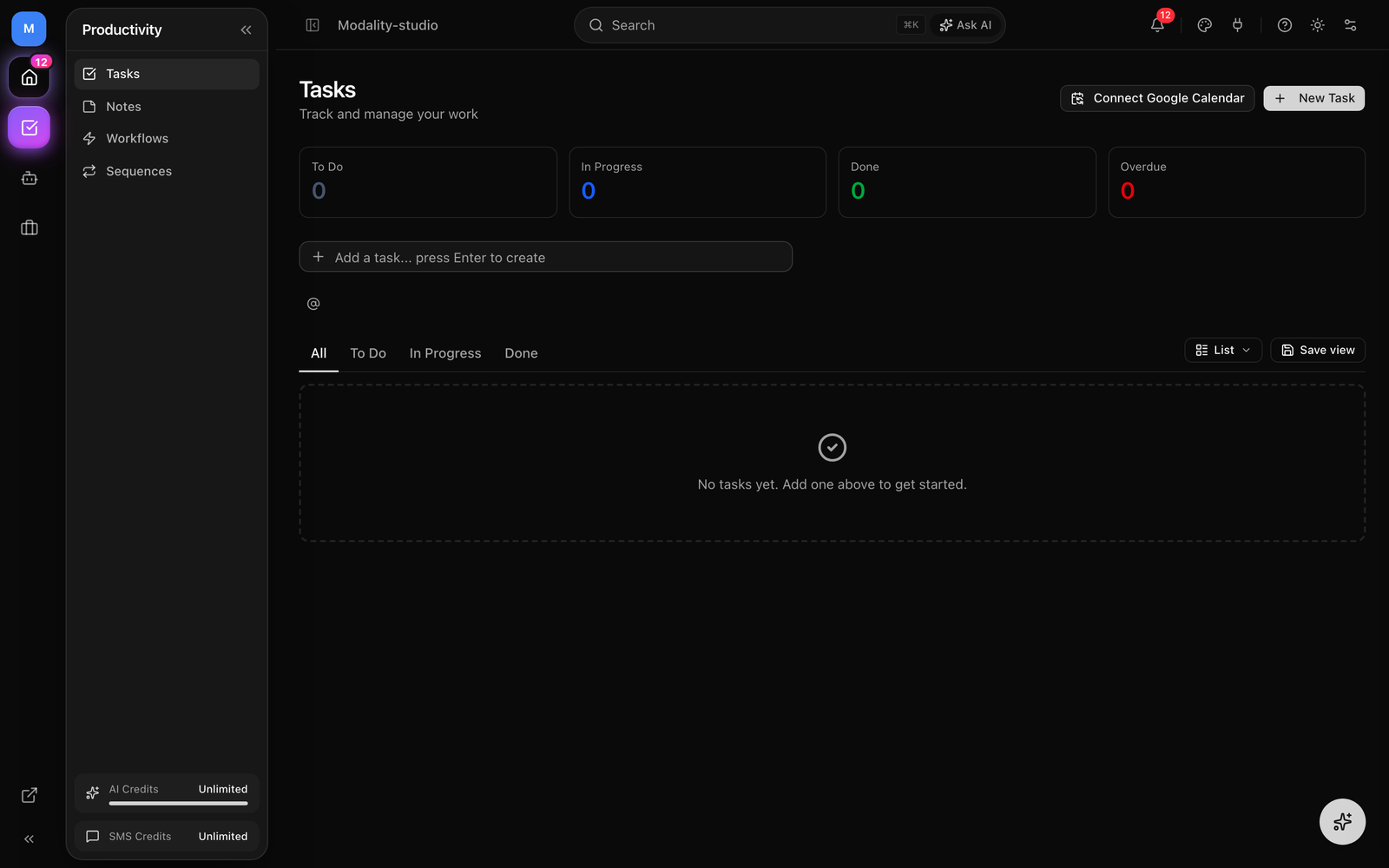
Tasks are lightweight to-dos scoped to your workspace. Every task has a title, an optional rich-text description, a status, a priority, an optional due date, an optional assignee, and an optional link to a record (a person, event, or any custom object). Open Tasks from the Productivity section of the sidebar.
The stats bar
Across the top, four live counts summarize your workload: To Do, In Progress, Done, and Overdue. Overdue counts any task still TODO or IN_PROGRESS whose due date is in the past.
Creating a task
There are two ways to add a task:
- 1
Quick add
Type a title into the "Add a task…" input and press Enter. The task is created instantly as
TODOwith no priority, and the input stays focused so you can add several in a row. Use the link control beneath the input to attach the new task to a contact, event, or record as you create it. - 2
New Task dialog
Click New Task for the full form: title, a rich-text description, status, priority, due date, assignee, and a Link to picker for contacts, events, or records. Press Enter in the title field to save quickly.
Status
Every task is in one of four statuses:
- To Do (
TODO), the default for a new task. - In Progress (
IN_PROGRESS), actively being worked. - Done (
DONE), completed; this stamps a completion time on the task. - Cancelled (
CANCELLED), dropped; hidden from the default "All" tab.
Toggle a task's checkbox to flip it between DONE and TODO. Marking a task DONE records its completed at time automatically; moving it back to any non-done status clears that timestamp. You can also set status inline from the status control on each row, from the Board view by dragging, or from the New/Edit dialog.
Priority
Tasks carry one of five priorities: Urgent, High, Medium, Low, or No priority (the default). Each level has its own icon and color, and the List view sorts by due date first, then priority. Set priority inline from the priority control on a row, or in the task dialog.
Due dates
Set a due date from the inline date control (with one-click Today, Tomorrow, and Next week shortcuts plus a calendar picker) or in the dialog. Due dates render as friendly relative labels, Today, Tomorrow, 3d, or 2d overdue, and overdue, not-yet-done tasks are grouped into a red Overdue section at the top of the List view. Clear a due date anytime from the same control.
Assignees
Assign a task to a teammate with the assignee picker. When you assign a task to someone other than yourself, that person is notified. Assignee avatars appear on task cards in the Board view.
Linking tasks to records
A task can be linked to a contact, event, or any custom-object record so it shows up in context on that record. Linked tasks display a small badge with the object's name (e.g. Person, Event). You can create and manage tasks directly from a record's activity feed as well as from the Tasks page, the two stay in sync.
List, Board & Calendar views
Switch views from the toolbar on the right of the tab bar. Your choice is remembered as a saved default.
- List, a dense checklist with inline priority, due-date, and status controls per row. Overdue tasks are pulled into a highlighted group at the top.
- Board, a Kanban board with a column per status. Drag a card from one column to another to change its status; each column shows a live count.
- Calendar, a month grid that plots tasks on their due dates (up to three per day, with a "+N more" overflow), plus a separate No due date list underneath for unscheduled work. Navigate months or jump back to Today.
GIF: the Tasks view switcher, start in List, switch to Board and drag a card between the To Do and In Progress columns, then switch to Calendar to show tasks landing on their due dates.
Demo GIF / screenshot to be added
The status tabs
Above the views, tabs filter the current view by status, All (everything except cancelled), To Do, In Progress, and Done, each with a count of matching tasks.
Google Calendar Sync
Push tasks with due dates to Google Calendar so they show up alongside the rest of your schedule. Tasks sync as all-day events on their due date.
- 1
Connect Google Calendar
If your workspace isn't connected yet, a Connect Google Calendar button appears in the Tasks header. Click it to run the Google OAuth flow and authorize calendar access.
- 2
Sync your tasks
Once connected, the button becomes Sync to Calendar. Click it to push every non-cancelled task to your primary Google calendar. New links are created on first sync and reused afterward.
- 3
Stay in sync
Re-syncing updates existing events. A completed task's calendar event is prefixed with a checkmark, and cancelling a task removes its calendar event.
Notes
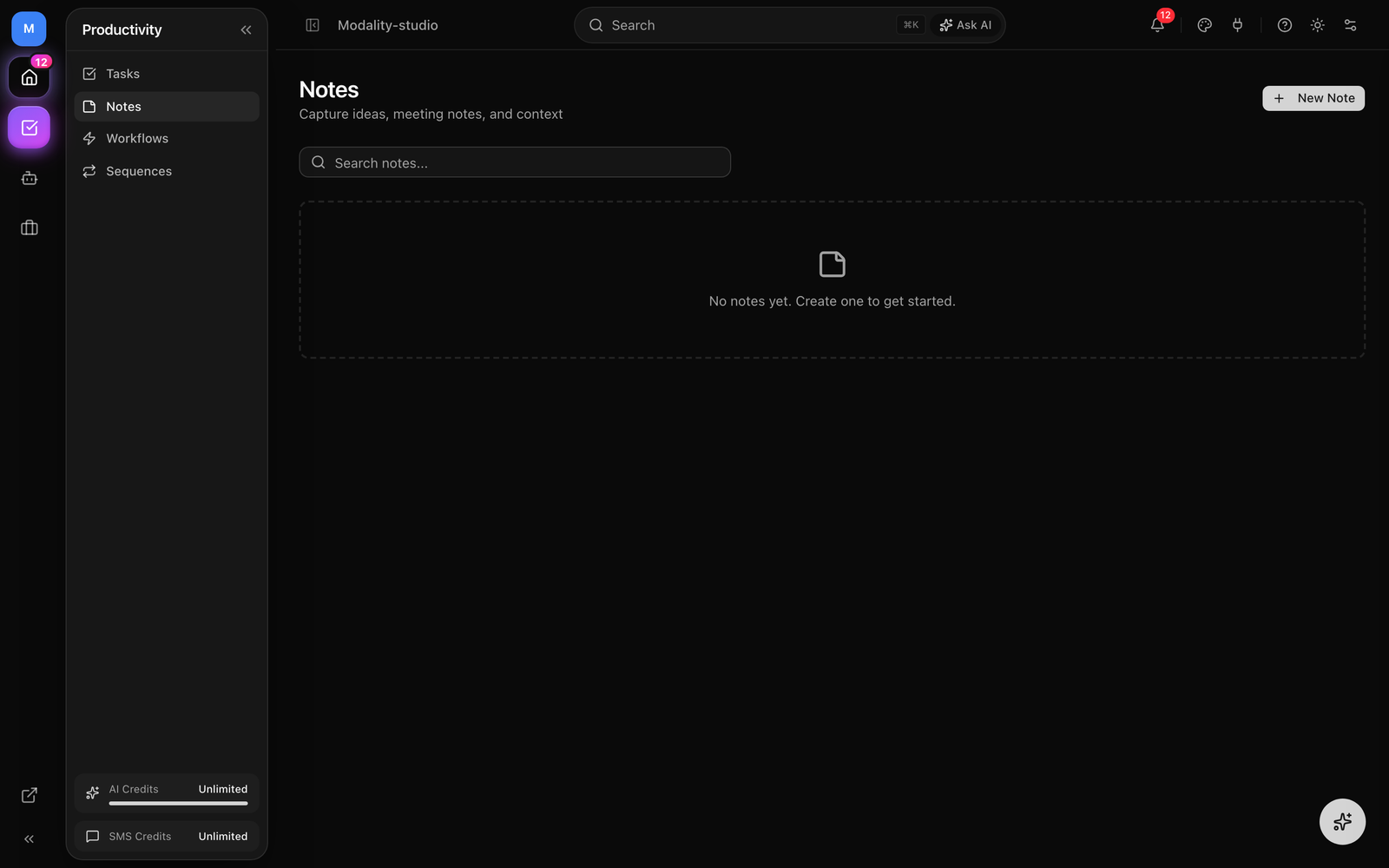
Notes capture ideas, meeting notes, and context. Each note is rich text, can be linked to a record (a person, event, or custom object), can be assigned to a teammate, and records who authored it and when. Open Notes from the Productivity section of the sidebar.
Writing a note
- 1
Start a note
Click New Note to open the compose card with a full rich-text editor.
- 2
Write and link
Type your note. Use the link control in the editor toolbar to attach the note to a contact, event, or record so it surfaces in context on that record.
- 3
Save
Click Save Note or press ⌘+Enter (press Esc to cancel). The note appears immediately at the top of the grid.
The notes grid
Notes are shown as cards, newest first. Each card previews the first line as a title with the rest of the body beneath, shows how long ago it was last updated, and displays a badge for any linked record. Use the Search box to filter notes by their text. Click a card to open the full editor; use the card menu to edit or delete.
Assigning & notifications
A note can be assigned to a workspace member. Adding a note notifies your workspace, and assigning a note to someone other than yourself notifies that person directly.
Notes on records
You don't have to start from the Notes page, every record has an activity feed with a quick Note composer, so you can jot context directly on a person or event. Notes created there are automatically linked to that record and appear in the central Notes list too.
Note Templates
Note templates are reusable, workspace-scoped note bodies, each has a name and content, for the notes you write over and over (a call-summary format, a site-visit checklist, an intake questionnaire). When a note is created from a template, it keeps a reference back to the template it came from, so you always know which format was used.
- Named & reusable, save a standard note body once and reuse it across records.
- Workspace-scoped, templates belong to the workspace and are shared by the whole team.
- Traceable, a note remembers the template it was created from; deleting a template leaves existing notes intact and simply detaches the reference.
The Comms Inbox
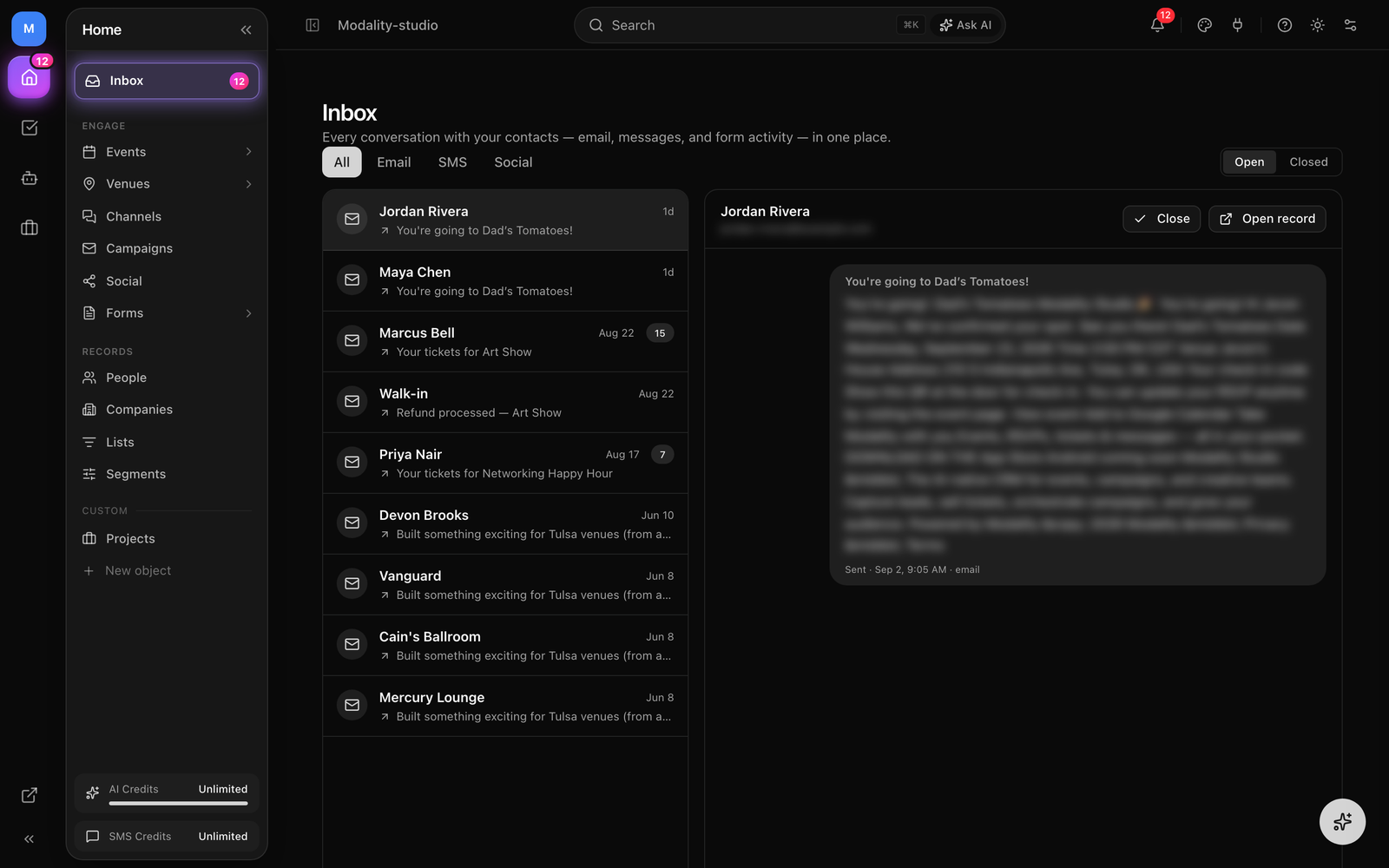
The Inbox is your unified conversation hub, every email, message, and form response tied to a contact, rolled up into one thread per person. It's pinned to the top of the Home section in the sidebar so it's always one click away.
What the Inbox aggregates
The Inbox is a read layer over the communication you already capture. For each contact it merges recent activity from three sources into a single thread showing the latest item and a total count:
- Emails, sent email logged for the contact (outbound).
- Messages, SMS, email, and social messages, both inbound and outbound.
- Form submissions, when a contact submits one of your forms (inbound).
Filtering & triage
- Channel filter, All, Email, SMS, or Social.
- Status toggle, switch between Open and Closedconversations. Threads default to open.
- Unread markers, a blue dot flags threads with unread activity; opening a thread marks it read.
Each thread row shows the contact's name, a channel icon, a direction arrow (inbound vs outbound), a preview of the latest message, a relative timestamp, and a count badge when there's more than one item.
Reading a conversation
Select a thread to open its detail pane on the right. When captured messages exist they render as a chat-style transcript, inbound and outbound bubbles with subject, timestamp, and channel. For older contacts without persisted messages yet, the pane falls back to that contact's full activity timeline. From the header you can Close (or Reopen) the conversation and jump straight to the contact's record.
On the Home Dashboard
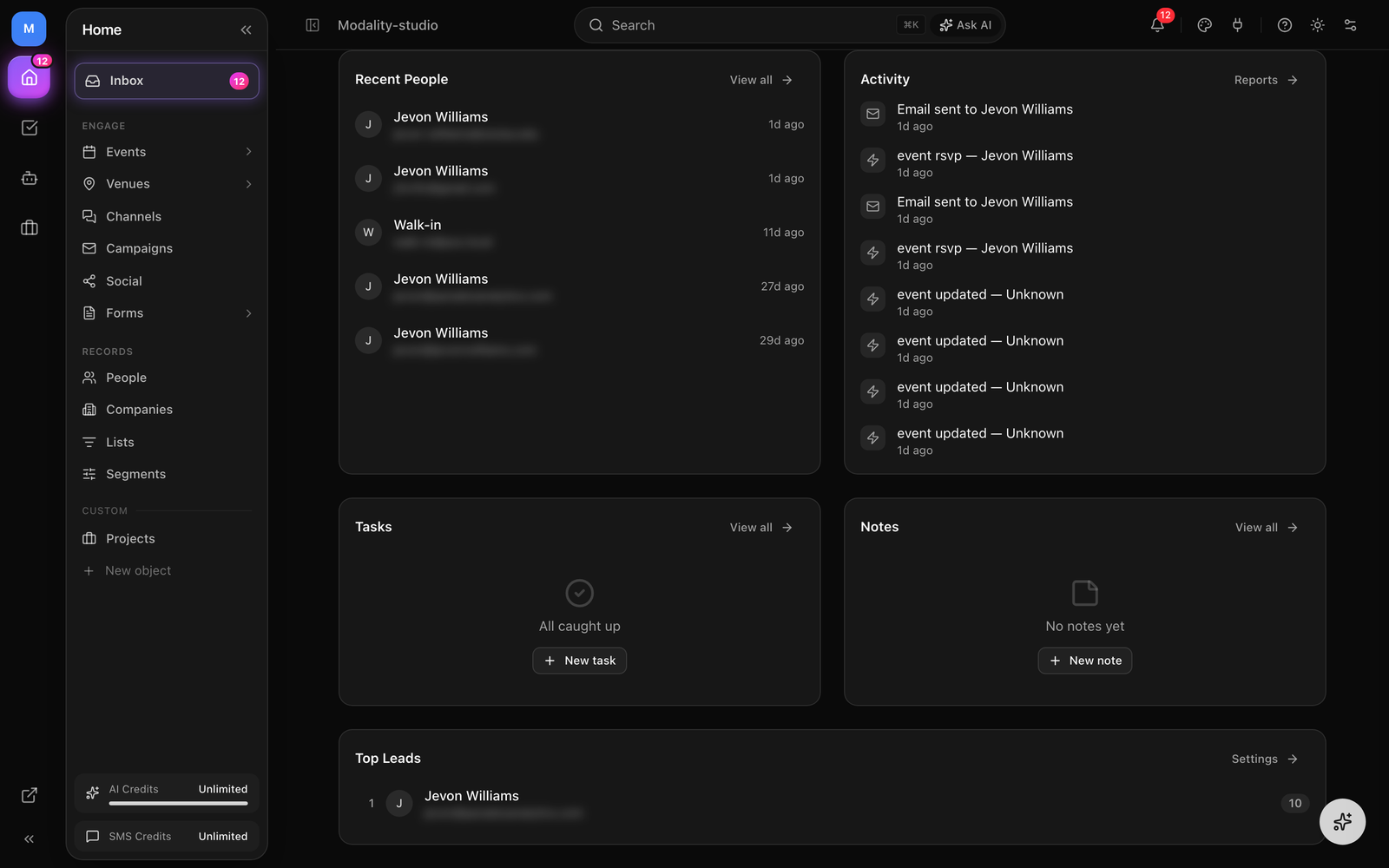
Your Home dashboard surfaces all three of these tools at a glance so you can start the day oriented:
- Tasks card, your open work (To Do and In Progress), with priority coloring, linked-record labels, and due-date badges; the greeting line even counts how many tasks are due today or overdue.
- Notes card, your most recent notes, each with a preview, time-ago, and any linked-record badge.
- Inbox, pinned at the top of the Home navigation as the comms hub, one click from every conversation.
Each card links through to its full page (Tasks, Notes, or the record it references), so the dashboard is a launchpad rather than a dead end.