Channels
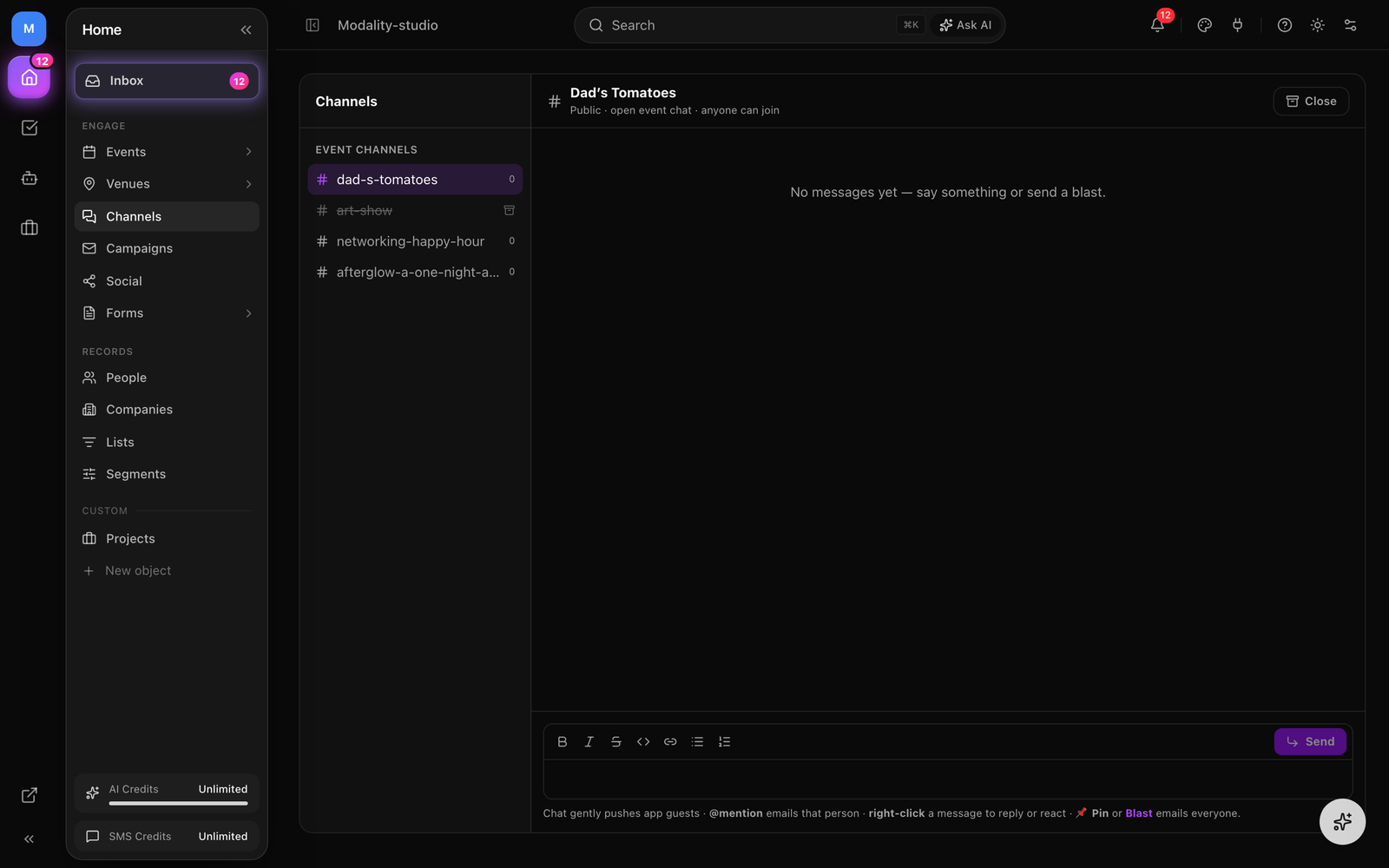
Every event can have its own chat channel, a running conversation between the host and guests, right on the event. Modality supports two kinds: an open public chat for ordinary events, and a private, approved-guests-only channel for RSVP / approval events. Both live on the same surfaces (the event page, the mobile app, and the host's Channels sidebar), support @mentions, pins, reactions, and threaded replies, and automatically archive after the event ends.
Two Kinds of Channel
A channel is either public or private, decided by the event, not by a separate setting you have to hunt for:
- 💬 Public event chat, the default for a normal (non-approval) event. Anyone signed in who is attending the event can read and post. It needs no setup: the channel springs into existence on the first message.
- 🔒 Private channel, for events with Require approval turned on. Only approved guests (approved, not declined, not removed) can read or post, and every message is server-mediated so no un-approved person can slip in. Approval events default to a private channel; you can still turn chat off entirely.
There is a single stored flag, Event chat on/off, that governs both. When it's on, an approval event gets the private channel and every other event gets the open public chat. When it's off, the event has no chat surface anywhere: not in the sidebar, not on the event page, not for guests. Existing events keep their chat; hosts and venues are never forced to use it.
Turning Chat On, Modes & Anonymity
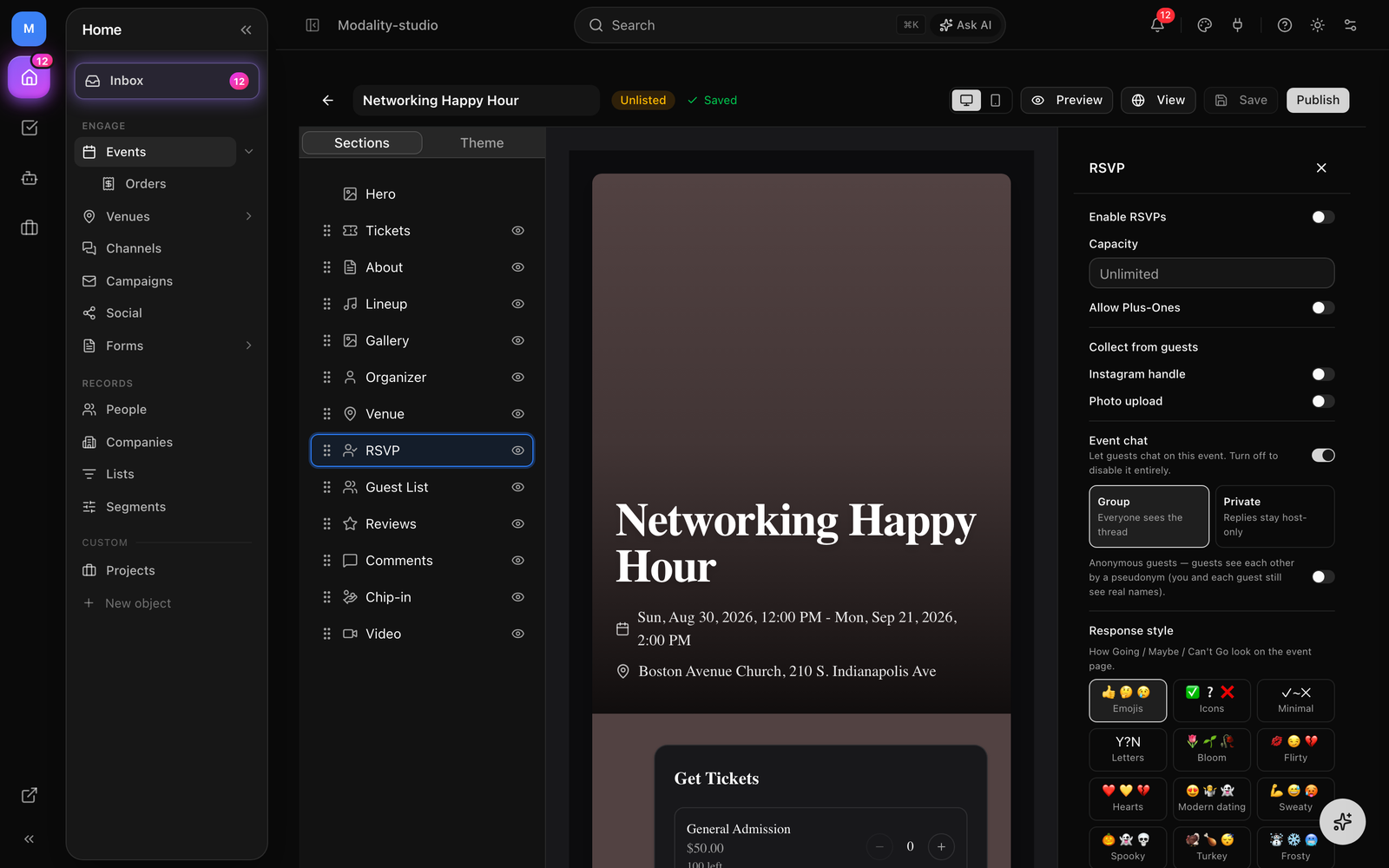
Chat settings live in the event editor's section inspector, under the chat controls:
- 1
Toggle Event chat
Event chat lets guests chat on this event. Turn it off to disable chat entirely. It's on by default.
- 2
Choose a conversation mode (private channels)
For a private channel, pick Group or Private. In Group mode (default) everyone sees the whole thread. In Private mode each guest sees only host broadcasts plus their own 1:1 thread with the host, guests never see each other, and the host answers a guest with a private reply.
- 3
Optionally anonymize guests
Turn on Anonymous guests so guests see each other by a stable pseudonym. You (the host) and each guest still see their own real name, only how guests appear to other guests changes.
Access & Deep Links
How a guest reaches a channel depends on whether it's public or private.
Public chat
Open to anyone signed in who is attending the event. It's reached from the event itself, the event page's chat section on the web, or the Channels tab in the mobile app, not from a private link. A signed-in participant posts under their account name.
Private channel, the magic link
Because the private channel is genuinely locked down, each approved guest gets a personal capability link (a "magic link"). Opening it authorizes just that guest:
- The link points at
/api/v1/events/<id>/channel?t=<token>. It ships inside the notifications guests receive (see below), so a guest rarely copies it by hand. - Opening it validates the token, then drops a signed,
httpOnlycookie (chn_<eventId>) and redirects to the clean channel page, the token never lingers in the address bar. - The cookie is bound to the token's version, so if the host rotates the guest's token (e.g. on a leaked link or a removal), every outstanding link and cookie for that guest is invalidated at once.
- The cookie lives until roughly the event's end (plus a short grace, capped at 60 days), then expires on its own.
As a fallback, a signed-in guest whose verified email matches an approved RSVP is let straight in even without a fresh link, so a stale or re-issued link never dead-ends a legitimate guest. An invalid link simply bounces back to the event page with no "does this exist" signal.
Mobile deep links
The channel magic link (/api/v1/events/*/channel) is registered as an iOS Universal Link, so tapping it on a phone with the Modality app opens the app's Channel screen directly rather than the web page. Push notifications about channel activity carry an eventChannel intent that routes to the same screen.
Host Messaging: Chat vs. Announcements
A host has two distinct ways to speak in a channel, and they behave very differently:
- Chat message, a normal message in the thread. It posts to the channel and sends only a gentle, debounced free push nudge to app guests. No email, no text, a back-and-forth conversation never spams the guest list. (@-mentioned guests are the one exception; see below.)
- Announcement / Blast, a deliberate broadcast that posts into the channel andnotifies approved guests across the channels you choose. It's auto-pinned as an announcement, so you don't re-pin it (which would email everyone twice).
Both are host-only, and the private channel's controls are Pro-gated (speaking in a public event chat is not).
Screenshot: the host message composer on an event showing the reach preview counts (email / text / push) for an announcement, with the channel selection toggles.
Demo GIF / screenshot to be added
Pins, edits, reactions & threads
- Pin, the host can pin a message to the top of a private channel. Pinning is treated as an email announcement: it emails the whole approved roster the pinned text (with each guest's personal channel link). Unpinning does not.
- Edit, the host can edit their own (organizer) messages in a live private channel; the message is stamped as edited. If an edit adds a new @mention, only the newly-added guest is pinged, re-tagging never re-spams everyone.
- Reactions, both hosts and guests can add emoji reactions, in public and private channels.
- Threaded replies, replies group under the original message (flat threads). A reply is a direct ping to the author of the message being replied to (email + push), so a threaded answer reliably reaches the person it's aimed at.
- Private reply, in a Private-mode channel, the host answers one guest with a reply only that guest (and the host) can see; it's labeled as a private reply in the thread.
@Mentions
A direct @mention is the one case where a chat message actively notifies a guest, mentioned guests get both a push and an email (with their channel link). Mentions resolve to approved guests only, from three sources:
- An explicit pick from the composer's mention picker (a structured guest reference).
- A canonical mention token in the text of the form
@[Name](rsvp:<id>), which the composer writes for you. - A plain
@nametyped by hand, but only when it matches exactly one guest on the roster (by first name, email local-part, or full name). If@Janeis ambiguous, no one is notified, so a name never spams every matching guest.
Both host messages and guest replies run mention resolution, so a guest can @mention someone too.
How Guests Are Notified
Channel notifications are independent and additive. Email is the standard (on by default); text and push are optional add-ons that fire alongside email, never instead of it. What fires depends on the kind of message:
- Announcement / Blast, reaches the approved roster on every channel you select. Email goes to any deliverable, subscribed address; text goes to opted-in guests with a phone (needs platform or connected SMS); push reaches app guests, both those whose email maps to an app account and those who RSVP'd from an app install with no account.
- @Mention, a direct push + email to each mentioned guest.
- Threaded reply, a direct push + email to the author of the message being replied to.
- Ordinary chat, only a gentle, debounced free push ("new messages in the channel") to app guests. Debounced per channel so a lively conversation doesn't fire a notification per line.
Notification emails are branded to the host (they come from the organizer, not from Modality) and carry the guest's personal channel link. Text messages are metered against your SMS credits and include a STOP-to-unsubscribe footer; a Blast pre-checks SMS credits before sending so it never half-delivers.
Archive on End
A channel automatically becomes read-only once the event is over, so a finished event's chat winds down on its own. Archiving is computed at read time, there's no cron and no stored "ended" flag, with this precedence:
- If the host has manually closed the channel, it's archived.
- If the host has pinned it open, it never auto-archives.
- A recurring / multi-showing series never auto-archives (its end already spans the last showing).
- Otherwise it archives once the event's end (or start, if there's no end) plus a 48-hour grace is in the past. Open-ended events (no dates) never auto-archive.
A host can manually close a channel (making it read-only immediately) or reopen it, reopening also pins it open so a past-end event doesn't re-archive on the next read. Once archived, posting, replying, and reacting are blocked; the thread stays readable.
The Channels Sidebar
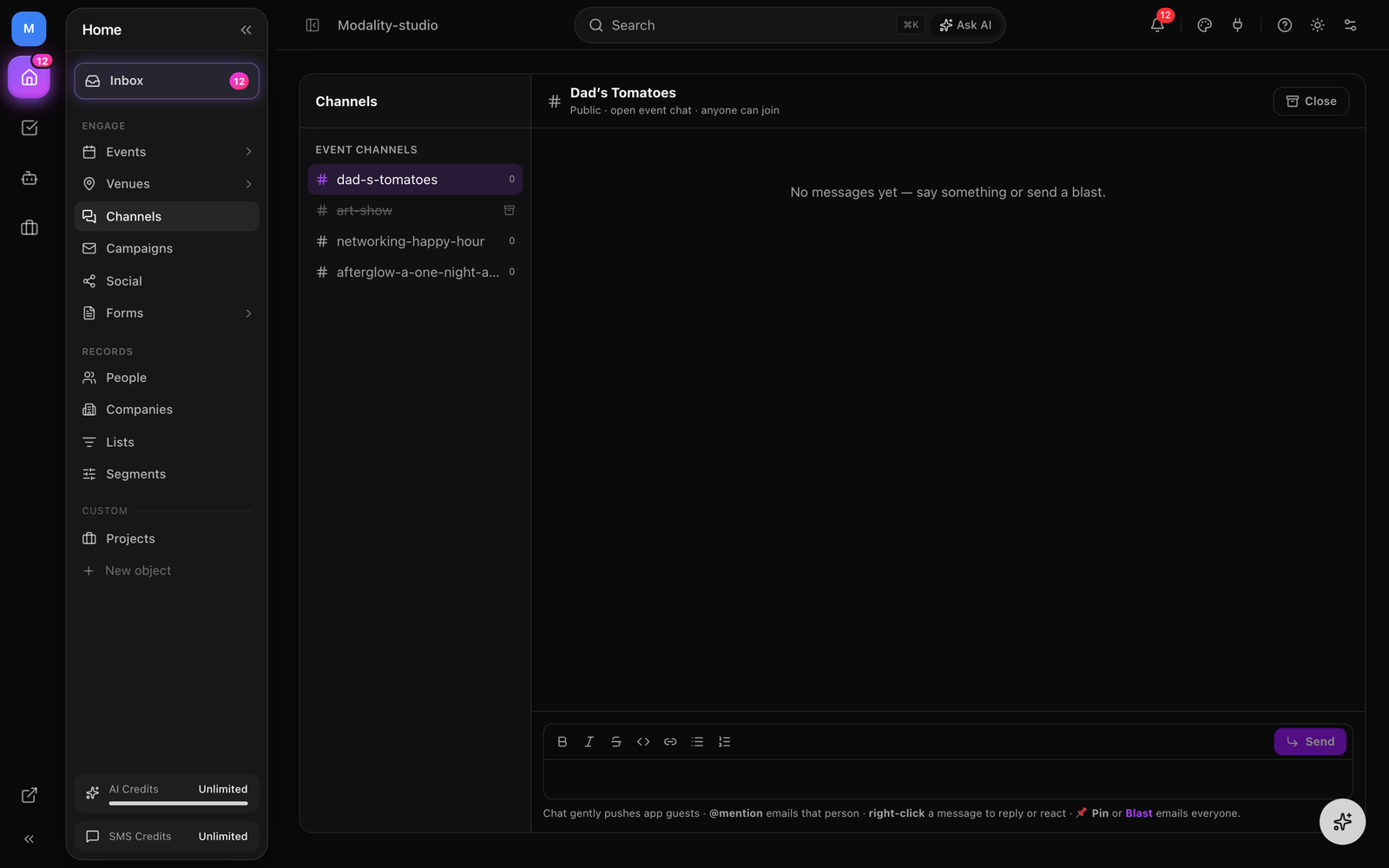
The dashboard's Channels view is one unified inbox for every event channel in your workspace. Approval events appear as 🔒 private channels (with a live approved-guest member count); ordinary events appear as 💬 public chats. Archived channels are shown dimmed, and chat-off events don't appear at all.
From here the host reads the live thread, posts, pins, edits their own messages, and closes or reopens the channel, all in one place, rather than opening each event. On the consumer side, the mobile app shows a chat list of every event a person is attending: the private approved-guests channel where they hold an approved RSVP, otherwise that event's open public chat. An approval event is private-or-nothing, a pending or ticket-only attendee gets no chat for it, rather than being dropped into an open thread.
Why the Private Channel Is Actually Private
The private channel isn't just hidden, it's enforced end to end:
- Server-only storage, channel messages live in a dedicated store that denies all direct client access. Every read and write is mediated by Modality's server and gated on the guest's capability, so no signed-in client can read or post directly.
- Un-forgeable identity, the sender of every message is stamped server-side (host vs. a specific guest). A guest can't post as the host or as another guest.
- Live eligibility checks, access is re-checked on every action. A guest who is declined or removed loses read and reply immediately, and rotating their token kills every outstanding link and cookie at once.