AI Assistant
Modality's AI assistant understands your workspace schema and data and can take real actions through natural language. Ask it to create an event, build a form, bill a client, draft a sequence, import a CSV, or post to social, and it does the work using the same services the app UI uses, scoped to your workspace.
What the AI Can Do
The assistant is not just a chatbot, it has a catalog of roughly fifty tools that read and write real data in your workspace. It picks the right tools for your request, runs them (chaining several in one turn when a task spans modules), and reports back with links to what it created. Everything below is a tool the AI can actually call today.
Events & Ticketing
- Create a real event with ticket types, a public page at
/e/{slug}, QR-code tickets, and check-in support (defaults to published). - Update an event's title, description, venue, address, dates, or status (
DRAFT,PUBLISHED,CANCELLED). - List events with their ticket/order stats, and list the ticket types for any event.
Forms
- Create a form with text, email, phone, textarea, number, date, select, radio, checkbox, section, and priced products fields, published at
/form/{slug}. - Map fields to contact identity (email, first/last name, phone) and turn on payment collection on submission.
- List forms, update a form's fields/settings/status/name, and list a form's submissions.
People & CRM
- List and search contacts by name or email, filtered by tag, list, or status.
- Create a contact (email is the identity key, it upserts onto the existing person rather than duplicating) and update contact fields.
- Add tags to a contact and add a contact to one or more lists.
- List and create tags (with colors) and contact lists.
Custom Objects & Records
- Create custom object types (Deals, Venues, Products, Sponsors, Projects…) with typed attributes, text, number, currency, percent, date, boolean, select, email, phone, URL, rating, relationship, and team-member fields.
- Create, update, and search records in any object type, and list an object type's attributes.
- Link records across object types via relationship attributes (auto-creating the relationship if one doesn't exist yet), so your data forms a connected graph, not isolated rows.
Invoices & Billing Clients
- Create an invoice for a contact with line items, discount, tax, currency, due date, and notes.
- Send an invoice, it emails the contact a branded invoice with a Stripe pay-now button and flips the invoice to
SENT. - List and update invoices (drafts and sent), and pull invoice stats (outstanding, overdue, paid this month, drafts).
Campaigns, Templates & Sequences
- Create an email campaign, optionally with full responsive HTML content the AI generates, and update an existing campaign's subject or content.
- List email templates, your saved templates plus built-in starters, to find one by name.
- Create a campaign from a template, seed a draft from a saved template and optionally merge a specific event's title, date, venue, and ticket link into its placeholders.
- List and create email sequences (drip campaigns) with email, wait, and condition steps.
- An unsubscribe footer is always guaranteed on AI-generated email content, so sends pass compliance screening.
Social
- Create a social post for Instagram, Facebook, X, LinkedIn, or TikTok, publish now, schedule for later, or save as a draft (the account must be connected under Integrations; Instagram requires an image).
- List recent social posts with their status and engagement.
Automations, Tasks & Notes
- Create automation rules with a trigger and actions, including form-submitted, tag, payment, record/attribute, date, number, and invoice and SMS-received triggers, and actions like tag, email, SMS, create/send invoice, and enroll in a sequence. List and update (enable/disable/rename) automations.
- Create and list tasks with due dates, priorities, and links to records or entities.
- Create and list notes attached to records or entities.
Bulk CSV Import
- Attach a CSV in chat and the AI imports it, parsing the file, mapping columns to attributes, upserting records into a target object type, routing columns to a linked type (e.g. People), and linking the two together.
- Imports are capped at 2,000 rows per conversation; larger files use the dedicated Import CSV page.
Beyond Chat: Generative Setup
The same AI powers guided flows outside the chat thread:
- Workspace generation, describe your business and the AI drafts a starter workspace (name, brand voice, colors, events, ticket types, forms, tags, statuses, and automations).
- Brand Kit extraction, point it at a website URL or upload a brand PDF and it extracts your voice, colors, fonts, tagline, and guidelines (see Brand Kit).
- Campaign & social content generation, generate email copy and per-platform social captions in your brand voice.
Inline Chat vs Global Chat
The assistant is reachable two ways, both writing to the same persistent conversation thread so context carries across them.
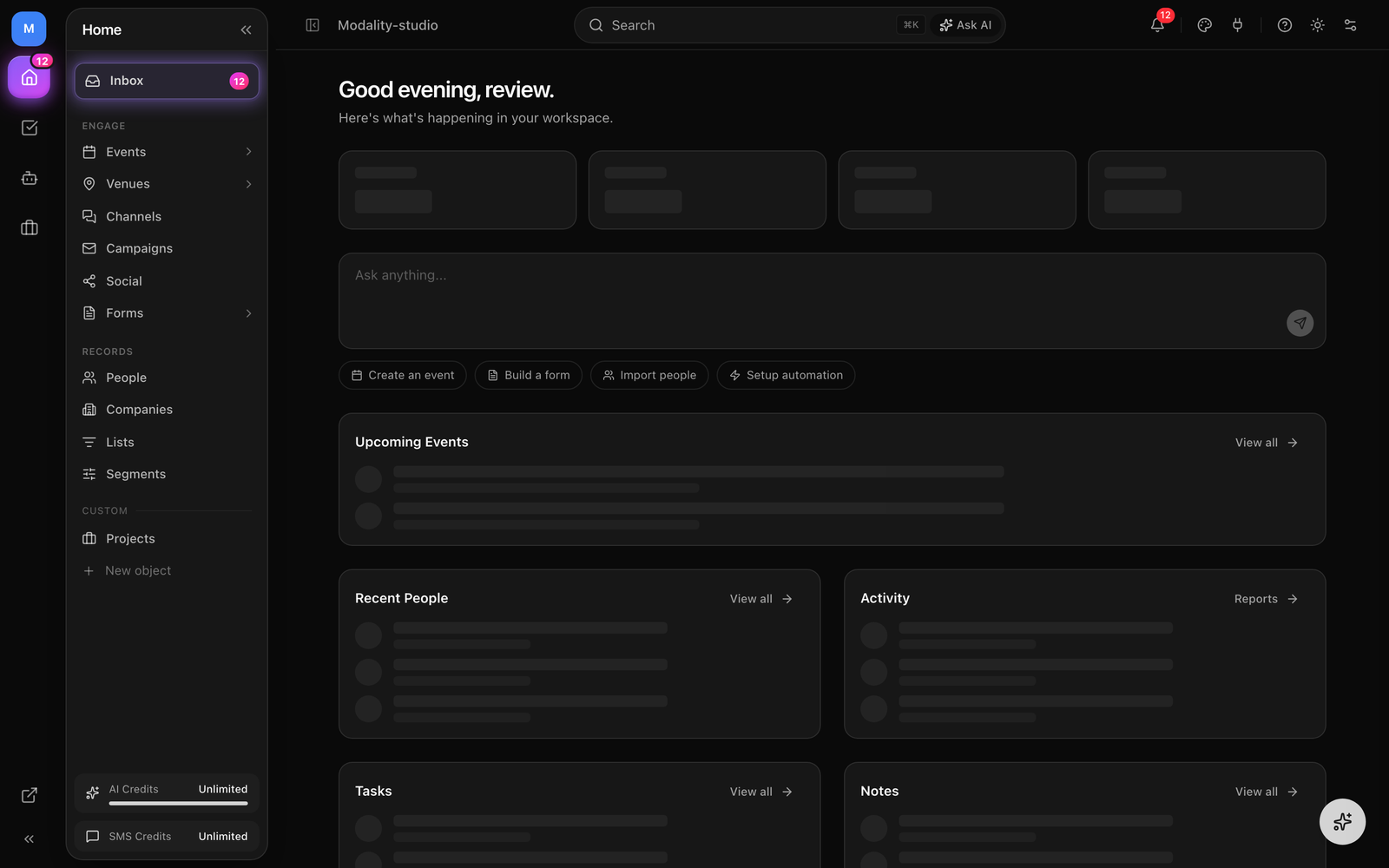
Inline Chat (Home)
The Home page puts an inline chat front and center. Type a request and press Enter; the AI replies with text and, when it takes actions, renders them as expandable tool-use cards, each with a link to the thing it created or changed. The Automations page offers the same conversational surface for building workflows.
Global Chat Sidebar
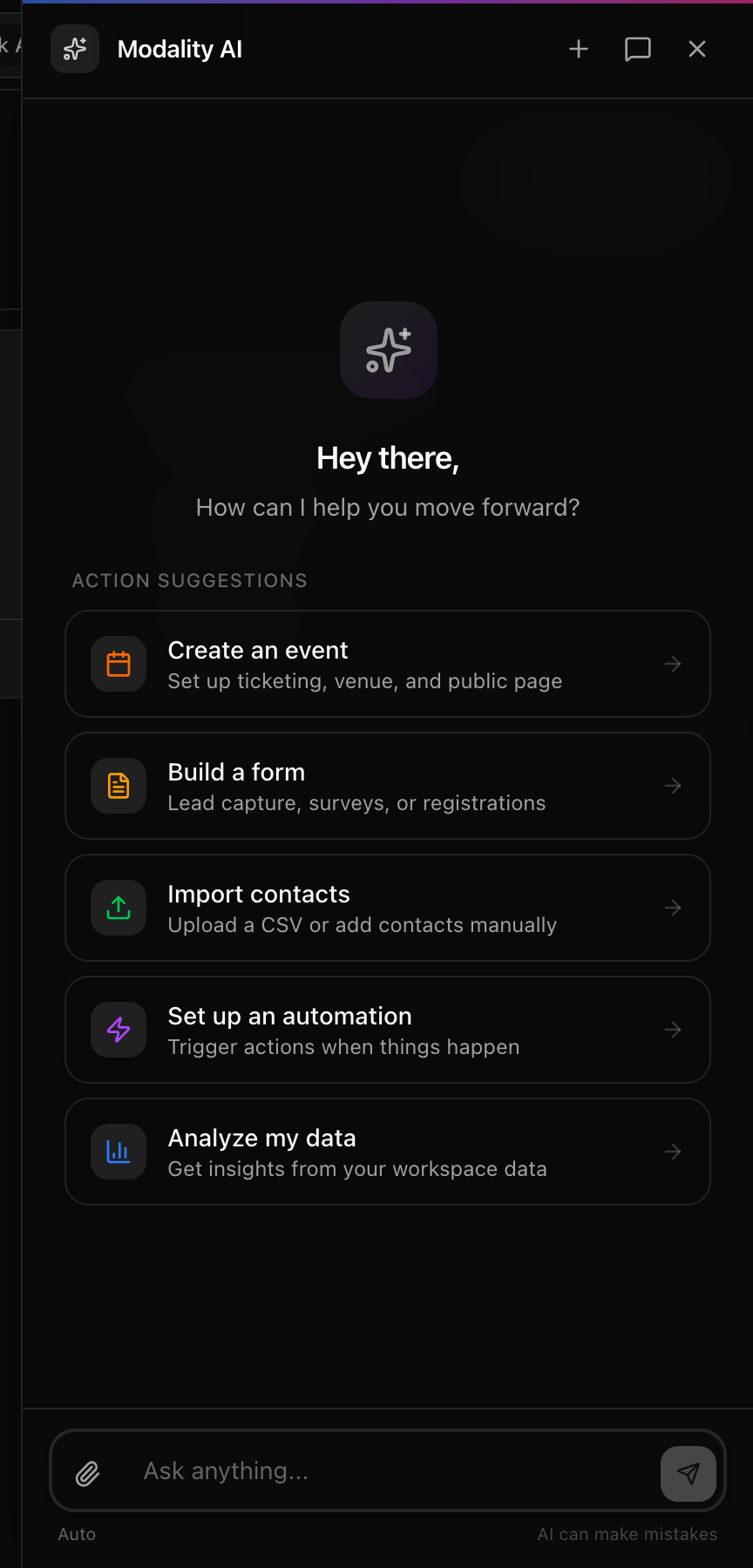
From anywhere in the dashboard, open the AI chat from the corner launcher to slide in a sidebar over the current page. You can keep working in the dashboard while you converse, and the thread is the same one you see on Home.
How a Turn Works
Each message runs a bounded tool-use loop: the model reads your workspace context, decides which tools to call, Modality runs them against your workspace, feeds the results back, and the model repeats until the task is done (up to a few rounds) before writing its final reply. Model choice is automatic, a fast model (Claude Haiku 4.5) handles the majority of CRUD, listing, and import requests, and a smarter model (Claude Sonnet 4.5) is selected for content generation, schema design, and analysis. If a model is briefly overloaded, the request retries and falls back automatically.
How to Get the Best Results
- 1
Be specific
"Create an event called Summer Jazz Night on July 15 at Blue Note NYC with GA at $25 and VIP at $75" works far better than "make an event."
- 2
Write naturally
Talk to it like a teammate, not a command line. It maps plain language onto the right tools.
- 3
Chain requests
The thread remembers context. After creating an event, say "now build a registration form for it and a three-step welcome sequence" without repeating the details, and it will link them together.
- 4
Ask questions too
"How many contacts are tagged VIP?" or "What's outstanding across my invoices?" It reads your data to answer, not just to write.
Safety & Guardrails
The assistant takes real, consequential actions, so it operates inside firm boundaries.
- It can move money-adjacent things. The AI can create invoices and send them, which emails the contact a Stripe pay-now link, and can build automations that create and send invoices or SMS. Treat billing requests as real actions and review before you confirm a send.
- It never deletes data. If you ask it to delete something, it explains that deletion is done in the app UI for safety.
- Tenant-isolated. Every action is scoped to your workspace from your authenticated session, never from anything in the request, and each write re-checks that the target record belongs to your workspace before touching it.
- Volume guardrails. A single action can't create more than 500 records, and a whole conversation can't exceed 2,000, larger jobs are routed to the Import CSV page.
- It can't manage your account. The assistant has no tools to change your plan or billing, reset passwords, read raw Stripe payment details or credentials, or reconfigure integrations, for those it navigates you to the relevant settings page.
Credits & Usage
AI usage is metered in credits, where 1 credit = $0.01 of the underlying model cost. Every AI action, a chat turn, workspace generation, brand extraction, campaign or social copy, is billed on the real Anthropic token usage of that call, rounded up to the nearest credit (minimum 1). A quick list or a one-line answer costs a single credit; a long, multi-tool turn or a full HTML-email generation costs more, because it genuinely uses more tokens.
What Uses Credits
There is no fixed per-feature price list, cost tracks tokens. As a rough guide:
- Simple chat (a question, a list, a single create/update), typically ~1 credit.
- Multi-tool turns (e.g. create an event + form + sequence and link them), a few credits, since each round is a full model call.
- Content generation (a full responsive email, a campaign from a template, social captions), more, reflecting the larger output.
- Workspace setup and Brand Kit extraction (website or PDF), metered on the tokens of that generation.
Plan Allowances
- Free, 50 AI credits per month.
- Pro, 750 AI credits per month (includes AI agents).
- Business, 2,000 AI credits per month.
- Pro trials start with 200 credits to explore the assistant.
Plan credits reset each billing cycle and don't roll over.
Prepaid Credit Packs
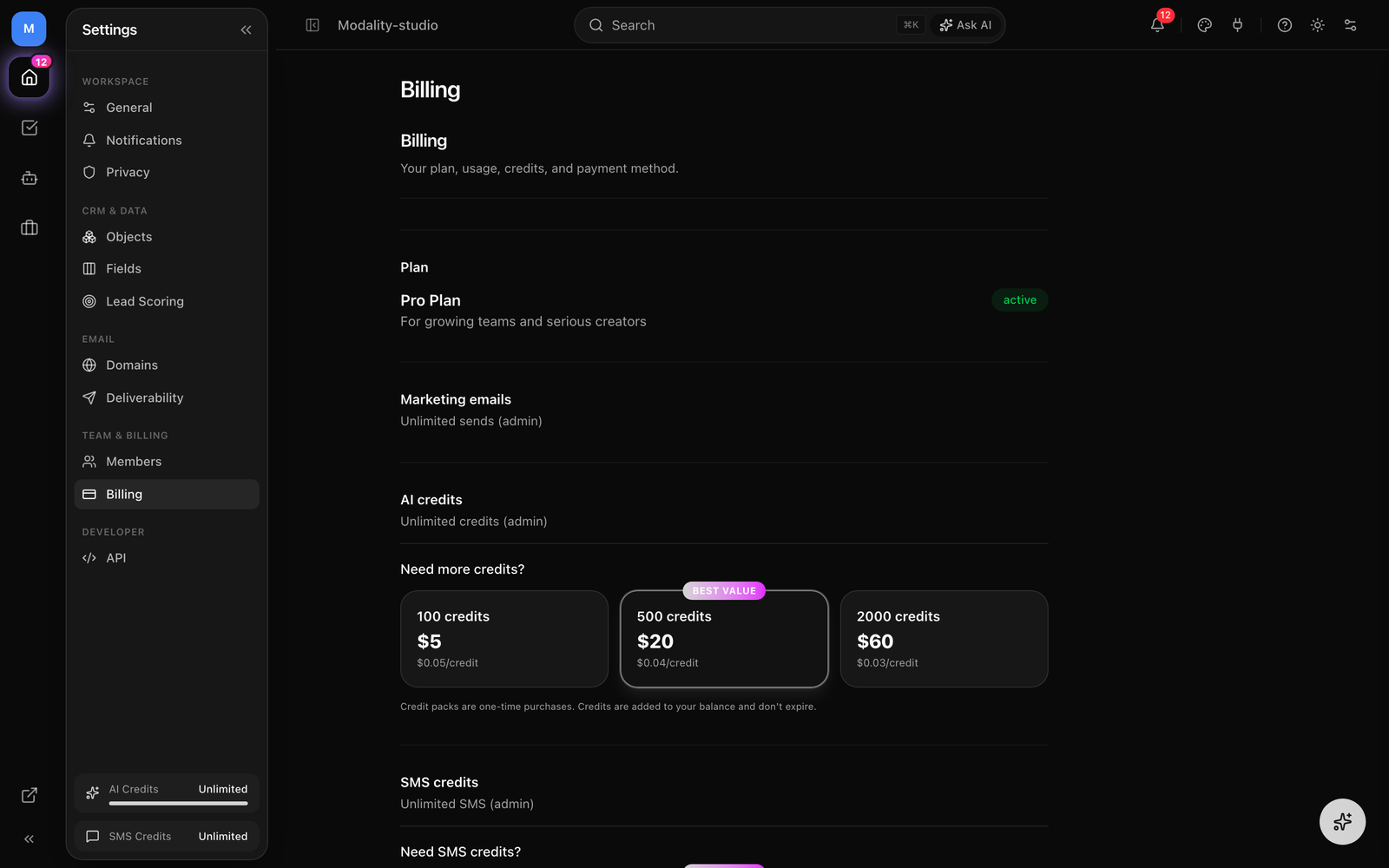
Need more than your plan includes? Buy a one-time credit pack from Settings → Billing. Packs are consumed after your monthly plan credits and, unlike plan credits, their balance persists across billing cycles until used up:
- Starter, 100 credits for $5 ($0.05 / credit).
- Plus, 500 credits for $20 ($0.04 / credit).
- Power, 2,000 credits for $60 ($0.03 / credit).
Overage
When you run past your plan credits and any pack balance, what happens depends on billing: if a card is on file, further usage is auto-charged as metered overage at $0.04 per credit and never hits a wall; if not, the assistant pauses with an upgrade prompt until the next cycle, or until you add a pack or a payment method.
Monitoring Usage
Track consumption under Settings → Billing. You'll see credits used this cycle against your plan allowance, any remaining prepaid pack balance, whether overage auto-charge is on, and the current percentage used.