E-Signatures
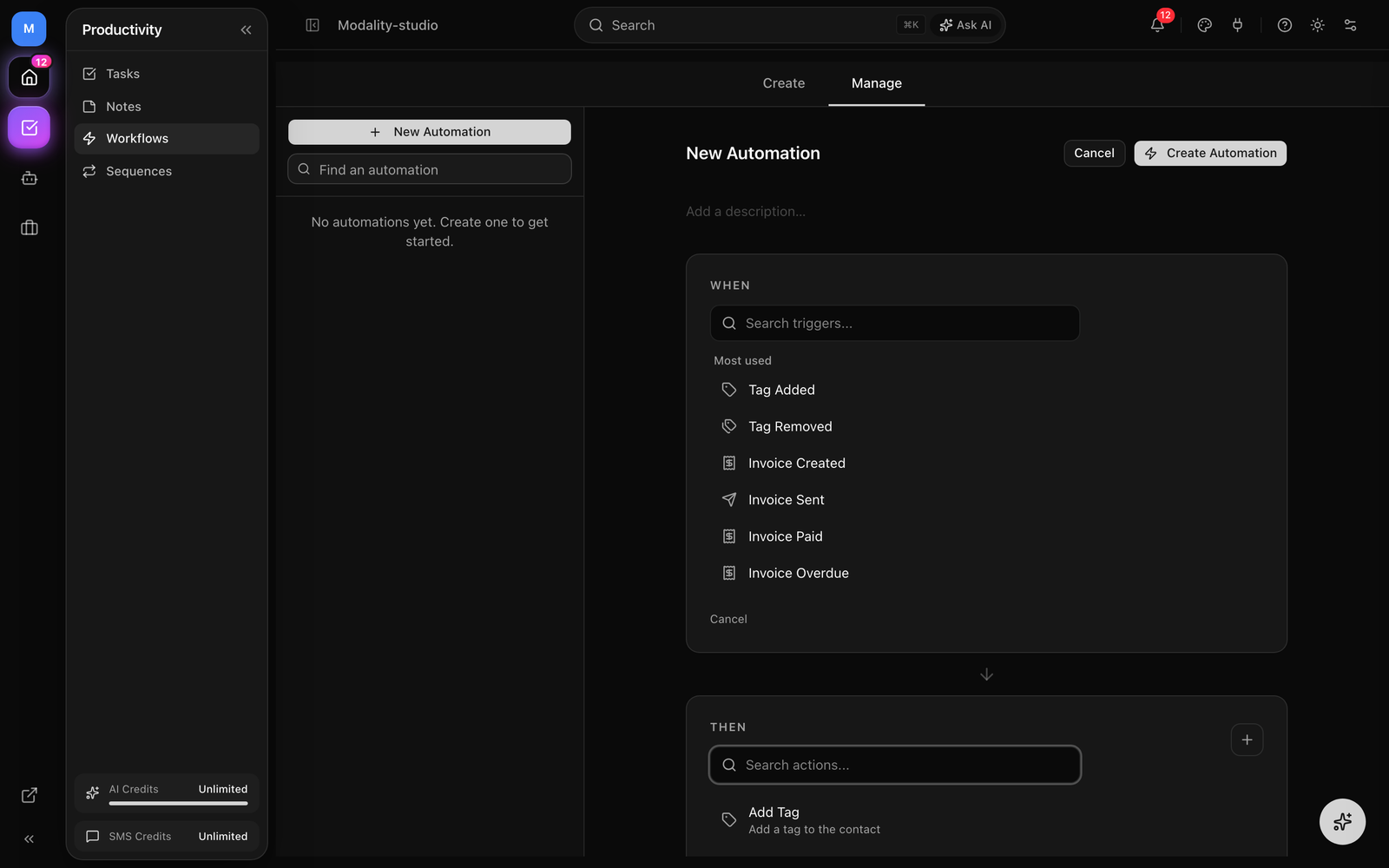
Send contracts, waivers, and agreements for legally binding electronic signature, natively, without a third-party tool. Upload a PDF once, place fields on it, and reuse it as a template. Route one or many signers, collect signatures on a secure link, and get the completed PDF plus a certificate of completion emailed to everyone automatically. Documents also plug into reservations (sign-then-pay), forms, and automations.
How It Works
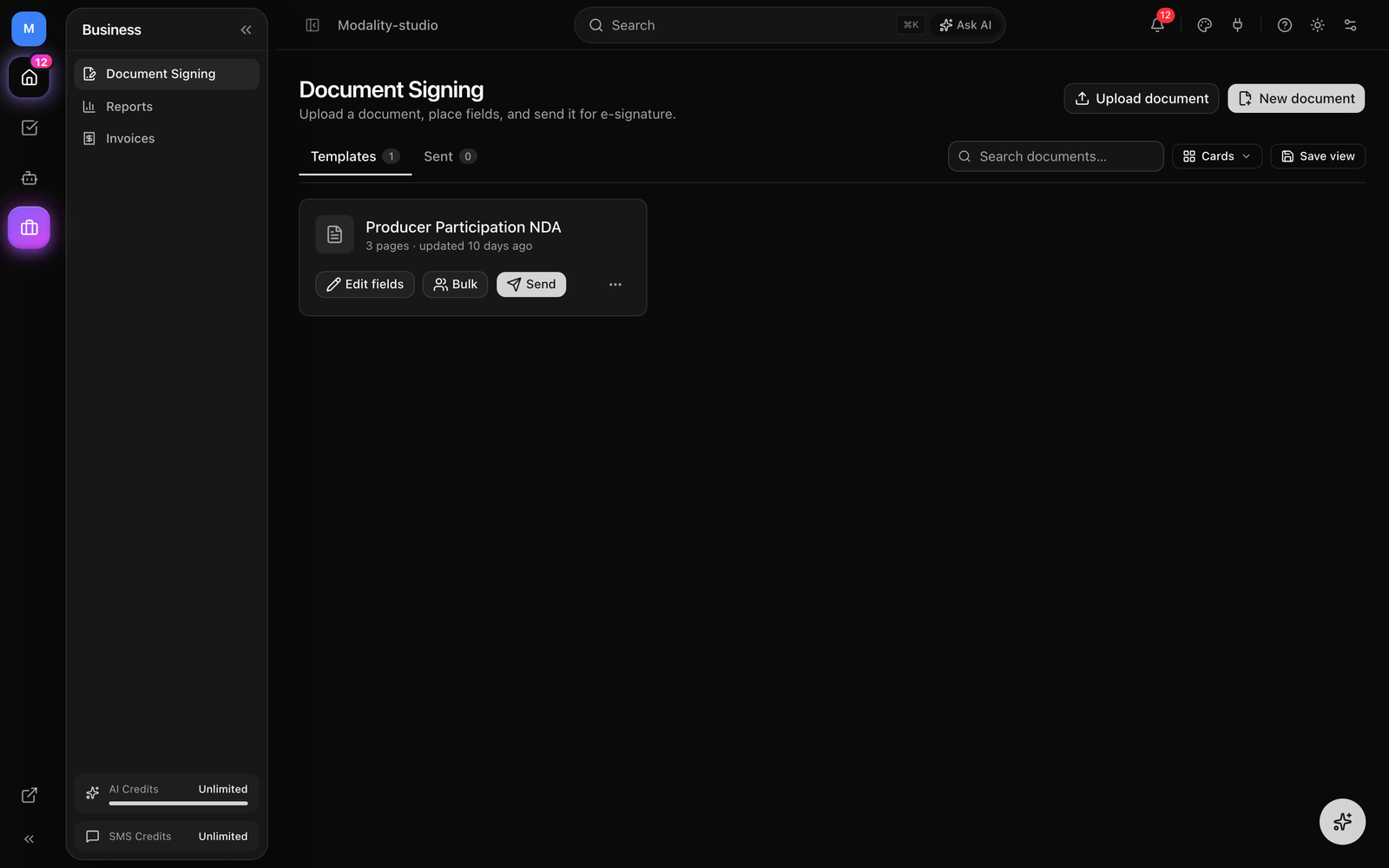
E-signatures flow through three objects. Understanding them makes the rest of this guide click:
- Template, a reusable contract: the uploaded source PDF plus a saved layout of fields and one or more signer roles. You build it once and send it many times.
- Envelope, one send of a template to specific recipients. Instantiating a template copies its PDF, materializes the fields for this send, mints a unique signing link per recipient, and starts the signing flow.
- Recipient, a person on an envelope, tied to a role and a routing order. Each gets their own tokenized
/sign/<token>link and signs only the fields assigned to their role.
Building Templates
A template is the reusable half of e-signatures: the source document and where every signer needs to fill, initial, date, and sign. Build it once and reuse it for every send.
Create a Template
- 1
Open Documents → Templates
Go to the Documents area and open the Templates tab. It lists your saved templates, most recently edited first.
- 2
Upload the source document
Upload a PDF, or a PNG/JPG image of a document, Modality normalizes it to a signable PDF. Common office documents are converted to PDF on upload as well. The template records the page count so the editor can render every page.
- 3
Place fields on the pages
Use the field editor (next section) to drop signature, initials, date, and text fields exactly where signers should complete them.
- 4
Define signer roles
A template starts with one role,
Signer. Add more roles (e.g. Guest and Host) when a document needs multiple parties, each role gets its own color and routing order. - 5
Save
The layout and roles are stored on the template. Reuse it any time, from the send dialog, a bulk send, reservations, or an automation.
You can duplicate a template (it copies the layout and reuses the same source PDF, named "… (copy)") and archive ones you no longer send, archived templates are hidden from the list without being deleted.
GIF: uploading a PDF to create a new template, then the template opening straight into the field editor with its pages rendered.
Demo GIF / screenshot to be added
Placing Fields
The field editor is a full-page view of your document where you place the inputs each signer completes. Drag a field from the rail onto a page, or arm a field type and click where it goes. There are four field types:
- Signature, the signer adopts a signature (typed or drawn) and places it here.
- Initials, a compact signature for initialing individual pages or clauses.
- Date Signed, a date field; on the signing page it is pre-filled with the signing date.
- Text, a free-text box (name, title, company, address, and so on).
Every field is assigned to a role (color-coded so you can see at a glance who fills what) and is required by default, a signer can't finish until every required field for their role is complete. Field positions are stored as normalized coordinates, so they land in exactly the right spot regardless of screen size or page rotation.
Field Keys (Prefill & Automation Branching)
Optionally give a field a stable key (normalized to snake_case, e.g. full_name or company). A key unlocks two things:
- Per-recipient prefill, on a bulk send, a column of values maps into that field for each recipient (mail-merge). Fields without a matching key keep their template default.
- Automation conditions, automations can branch on a field's entered value using
{{document.<key>}}(see Automations below).
GIF: dragging a Signature field onto the page, assigning it to a role via the role picker (watch the color change), toggling required, and giving a Text field a key like company.
Demo GIF / screenshot to be added
Sending for Signature
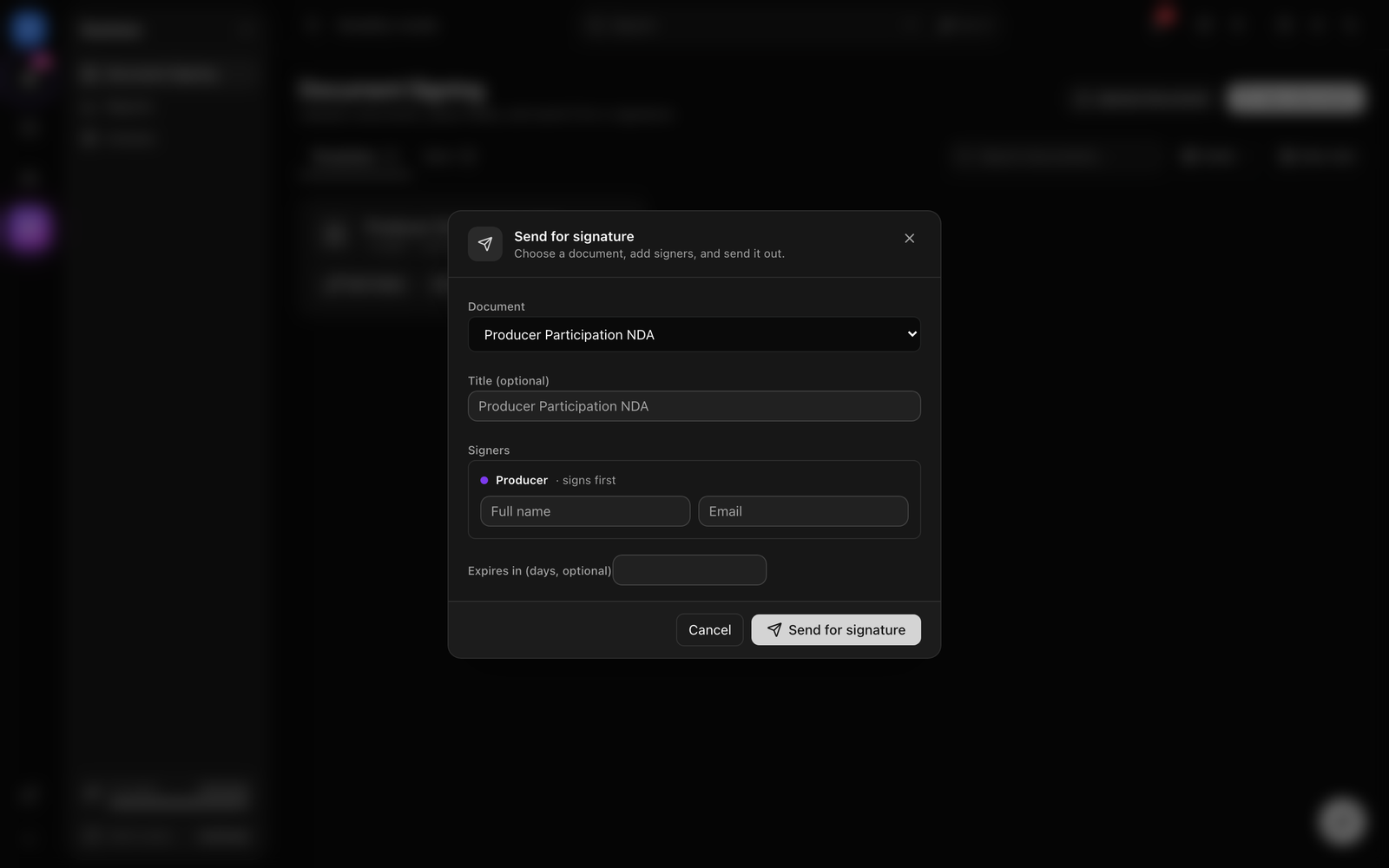
Sending instantiates a template as an envelope. Open the Send for signature dialog from a template and fill in:
- A title for this send (defaults to the template name).
- A name and email for each signer role on the template.
- An optional expiry (in days) after which the signing links stop working.
On send, Modality copies the PDF, creates the fields for this envelope, generates a unique link per recipient, and activates the first routing order, the recipient(s) in that order are emailed a branded "Review & sign" message with their link. Later signers are activated automatically as earlier ones finish (see Routing).
Bulk Send (Mail-Merge)
Send the same template to many recipients at once. Provide a list of recipients, each with a name, email, and optional per-field prefill values keyed by your field keys, and Modality creates one envelope per recipient, all sharing a batch so you can track the whole run together. Any recipient that fails (e.g. a bad email) is reported back in the results, never silently dropped.
The Signer Experience (/sign/[token])
Each recipient signs at /sign/<token>, a clean, mobile-friendly page that needs no account and no login. The link resolves the recipient and document from the token alone, so it's safe to email directly. Here's what the signer does:
- They open the link; the document is marked viewed and the full PDF renders with their fields overlaid.
- Fields awaiting input pulse in amber; completed ones turn green. A counter shows how many required fields are left.
- For a signature or initials field, they adopt a signature, type their name in a script font or draw it, then place it. Date fields are pre-filled with today; text fields accept free input.
- When nothing is left, Finish & sign submits. A consent line notes that their electronic signature is legally binding under ESIGN / UETA.
- They land on a "thank you" confirmation; a copy of the completed document will be emailed to them.
Link States
Instead of the signing UI, the page shows a clear status screen when the link isn't ready to sign:
- Not your turn yet, an earlier signer in the routing order hasn't signed; they'll be emailed when it's their turn.
- Already signed, this recipient already completed their part; the final copy comes once everyone signs.
- Completed, all parties signed; the document is done.
- Declined, the request was declined and can no longer be signed.
- Voided, the sender cancelled the request.
- Expired, the link's expiry has passed; the sender must issue a new one.
GIF: the /sign/[token] page, a required signature field pulsing amber, the adopt-signature dialog (typed vs drawn), placing it, the field turning green, then Finish & sign and the done screen.
Demo GIF / screenshot to be added
Routing, Completion & Audit Trail
When a template has multiple signer roles, each carries a routing order. Modality activates the lowest order first; once everyone in that order signs, the next order is activated and emailed. This gives you sequential signing (e.g. guest first, then host) out of the box.
Each signature writes an auditable record, signer identity, intent, IP address, user agent, and a SHA-256 tamper-evidence hash of exactly what was signed. When the last recipient signs, the envelope flips to COMPLETED exactly once and Modality:
- Flattens the signed PDF, the captured values and signatures are burned into the document.
- Generates a certificate of completion documenting the signing events.
- Emails the completed copy, every signer gets a workspace-branded email with the signed PDF and certificate attached; the sender (workspace owner) gets a copy too, unless they already received one as a signer.
Declining, Voiding & Reminders
- Decline, a recipient can decline with a reason; the envelope moves to
DECLINEDand can no longer be signed. - Void, you can void an open envelope (draft/sent/viewed) with a reason to cancel the request.
- Automatic reminders, recipients still sitting on an open request are reminded after 48 hours (up to two reminders), and envelopes past their expiry are auto-voided, on a schedule.
Screenshot: a completed envelope's detail view showing all signers as signed, the flattened signed PDF, and the certificate of completion.
Demo GIF / screenshot to be added
Sign-then-Pay: Gating a Deposit Behind a Contract
E-signatures power the venue/space reservation flow. A space can require a signed contract and point at a contract template. When a reservation is approved, Modality kicks off the contract automatically, and can hold the deposit until it's signed.
- On the space, turn on Require contract and choose the contract template. Choose the ordering: sign-then-pay (default) or both.
- When a reservation is approved, an envelope is created for the guest as a single signer and they're emailed a branded "Approved, review & sign" message. This send is a built-in capability, so it is never metered against your quota.
- With sign-then-pay, the deposit link is withheld until the contract is signed, the guest can't pay before signing.
- When the contract is completed, the completion hook releases the deposit email and the payment link unlocks. If the guest declines, the reservation is declined.
Throughout, the reservation shows a live contract status (not sent / sent / viewed / completed / declined / voided) derived from the envelope, so you always know where each booking stands.
Using E-Signatures in Forms & Automations
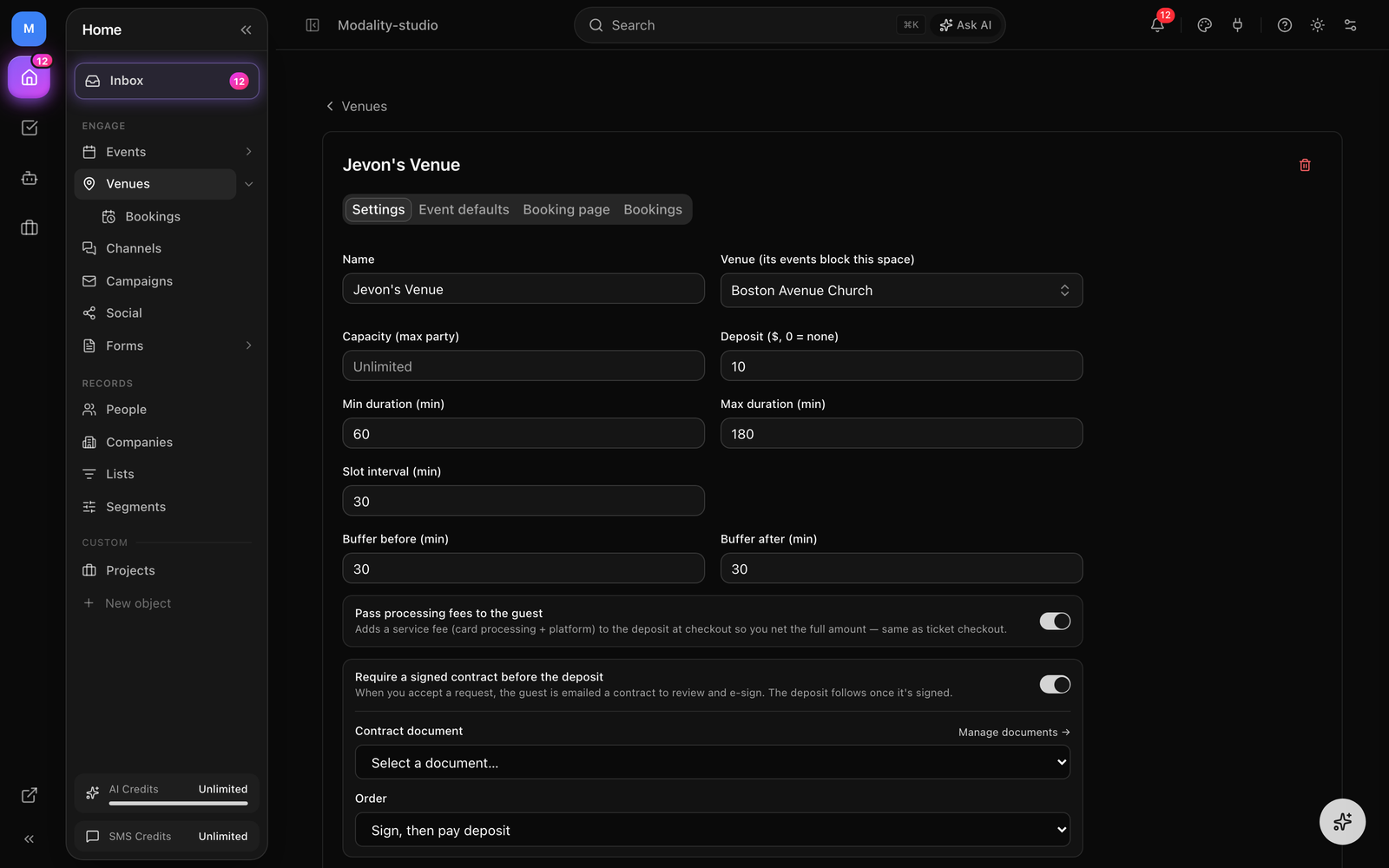
Documents are first-class in the automations engine, both as a trigger (react to the signing lifecycle) and as an action (send a document automatically). Combined with forms, this lets a submission kick off a contract with no manual step.
Send a Document Automatically
The Send for Signature action sends a chosen template to the contact who triggered the automation. Configure the template, optionally the role to fill (defaults to signer), and an optional expiry. Because forms create and update People and can fire automation triggers, a natural pattern is: a form submission triggers an automation whose action sends the contract to the person who just submitted, application-to-agreement with zero manual sending.
React to the Signing Lifecycle
Automations can trigger on five document events, each resolved to the relevant Person so contact-based actions work:
- Document Sent, a signature request was sent to a recipient.
- Document Viewed, a recipient opened the signing page.
- Document Signed, a recipient signed (fires per recipient).
- Document Completed, all recipients have signed.
- Document Declined, a recipient declined.
Each trigger can be scoped to a specific template and can branch on an entered field value, match a field by its key with operators like equals, contains, greater-than, or exists. That makes flows like "when the Model Release is completed and {{document.company}} is set, add a tag and send a welcome email" entirely declarative.