Custom Objects
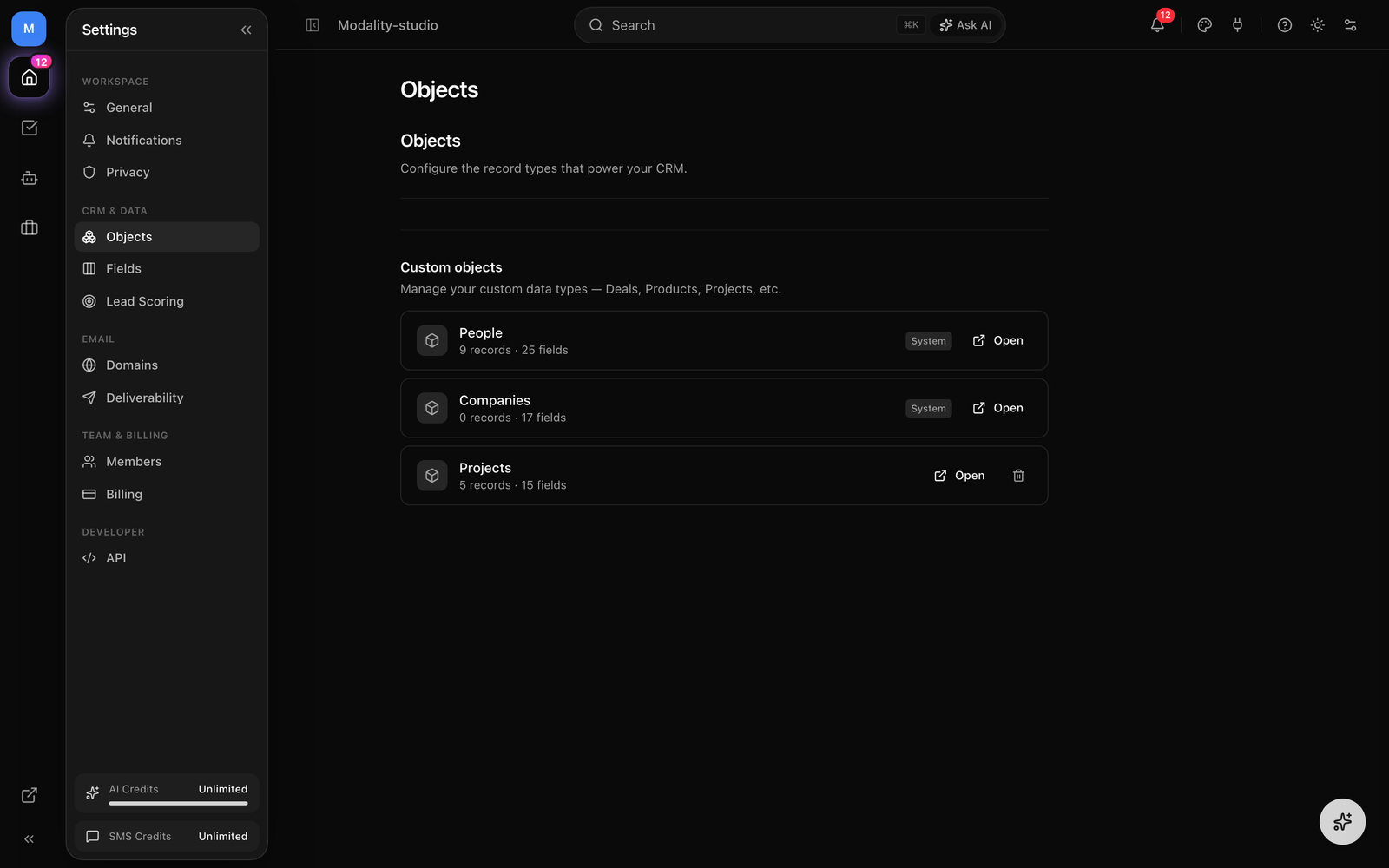
Modality is built on a flexible object model. People and Companies ship as standard objects, and you can add your own, deals, products, venues, sponsors, projects, or whatever your workflow needs. Every object gets its own fields, records, saved views, record detail pages, and activity timeline.
The Object Model: Standard & Custom Objects
Everything in your CRM is an object type, a schema, holding records. There are two kinds:
- Standard objects, People and Companies are seeded into every workspace automatically. They are real object types (not a separate legacy system), pre-populated with a rich set of standard fields. Standard object types and their standard fields can't be deleted, but you can add your own custom fields to them, and the "People" page is simply the People object's table.
- Custom objects, object types you create yourself. They behave identically to the standard ones: their own table, records, views, and detail pages. Custom object types (and the custom fields you add) can be edited and deleted freely.
Creating Object Types
An object type defines the schema for a kind of data. Each object type gets its own entry in the sidebar, its own set of fields, and its own record table.
How to Create an Object Type
- 1
Open the object type creator
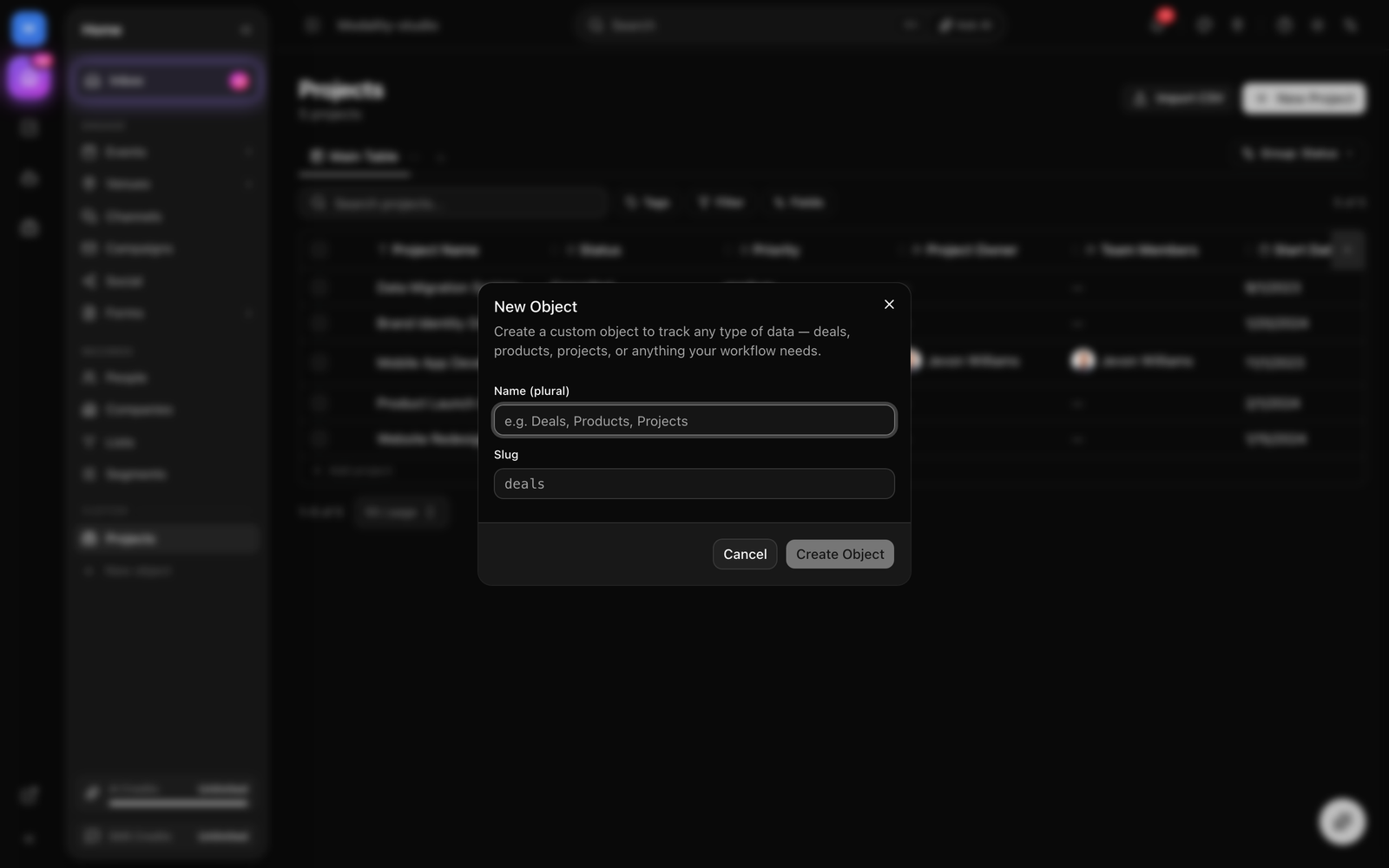
Add a new object type from the Objects area of the sidebar, or ask the AI assistant (e.g. "Create a Venues object with name, address, and capacity fields") to scaffold one for you.
- 2
Name it
Enter a plural name (e.g. "Venues") and a singular name (e.g. "Venue"), pick an icon and optional color. A URL slug is generated from the name (lowercase letters, numbers, and hyphens) and is used in the object's routes.
- 3
Add fields (attributes)
Define the columns for the object. Each field has a name, a key (a stable identifier), a type, and type-specific settings. See Field Types below for the full list.
- 4
Start using it
The object type appears in the sidebar immediately. Open it to reach the table view and start adding records. New object types are appended after your existing ones; you can reorder them.
Field Types (Attributes)
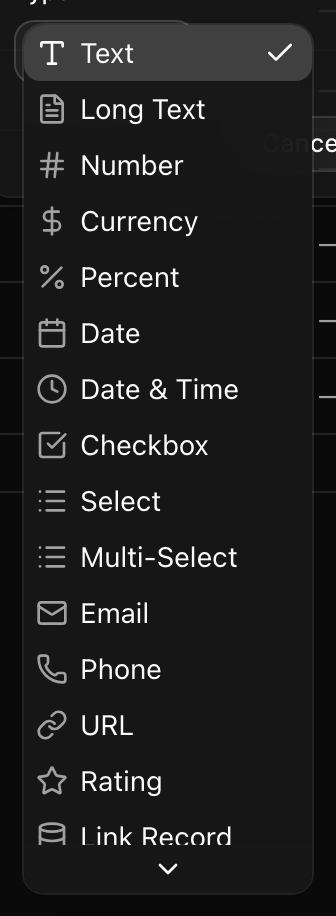
Fields (internally "attributes") are the typed columns on an object. Modality supports 26 field types, from plain text to relationships, lookups, and computed values. Each field can also be marked required, unique, or as the title field, can carry a default value, and can be drag-reordered.
Text
- Text, a single-line string.
- Long Text, a multi-line text area.
- Personal Name, a person's name value.
Numbers & Ratings
- Number, a numeric value.
- Currency, a monetary amount with a configurable currency code (USD, EUR, …).
- Percent, a percentage value.
- Rating, a star rating with a configurable maximum (e.g. out of 5 or 10).
Dates & Booleans
- Date, a calendar date.
- Date & Time, a timestamp.
- Checkbox, a true/false boolean.
Choice
- Select, pick one option from a defined list; each option has a label and a color.
- Multi-Select, pick several options from the list.
Contact & Web
- Email, an email address.
- Phone, a phone number.
- URL, a web link.
- Location, a place / address value.
Media, Files & Structured
- Image, an uploaded image.
- File, an uploaded file attachment.
- JSON, a structured JSON value for flexible / nested data.
People & Interactions
- Team Member, assign a workspace user to the record (stores the user, notifies on assignment).
- Interaction, captures an interaction / activity value on the record.
Relational
- Relationship, link records to another object type, with a cardinality of one-to-one, one-to-many, or many-to-many. Creating a relationship automatically creates the matching reverse field on the target object so the link is navigable from both sides.
- Link Record (Record Reference), reference another record.
- Lookup, pull a field's value from a linked record through a relationship (e.g. show a venue's city on a booking record), kept in sync with the source.
Computed
- Calculated, a formula field derived from other fields. Supported formula kinds: date offset, date/time difference, math, field copy, string concatenation, conditional, and switch.
- AI-Generated, a value produced by an AI prompt over the record, configured to refresh on chosen events (e.g. when the record is updated).
Working with Records
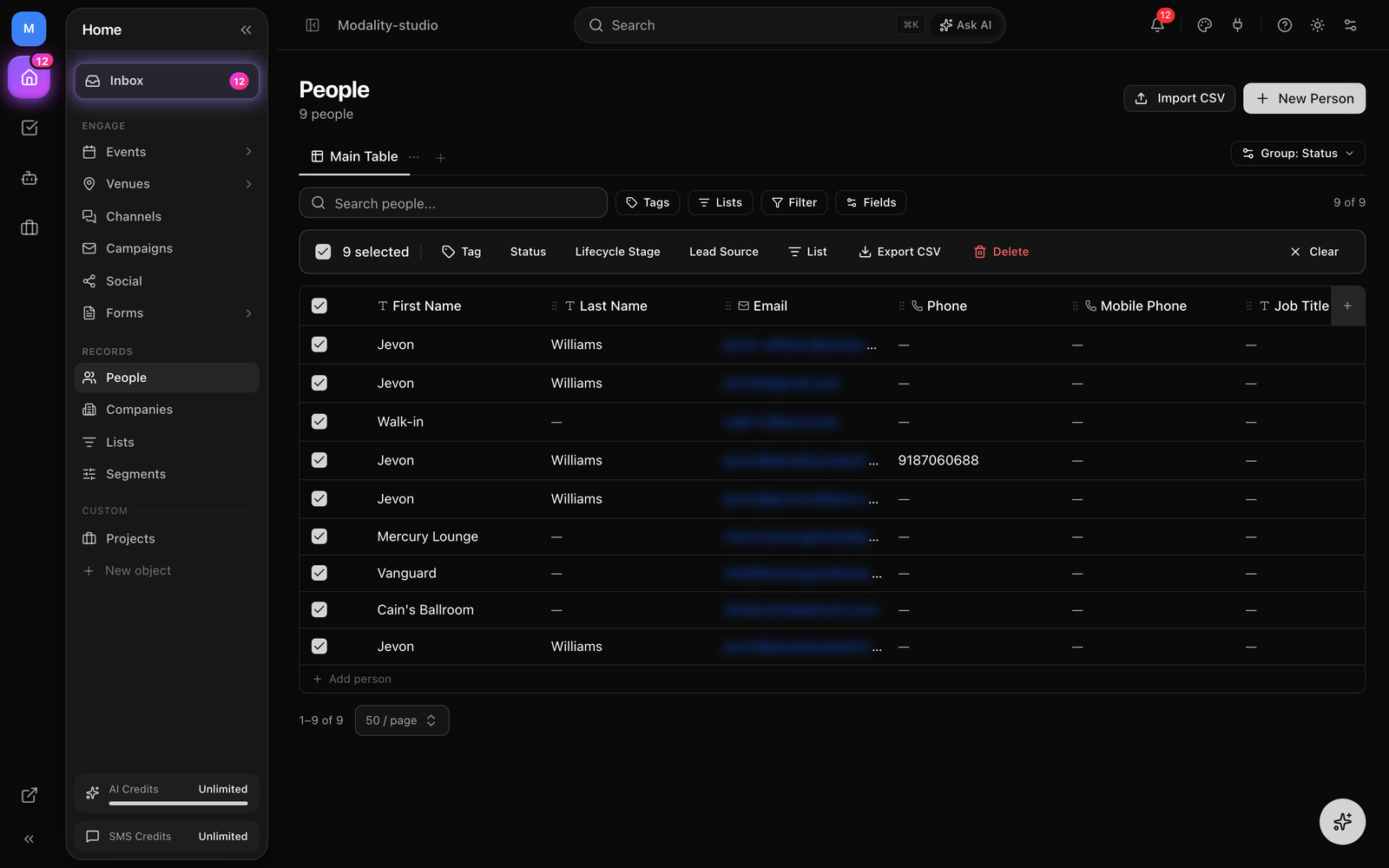
Records are the individual entries in an object type. They behave exactly like People records, the same spreadsheet-style table, inline cell editing, and detail pages, because People is just an object.
How to Create Records
- From the table, click "New Record" to add a row and edit cells inline.
- From the AI assistant, describe the record in natural language (e.g. "Add a venue called The Grand Ballroom at 123 Main St with capacity 500").
- Via CSV import, use Import, then map CSV columns to the object's fields.
- Via automations, a "Create record" action can add records automatically when a trigger fires.
Search, Filter & Sort
Search runs across the entire object, not just the loaded page, it matches against every record's stored values. Add filters on any field (equals, contains, greater/less than, is empty, in a set, and more) and sort by any column. Filters and sort are stored on the view (see Views below).
Bulk Operations
Select records with the checkboxes to reveal the bulk action bar:
- Update a field value across all selected records.
- Add or remove tags.
- Export the selected records to CSV.
- Delete the selected records (with confirmation).
The Record Detail Page & Timeline
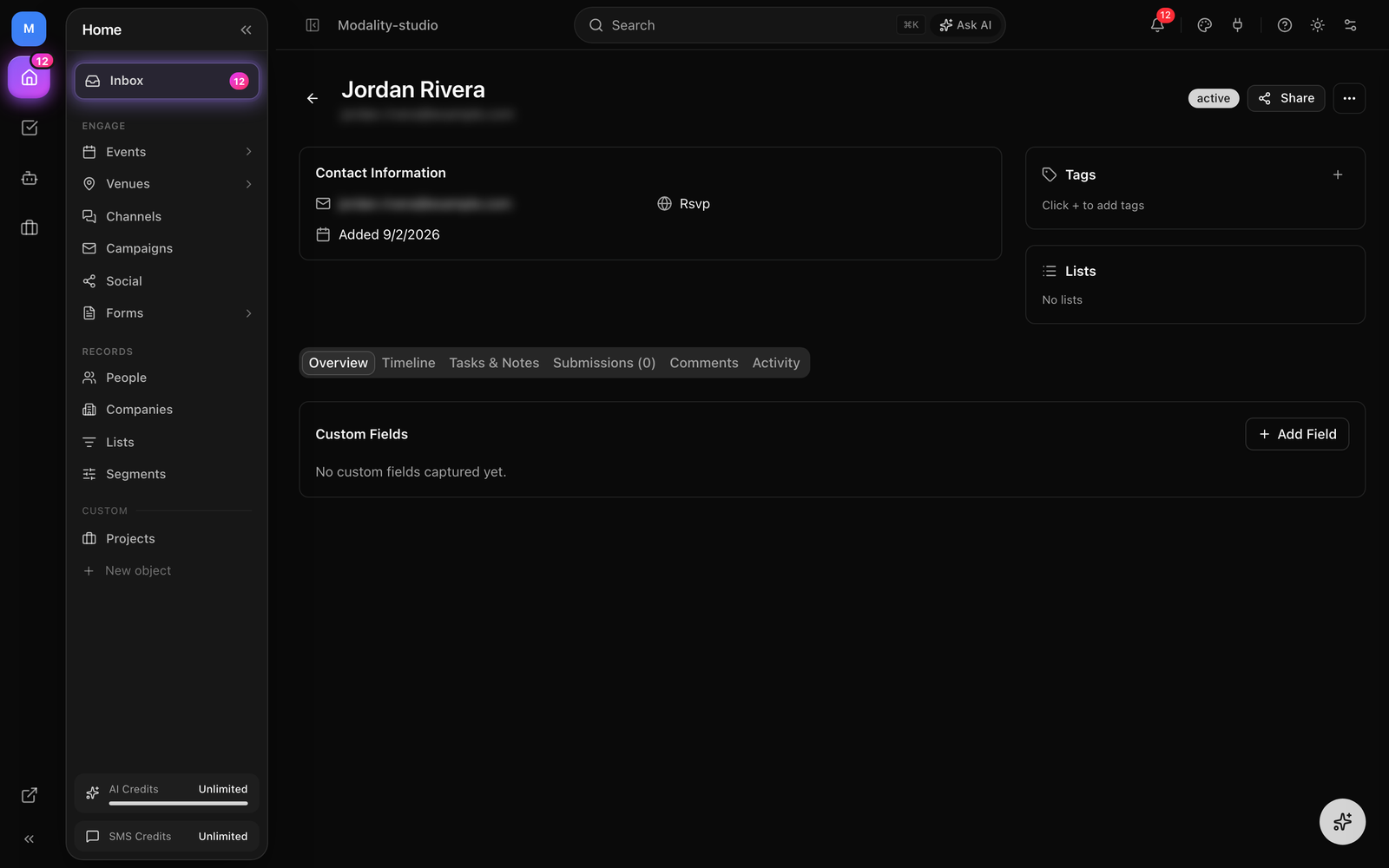
Open any record to reach its full detail page. It has a main column with tabbed sections and a sidebar for tags and related context, the same layout for People, Companies, and every custom object.
Tabs on the Detail Page
- Overview, every field on the record, editable in place. Save changes without leaving the page.
- Activity, splits into two sub-tabs: Timeline and Automation runs (see below).
- Submissions, form submissions that targeted this object, with source, timestamp, and a summary; click through to the full submission.
- Tasks & Notes, the record's task and note activity feed for collaboration.
- Automations, the automations that reference this object, in context.
The Activity Timeline
The Timeline sub-tab is the full history of the record, including manual field edits, in one chronological feed. The Automation runs sub-tab lists automation executions that touched the record, so you can see exactly what a workflow did and when.
Sidebar
The right sidebar carries the record's tags (add, create, or remove inline) alongside its related context, so key associations stay visible while you work in any tab.
Views: Table, Kanban, Calendar & Gallery
Every object supports multiple saved views, named configurations you switch between from the toolbar. A view remembers its type, its group-by field, and its filters, sorting, and column layout, so you can keep, for example, a filtered "My open deals" table next to a pipeline board. The four core view types are:
- Table, the default spreadsheet view: inline editing, sorting, filtering, and column management, identical to the People table.
- Kanban, records as cards on a board, grouped by a Select or Multi-select field. Drag a card between columns to update that field.
- Calendar, records placed on a calendar by a chosen date field.
- Gallery, records as visual cards, useful for image-heavy objects.
Additional view types are also available for a saved view, Form (a public form that writes to the object), Chart, Timeline, and Dashboard (a widget layout), so a single object can be looked at many ways.
How to Set Up a Kanban Board
- Add a saved view and set its type to Kanban.
- Choose the Select (or Multi-select) field to group by, e.g. "Stage" or "Status."
- Each option value becomes a column; records appear as cards in the matching column.
- Drag a card to another column to update its field value (saved immediately).
- Click a card to open its record detail page.
GIF: switching an object from the Table view to a Kanban board grouped by a Select field, then dragging a card between columns and watching the field update.
Demo GIF / screenshot to be added