Check-In & QR Scanning
Every ticket and every approved RSVP guest gets a unique QR code. Modality gives you four ways to work the door, the dashboard camera scanner, no-login Staff Links, the mobile scanner app, and a searchable guest list, all backed by one server-of-truth redemption that is idempotent per scan, so a retried or offline scan never double-counts. This guide covers each surface, RSVP guest check-in with plus-ones, and the live counts and undo behavior they share.
![The dashboard check-in scanner (/events/[id]/check-in) with the live camera view, the manual ID lookup, a valid-scan result card, and the 'Checked in: N this session' counter.](/docs-media/checkin.png)
How Check-In Works
A ticket's QR code encodes a check-in URL of the form /api/v1/events/{eventId}/check-in/{ticketId}; an approved RSVP guest's QR encodes /api/v1/events/{eventId}/rsvp-check-in/{rsvpId}. The id in the URL is the credential, every scanner parses the id out of the scanned value and posts it to a redeem endpoint that is the single source of truth. Scanners do not trust the QR to admit anyone; the server re-checks the ticket/guest against your workspace on every scan.
- On a valid ticket scan the ticket flips from
VALIDtoUSEDandcheckedInAtis stamped. The holder's name and ticket type are returned so staff can confirm the person. - A second scan of an already-used ticket returns "Already checked in" (HTTP 409) with the original check-in time, so nobody enters twice.
- A cancelled ticket is rejected (HTTP 400); an unknown id returns not found (HTTP 404).
- A ticket scanned at the wrong event returns wrong event (HTTP 422) instead of admitting the holder.
- Each successful redemption also writes a
ticket_checked_inactivity to the holder's timeline.
Idempotent Redeem & Live Counts
The redeem service is built so a scan can be safely retried. Each scan carries a clientScanId; if the server sees the same clientScanId again for a ticket it has already redeemed, it returns success (a "retry") rather than counting a second entry. This is what makes the mobile offline queue and any dropped-connection retry safe, replaying a scan is a no-op.
- Same scan, retried, matching
clientScanId⇒ok(retry), no double-count. - Different scan of a used ticket, ⇒
already_redeemed, reported as "Already checked in." - Live counts, a stats endpoint returns scanned / remaining totals plus a per-ticket-type breakdown, computed over all non-cancelled tickets. The staff and mobile scanners poll it so the header count stays current across multiple people scanning at once.
Idempotency state and a scan audit (scan count, the device that checked the holder in) live in the ticket's metadata, no extra setup required.
Undo
Checked someone in by mistake? Undo reverts the ticket to VALID, clears checkedInAt, and drops the stored clientScanId so the ticket can be scanned again cleanly. In the mobile and Staff-Link scanners the last successful scan shows an Undo button right on the result card; undo also writes a ticket_checkin_undone activity.
Dashboard Camera Scanner
From an event, open the check-in scanner at /events/[id]/check-in. It runs in the browser and is the fastest way to work the door from a laptop or tablet you're already signed in on.
- 1
Open the scanner
Go to the event and open the check-in page (
/events/[id]/check-in). You'll see a camera panel, a manual-entry box, and a "Checked in: N this session" counter in the top-right. - 2
Start the camera
Click Start Camera and allow camera access. The scanner uses the browser's built-in barcode detector to read QR codes from the rear (
environment) camera, with a framing box to aim. - 3
Scan a QR
Point at a ticket or RSVP QR. A valid scan shows a green check with the holder's name, email, and ticket type; an already-used ticket shows an amber "Already checked in" with the original time; invalid or cancelled tickets show a red error. The session counter increments on each successful admit.
- 4
Fall back to manual entry
If a code won't scan (damaged QR, no camera), type the ticket id into Manual Entry and submit. It runs the exact same redeem, so the result is identical.
The scanner recognizes both kinds of code: an RSVP QR is matched first (its path contains "check-in" as a substring), so a guest QR is admitted through the RSVP path and a ticket QR through the ticket path, a guest code can never mis-route to the ticket endpoint.
Staff Links (No-Login Door Scanning)
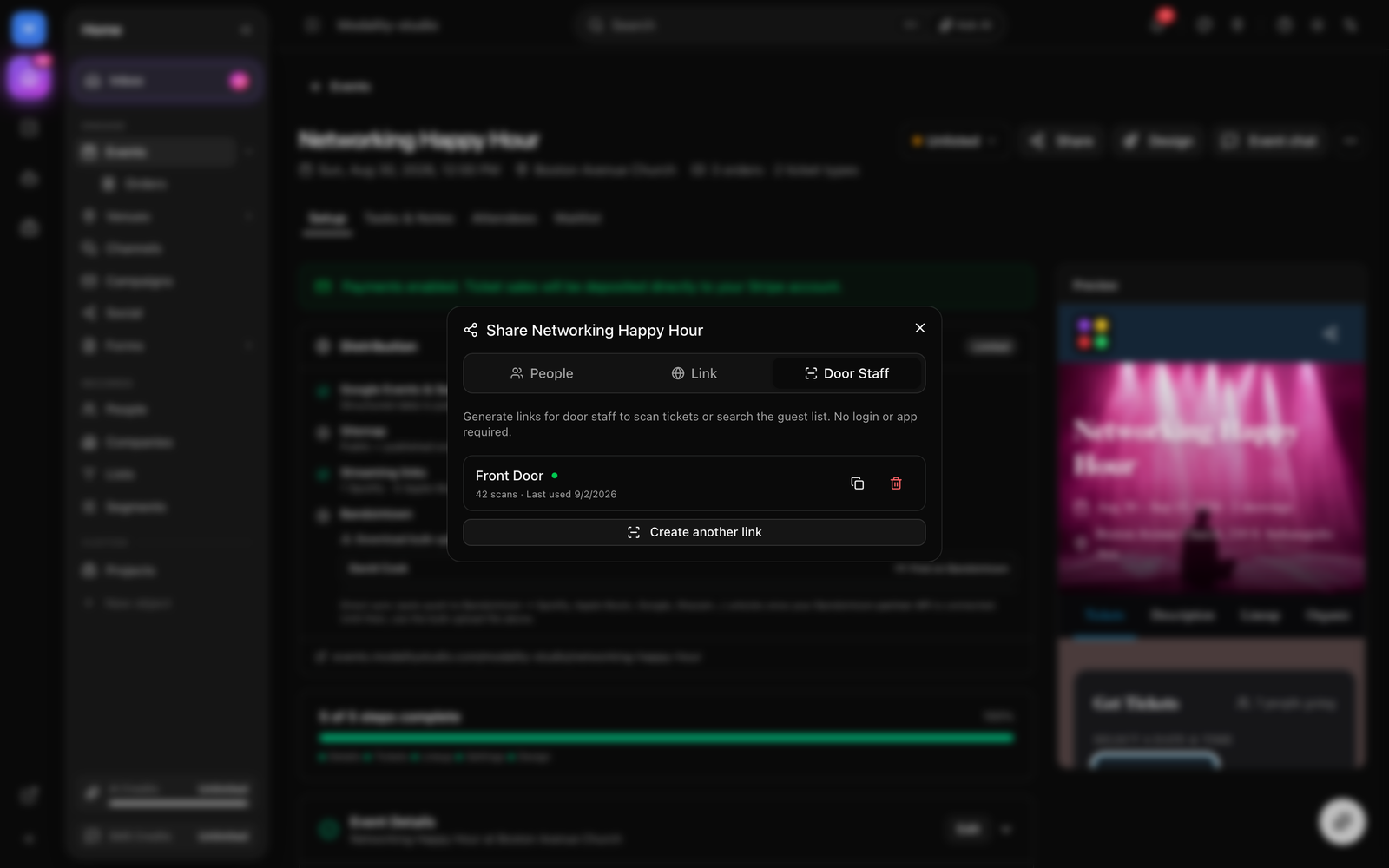
Staff Links let you hand door staff a scanner without giving them a Modality account or asking them to install anything. Each link is a shareable URL at /staff/<token> that opens a full check-in app in the browser, camera scanner plus a searchable guest list, scoped to exactly one event.
Creating & Sharing a Staff Link
- 1
Open Staff Scanner Links
On the event, open the Staff Scanner Links panel (in the Share dialog's Staff tab). It lists your active links with a live count of how many are active.
- 2
Create a link
Click New Link, give it an optional label like "Front Door" or "VIP Entrance" (defaults to "Staff"), and create it. The label is how you'll tell links apart and it stamps each scan's device id.
- 3
Copy and send it
Use the copy button to grab the
/staff/<token>URL and send it to your door person by text, email, or a shared note. They just open it, no login, no app. - 4
Track and revoke
Each link row shows its running scan count and when it was last used. Revoke a link anytime with the trash button; a revoked link stops working immediately (the page 404s) and moves to a revoked tally.
What Door Staff See
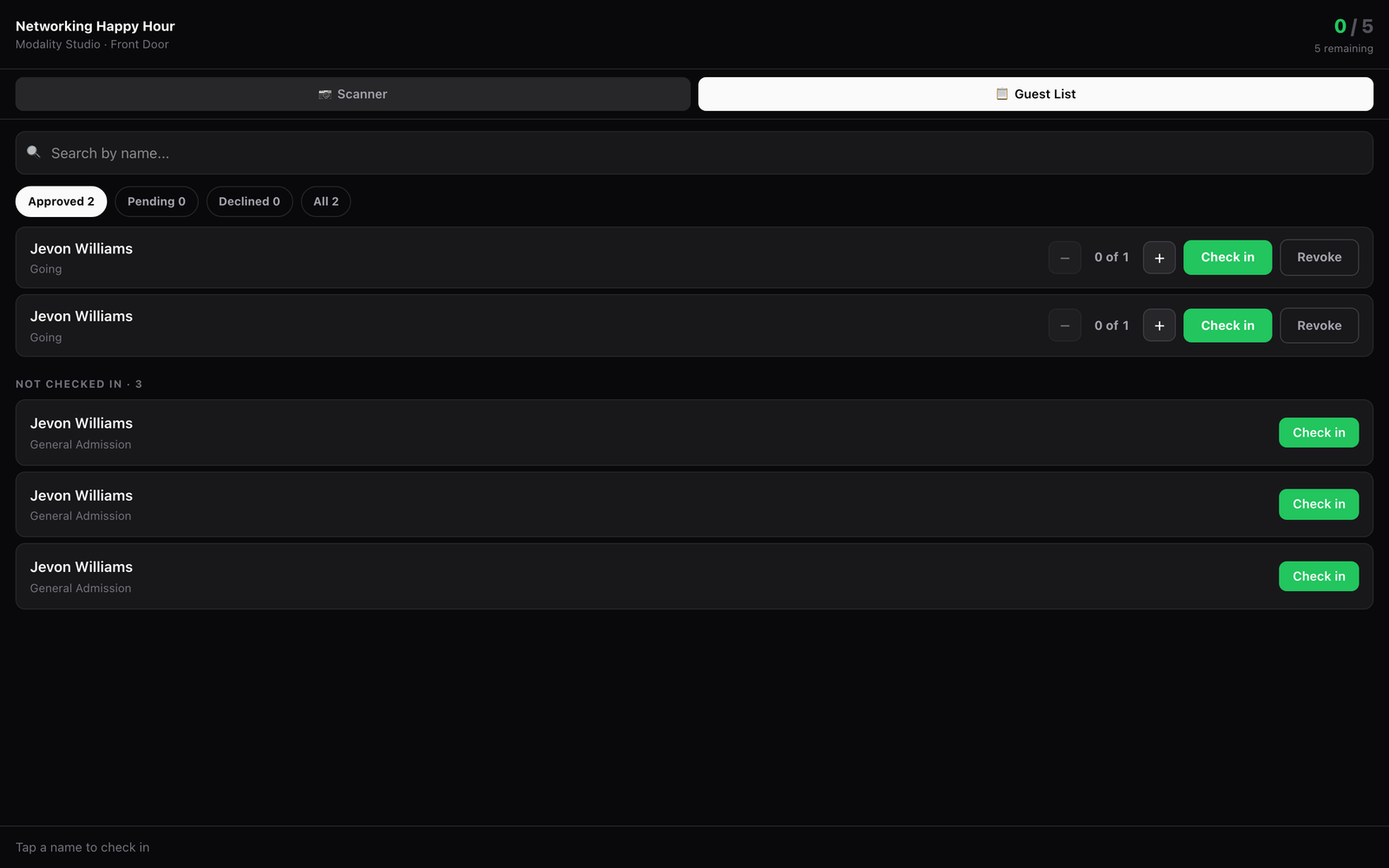
Opening a Staff Link loads a dark, phone-first scanner with two modes toggled at the top:
- Scanner, a live camera view with a framing box. It reads QR codes with the browser's barcode detector where available and a software decoder (jsQR) as a fallback, so it works on iOS too. Each result slides up as a colored card (green admit, amber already-in, red error) with an Undoon the last admit, and the device vibrates differently for success, warning, and error.
- Guest List, the full attendee manifest with search by name. Tap a not-checked-in name to admit them; checked-in guests are shown dimmed with an "In" marker. Approved RSVP guests appear here too (see below).
A header shows a combined in / total count with a remaining tally (folding in checkable RSVP arrivals), the footer shows how many were scanned this session and a green/red camera-ready dot, and a duplicate-scan guard ignores the same QR for a few seconds so one code isn't counted twice from a single hold. Stats and the RSVP list refresh automatically every few seconds.
Mobile Scanner App
The Modality mobile app (Studio mode) includes a native scanner for signed-in team members. It's built for real venues where connectivity is unreliable:
- Offline-safe queue, the app caches the event's attendee manifest, validates scans locally, and marks tickets used on-device. Redeems are enqueued and flushed to the server when the connection returns; because each carries a
clientScanIdand redeem is idempotent, replaying the queue never double-counts. - Live stats, scanned / remaining counts refresh as scans land and as the queue flushes.
- Ticket & RSVP in one, the same scanner admits ticket holders and approved RSVP guests, with tabs for scanning, attendees, and requests.
- Haptics, distinct feedback for a good scan, an already-checked-in scan, and an error.
Because the server is always the source of truth, the dashboard scanner, Staff Links, and the mobile app can all work the same door at once, a ticket checked in on one surface immediately reads as used on the others.
GIF: the mobile Studio scanner admitting a ticket (green haptic confirmation), then going offline, scans queue and the counter still advances, and flushing the queue when back online with no double-counts.
Demo GIF / screenshot to be added
RSVP Guest Check-In & Plus-Ones
Free / RSVP-only and approval-gated events check in through the same door workflow as tickets. Every approved, still-attending RSVP guest has a QR (encoding the rsvp-check-in URL) and appears on the door guest list, so ticketed and non-ticketed events share one flow.
- Who can be admitted, only guests who are approved and haven't declined. Standard RSVPs are approved by default; approval-gated events admit a guest once you approve them. A guest who changed their answer to "Can't go" is still listed (they were approved) but is not checkable, and their old QR stops working.
- Scanning admits the primary guest, a QR scan checks in the named guest (idempotent on
clientScanId, so a re-scan reports "already checked in"). Plus-ones are admitted from the list. - Plus-ones are a bounded count, plus-ones are anonymous, so the door uses a party counter: a stepper and a "Check in" button admit the whole party at once (guest + their plus-ones), clamped to the party's headcount. When a party is more than one person the scanner confirms "Check in N people?" before admitting, with a "don't ask again this session" option.
- Approve / decline at the door, for approval-gated events, the guest list filters by Approved / Pending / Declined; pending guests get Approve / Decline buttons and declined guests can be re-approved right there.
Header counts fold checkable RSVP arrivals (approved and coming) into the ticket totals, so the door's "in / total" matches the organizer's attendee view. Un-admitting a guest or party is just the same control run backward.
Approval-Gated Events at the Door
For events with Require approval on (approve-then-pay), the door surfaces make approval part of check-in:
- A guest requests to attend; their RSVP is created pending.
- You approve (or decline) from the dashboard, or from the door guest list on a Staff Link / mobile app.
- Approved guests appear on the check-in list and can be admitted like ticket holders.
- Declined guests stay recorded so they don't resurface as pending, and can be re-approved if plans change.
Troubleshooting
- "Camera access denied", grant camera permission in the browser and retry, or use manual entry (dashboard) or the guest list (Staff Link) to check people in by name.
- "This ticket is for a different event", the QR belongs to another event. Open the matching event's scanner or Staff Link.
- "Already checked in", the ticket or guest was admitted already; the result shows the original time. Use Undo if it was a mistake.
- "Invalid or expired staff link" / a 404 page, the Staff Link was revoked or has passed its expiry. Generate a fresh link from the Staff Scanner Links panel.
- Counts look behind, stats poll on a short interval; give it a few seconds, or reopen the guest list to refresh the manifest.