Integrations
Connect Modality to the tools you already use, for taking payments, sending email and SMS, publishing to social, syncing calendars, and streaming data to your own systems. Everything is managed from a single Settings → Integrations page, with providers grouped by category and a filter bar to narrow the list.
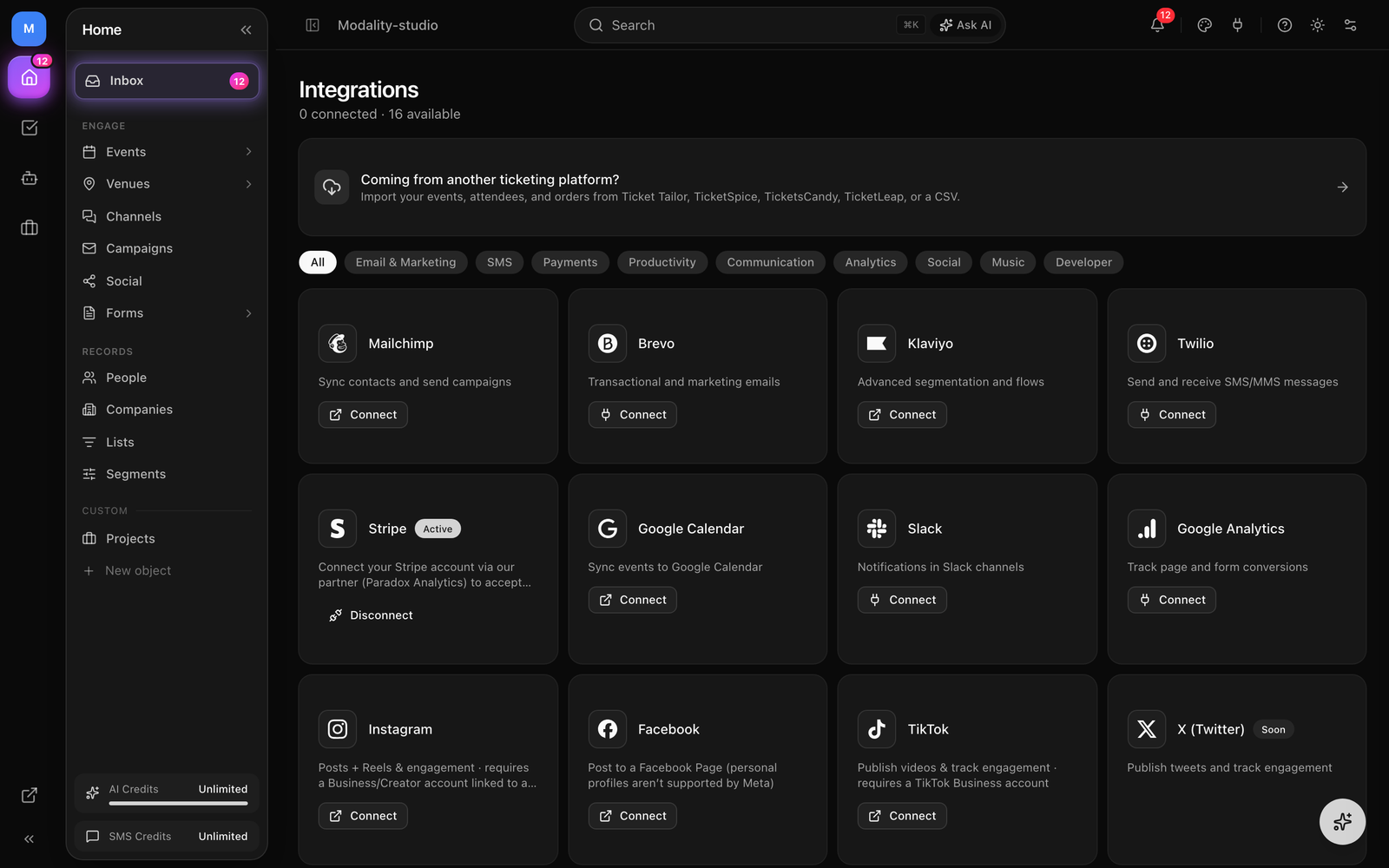
Stripe (Payments)
Stripe powers every payment in Modality, online ticket checkout, paid form fields, and in-person box-office sales. Modality connects you through Stripe Connect as a platform partner (Paradox Analytics): you get your own connected Stripe account, customer charges run directly against it, and payouts go straight to your bank, Modality never holds your funds.
Embedded Onboarding
Connecting happens inside Modality with Stripe's embedded onboarding component, no full redirect out to Stripe in the normal flow.
- 1
Open the Stripe card
Go to Settings → Integrations and click Connect on the Stripe card. A dialog opens with Stripe's embedded onboarding form.
- 2
Create or link a Stripe account
Modality creates a Stripe Connect account for your workspace behind the scenes, then mounts Stripe's hosted onboarding. Enter (or connect an existing) Stripe account: business details, bank account for payouts, and identity verification. Everything stays inside the dialog.
- 3
Submit for verification
When you finish, Stripe records your details. The connection is considered complete the moment your details are submitted, you don't have to wait on the dialog.
- 4
Payments activate automatically
Stripe's
charges_enabledcheck often lags submission by seconds to minutes. During that window the card shows Verifying; Modality polls Stripe in the background and flips the card to Active on its own once charges are enabled, no manual retrying.
GIF: clicking Connect on the Stripe card, Stripe's embedded onboarding form mounting inside the dialog (business details → bank for payouts → identity), then the card settling from 'Verifying' to 'Active'.
Demo GIF / screenshot to be added
Fees & Payouts
- Direct charges, paid sales are charged on your connected account, so Stripe pays out to your bank on Stripe's normal schedule.
- Platform service fee, Modality collects a small application fee (0.5%–1.9% depending on your plan) on paid orders. Free tickets and $0 orders carry no fee.
- Stripe processing fees, Stripe's own card fees (2.9% + $0.30 in the US) apply on top and are surfaced to the buyer as part of the service fee at checkout.
- Payment methods, cards, Apple Pay, Google Pay, Cash App, Venmo, and more, per your Stripe account's enabled methods.
The same connected account also underpins in-person card payments, the Stripe Terminal location used by Tap to Pay and card readers is created on it (see Events & Ticketing → Box Office). Disconnecting Stripe removes the stored account reference from your workspace; paid checkout is then blocked with a clear message until you reconnect. Free events work without Stripe.
Email Service Providers
Connect an ESP to route campaign sends through their infrastructure and keep your contacts in sync. Modality supports three: Brevo, Mailchimp, and Klaviyo. Each connected ESP becomes a selectable sending provider when you build a campaign.
How Each One Authenticates
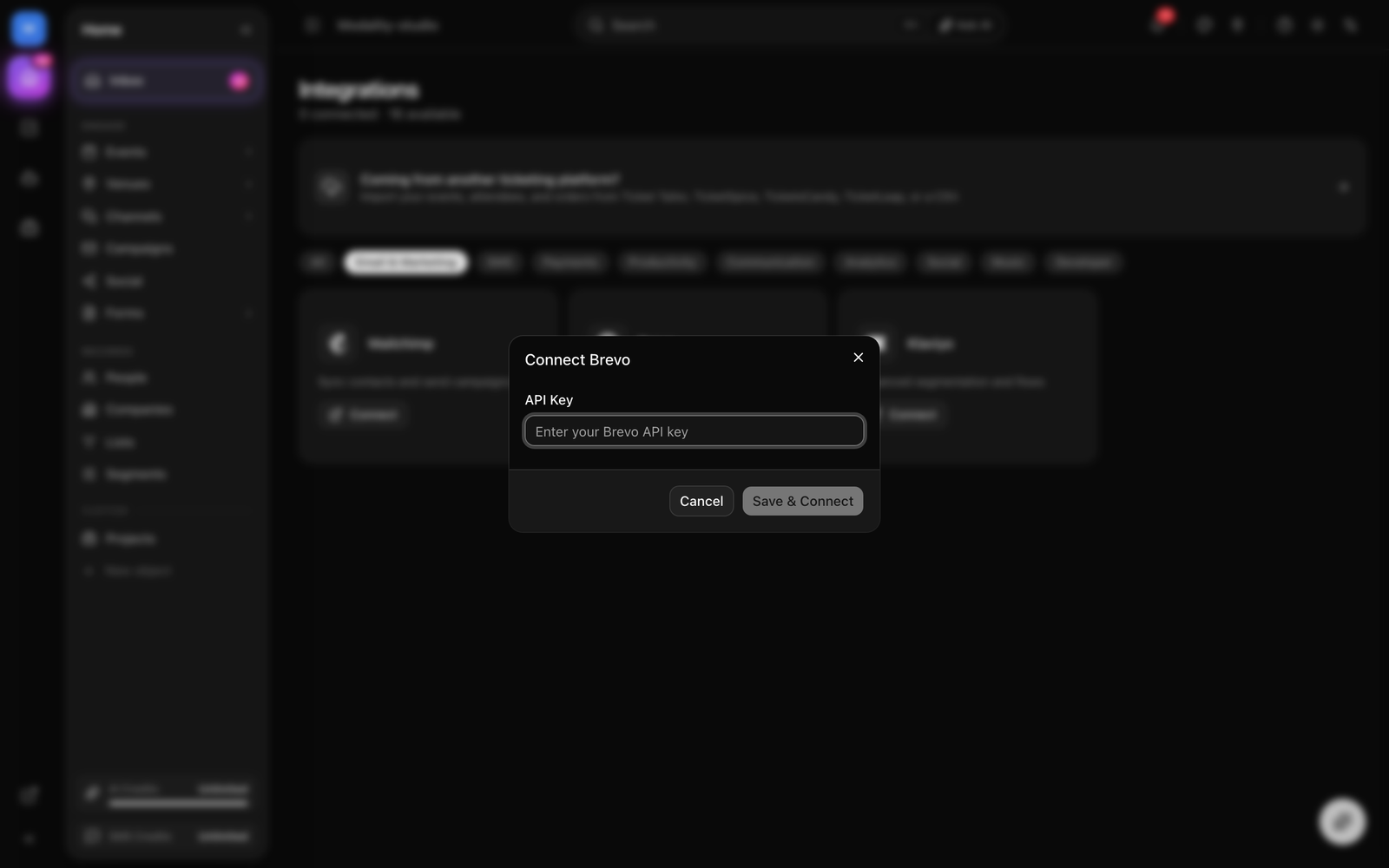
- Brevo, API key. Paste your key; Modality validates it and reads your lists and templates.
- Mailchimp, OAuth. Click Connect, authorize in Mailchimp, and you're returned to Modality. Modality also reads your account's data-center so API calls hit the right region.
- Klaviyo, OAuth with PKCE (not a plain API key). Click Connect, authorize the requested scopes in Klaviyo, and the access/refresh tokens are stored and auto-refreshed before they expire.
How to Connect an ESP
- Go to Settings → Integrations and find the ESP you want.
- Click Connect. For Brevo, paste your API key; for Mailchimp/Klaviyo, complete the OAuth flow (or use the API-key fallback).
- Modality tests the credentials and fetches your account's lists/audiences.
- Optionally pick a default audience list to map contacts into.
- Once connected, the ESP appears as a sending option when creating campaigns, and contact sync is available.
Contact Sync (Push to Your ESP)
Contact sync is one-directional: Modality pushes contacts out to your connected ESPs. Modality is the source of truth for segmentation, the ESP is a delivery destination, not a two-way mirror.
- On change, when a contact is created or updated in Modality, it's pushed to every active integration in the background (fire-and-forget; failures are logged, never blocking).
- What's sent, email address (the match key), first and last name, and the contact's tag names.
- Bulk sync, the Sync button on a connected ESP card pushes all of your workspace's contacts to that provider, processed in batches of 50, and reports how many synced.
Twilio (SMS)
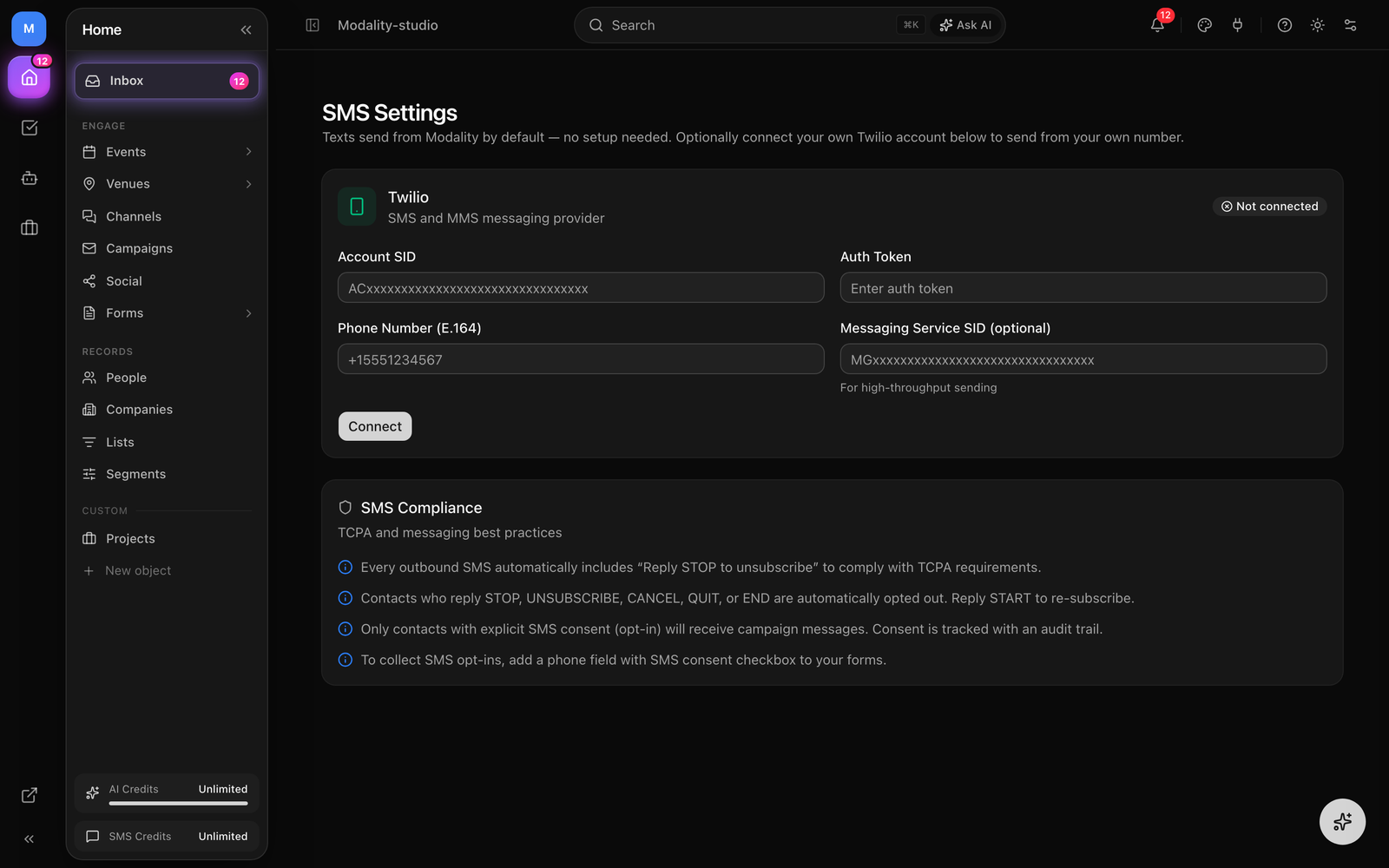
Bring your own Twilio account to send campaign and transactional SMS/MMS from your own number. Connect it from the Twilio card with a short multi-field form.
- Account SID and Auth Token, from your Twilio Console dashboard (Account Info).
- Twilio phone number, in E.164 format (e.g.
+15551234567). - Messaging Service SID (optional, under Advanced), use a Messaging Service for higher throughput and multiple sender numbers.
Modality authenticates to Twilio with these credentials (an API Key SID/secret pair is used automatically when present, which Twilio recommends over the root Auth Token). Every outbound message appends a Reply STOP to unsubscribe notice.
Social Publishing
Connect social accounts to publish posts (and reels/videos) about your events and pull engagement back into the CRM. All social integrations use OAuth.
- Instagram, posts and Reels plus engagement. Requires a Business or Creator account linked to a Facebook Page.
- Facebook, post to a Facebook Page (Meta doesn't allow posting to personal profiles).
- TikTok, publish videos and track engagement. Requires a TikTok Business account.
- X (Twitter) and LinkedIn, implemented and marked Coming Soon until their developer apps are provisioned.
Publishing lets you attach text, media, and a link; connectors also report per-post engagement (likes, comments, shares, reach/impressions). Where a platform supports it, Modality can fetch comments on a published post and match commenters to CRM contacts, the basis for turning social replies into leads.
Import from Another Ticketing Platform
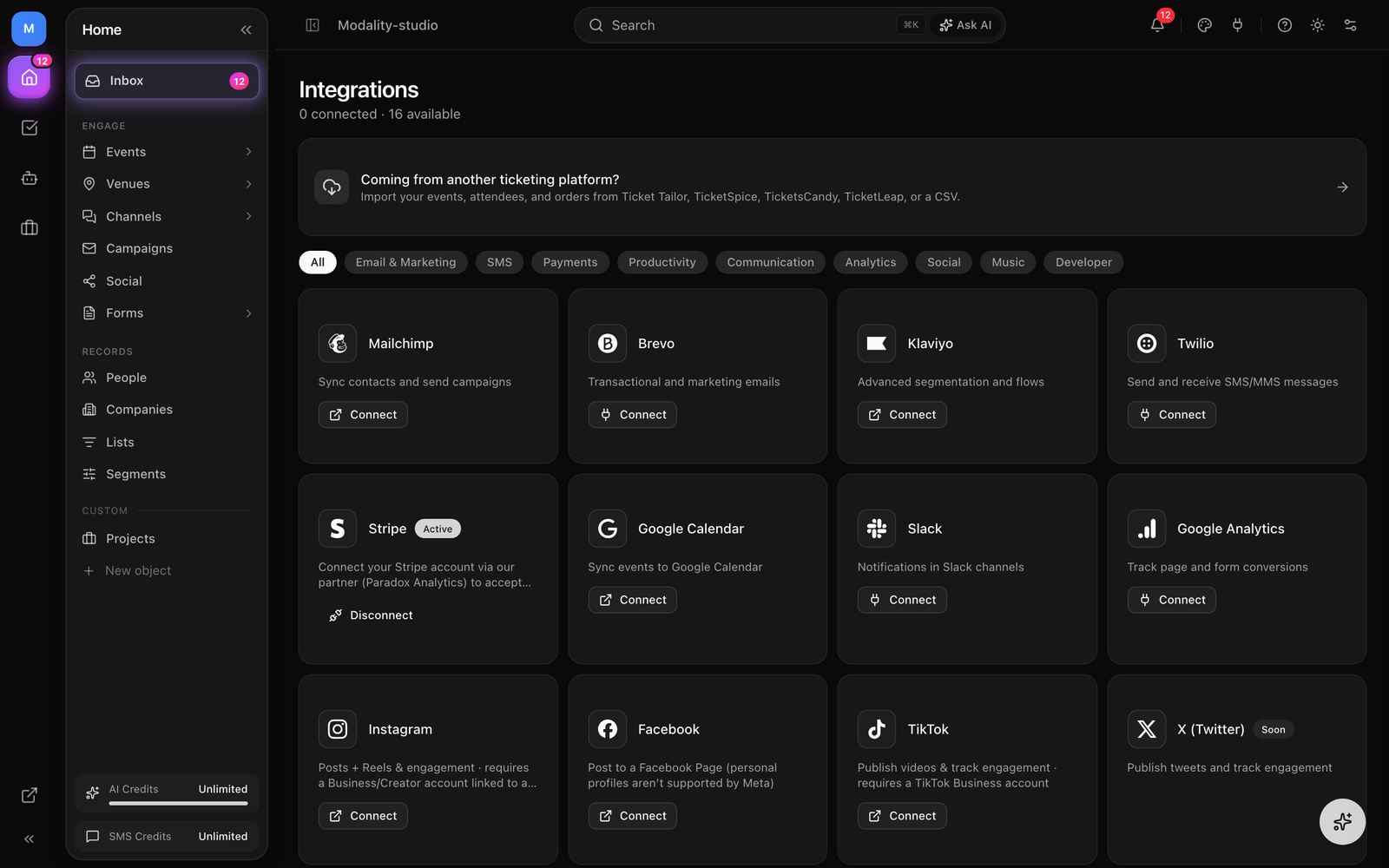
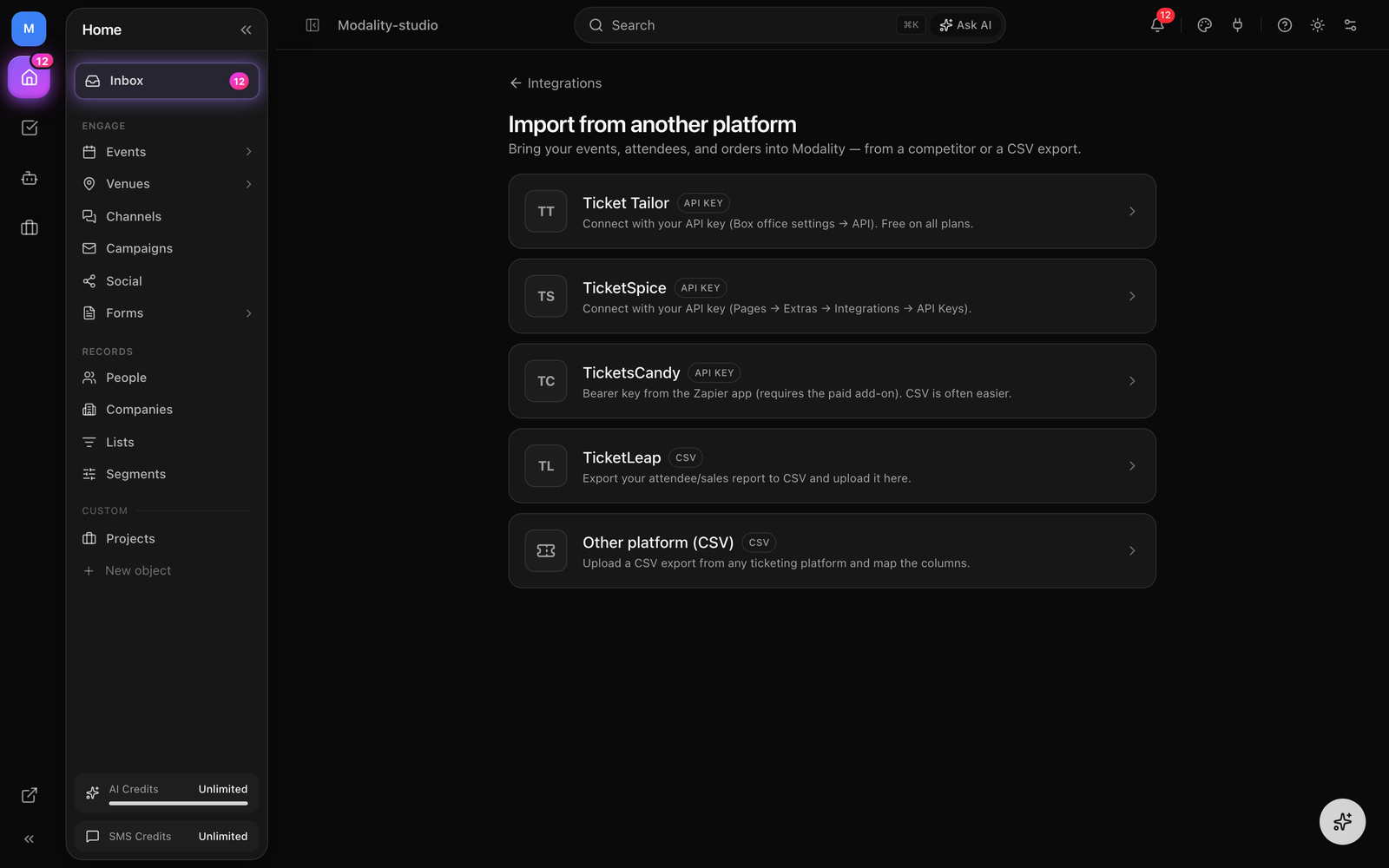
Moving to Modality? The migration wizard at Integrations → Import (the "Coming from another ticketing platform?" banner) brings your events, attendees, and orders across. It's a guided four-step flow: pick a source, connect, preview and select events, then import.
Supported Sources
- Ticket Tailor, API key (Box office settings → API).
- TicketSpice, API key (Pages → Extras → Integrations → API Keys).
- TicketsCandy, bearer key plus the event IDs to import (TicketsCandy can't list events over its API), with an optional API base URL.
- TicketLeap, export your attendee/sales report to CSV and upload it.
- Any other platform (CSV), upload a CSV export from any tool and map the columns (event title and attendee email are required; name, ticket type, order reference, amount, and event date are optional).
How the Import Behaves
- Idempotent, events, orders, and tickets are keyed on their source + external id, so re-running never creates duplicates.
- Silent, imported attendees become People records with no emails, notifications, or ESP sync (it's a quiet migration).
- Safe by default, imported events land unlisted (and draft, or completed if already past). Nothing publishes to Discover or Google until you deliberately publish it.
- Orders & tickets, orders are stamped with the
IMPORTchannel and anEXTERNALpayment method; checked-in tickets carry over as used. - Async with progress, the import runs as a background job you can watch (events / orders / attendees counts), and it keeps running if you leave the page. CSVs are capped at 20,000 rows.
Google Calendar
Connect Google Calendar over OAuth (with offline access so Modality can refresh its token). Tasks that have a due date sync out as all-day calendar events, and status changes update or remove them, a two-way sync for your task workflow.
Slack
Paste an incoming webhook URL from your Slack workspace to post Modality notifications into a channel. Modality sends a confirmation message when you connect so you can verify the webhook works.
Google Analytics
Enter a GA4 Measurement ID (G-XXXXXXXXXX). Modality injects the gtag.js snippet into your public pages, event pages and form pages, so you can track visits and conversions in your own Google Analytics property. Nothing is sent to Modality; the tag reports straight to Google.
Webhooks
Stream real-time data to any URL. Add an endpoint and Modality POSTs a JSON payload ({ event, timestamp, data }) whenever a subscribed event fires. Provide an optional signing secret and Modality signs each payload with an HMAC-SHA256 signature so your receiver can verify authenticity. A test test.ping is sent when you connect.
Events currently dispatched:
contact.created,contact.updated,contact.status_changed,contact.deletedevent.created,event.updated,event.deletedform.submitted
Music Embeds (Spotify & Apple Music)
Spotify and Apple Music don't require a connection flow, they work automatically. Paste a Spotify or Apple Music URL onto an artist profile or into an event's lineup and the player renders on the public event page.
The Connector Framework
Under the hood, integrations implement one of a few shared interfaces so behavior is consistent across providers. Email providers (Brevo, Mailchimp, Klaviyo) implement the Connector interface; SMS and social have their own parallel interfaces; and lightweight integrations (Stripe, Slack, webhooks, Google Analytics, music) register a simple connection test rather than the full interface.
The Connector Interface (Email)
Every ESP connector implements:
- testConnection, validate the stored credentials.
- syncContact, push a contact (email, name, tags) to the provider.
- syncAudience, push a list/segment of contacts to a provider list.
- getLists, read the provider's lists/audiences.
- getTemplates, read available email templates.
- createCampaign, create a campaign (draft) in the provider.
- sendCampaign, send or schedule that campaign.
- getCampaignStats, pull back sends, opens, clicks, bounces, unsubscribes, and rates.
Connectors may also implement optional capabilities where the provider supports them, reading a template's or campaign's HTML and metadata, listing merge tags, listing existing campaigns to link, and building, starting, and triggering automation workflows.
Sibling Interfaces
- SmsConnector (Twilio),
testConnectionandsendSms. - SocialConnector (Instagram, Facebook, X, LinkedIn, TikTok), test, list accounts/pages, publish a post, read post engagement, and (optionally) fetch comments.
- Simple testers, Stripe, Slack, Webhooks, Google Analytics, Spotify, and Apple Music register just a connection check.
Connector interface, you can switch providers without changing your campaigns or automations, disconnect one, connect another, and re-select it as a campaign's sending target. Modality also has native sending (email via Resend; SMS via Twilio) that you can use alongside an ESP: each campaign independently picks its sending provider.Managing Your Integrations
- One page, everything lives at Settings → Integrations, with category filter pills and a "connected / available" count.
- Status at a glance, each card shows Connect, Active, Verifying (Stripe), or Soon.
- Disconnect anytime, disconnecting deactivates the integration and clears its stored config; Stripe disconnect removes the connected-account reference from your workspace.
- Masked secrets, API keys and tokens are always displayed masked to their last four characters.