Embed Widgets
Put a Modality event or form directly on your own website, sell tickets, collect RSVPs, or take form submissions without sending visitors anywhere else. Copy one snippet from the Share dialog, paste it into any page, and the widget renders inline, as a popup button, or as a basic iframe. Paid checkout runs on Stripe inside the widget, so payment never leaves your site.
GIF (FLAGSHIP, currently no media): open an event's Share dialog, switch to the Link tab, toggle the three embed modes, copy the Popup-button snippet, paste it into a plain HTML page, then click the 'Get Tickets' button and complete Stripe Embedded Checkout inside the modal.
Demo GIF / screenshot to be added
What You Can Embed
Two kinds of things embed with the exact same snippet shape, differing only by one data attribute:
- An event, a compact ticket/RSVP widget (
data-es-event="slug"). Buyers pick tickets or RSVP and pay inline. - A form, any form you built in the form builder (
data-es-form="slug"), rendered with its own theme and submitting to Modality.
Both are served with frame-ancestors * (and X-Frame-Options: ALLOWALL), so they can be iframed on any domain, your marketing site, a Squarespace/Wix/WordPress page, a Notion embed, anywhere you can paste HTML.
Getting the Snippet
The snippet is generated for you, you never hand-write it. For an event:
- 1
Open the Share dialog
On any published event, click Share. (Events must be published for the embed to render; draft events 404 in the frame.)
- 2
Go to the Link tab
The Link tab holds the public URL, printable QR codes, and, under Embed on your website, the snippet generator.
- 3
Pick a mode
Toggle between Popup button, Inline, and Basic iframe. The code box updates live and a one-line description explains each mode.
- 4
Copy and paste
Click Copy and paste the snippet into your site's HTML where you want the widget to appear. That's the whole install, no build step, no npm package.
data-es-form in place of data-es-event. Everything below (modes, the loader script, the resize protocol) is shared between the two.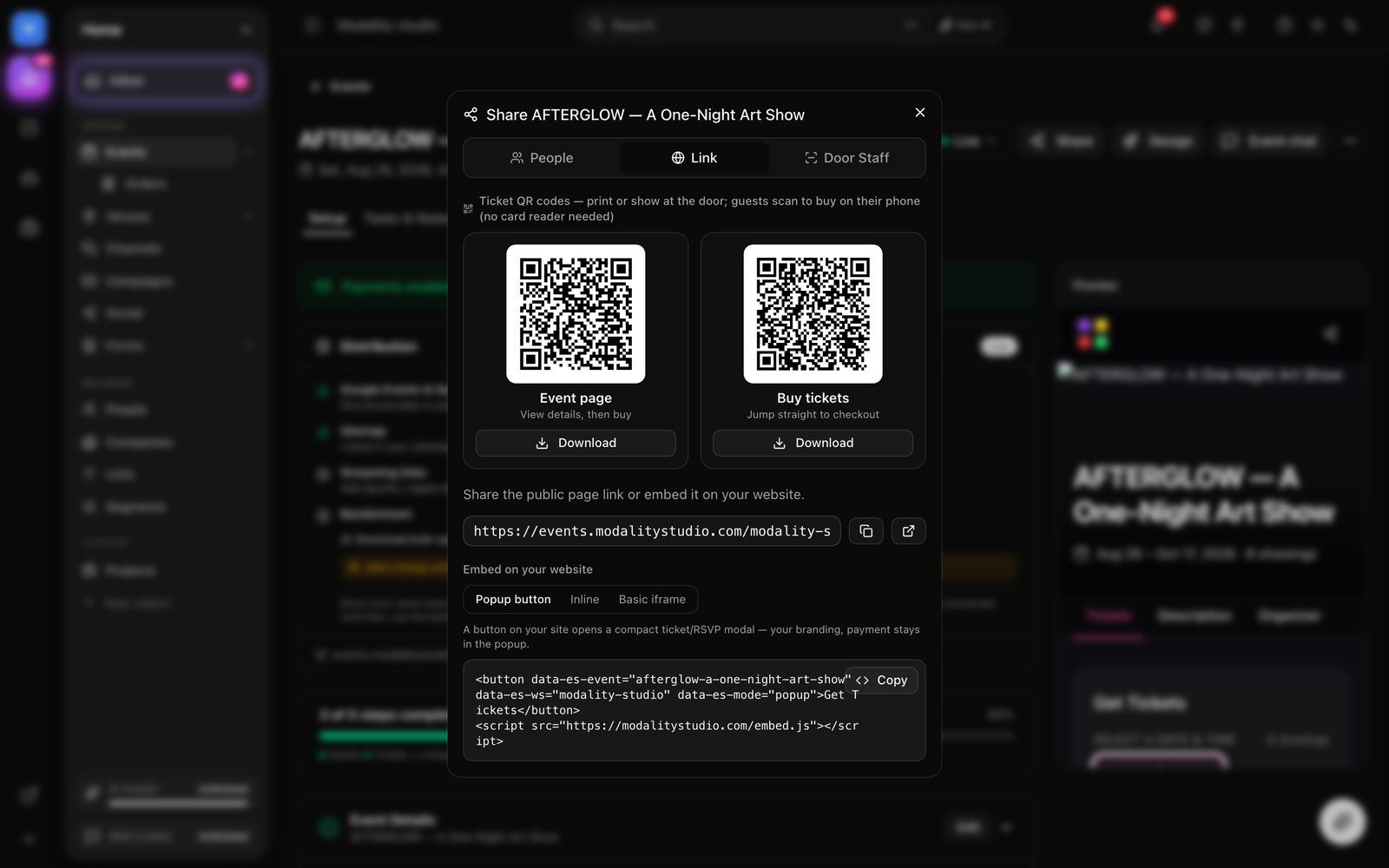
The Three Modes
All three point at the same underlying widget; they differ only in how it appears on your page.
1. Popup button
A styled button sits on your page; clicking it opens the compact ticket/RSVP widget in a centered modal over a dimmed backdrop. Closes on the ✕, on backdrop click, or with Esc. This is the default mode in the Share dialog.
<button data-es-event="my-event-slug" data-es-ws="your-workspace" data-es-mode="popup">Get Tickets</button>
<script src="https://modalitystudio.com/embed.js"></script>
2. Inline widget
The widget renders directly in the flow of your page inside a <div> and auto-resizes to fit its content (no inner scrollbar). This is the mode with data-es-mode omitted, standard is the default.
<div data-es-event="my-event-slug" data-es-ws="your-workspace"></div>
<script src="https://modalitystudio.com/embed.js"></script>
3. Basic iframe
A plain fixed-height <iframe> of the widget, no loader script, no auto-resize. Use it where you can only paste an iframe (some page builders) or when you want a fixed box. It carries allow="payment; clipboard-write" so Stripe wallet buttons and copy-link work inside the frame.
<iframe
  src="https://modalitystudio.com/event/my-event-slug/embed?ws=your-workspace"
  width="100%" height="600" frameborder="0"
  style="border:none;border-radius:12px;"></iframe>
data-es-mode="fullpage") that pins the widget over the whole viewport. It isn't offered in the Share dialog, but it's available if you write the tag by hand.Screenshot: a plain external web page rendered three times side by side, the Popup-button variant (button + open modal), the Inline variant (widget in the page flow), and the Basic-iframe variant (fixed box), to contrast the three modes.
Demo GIF / screenshot to be added
The Loader Script & Data Attributes
The Popup and Inline snippets include a tiny loader, /embed.js. It scans your page for embed elements, builds the iframe, wires up the modal, and handles auto-resize. It self-initializes on DOM ready, guards against double-loading, and is safe to include once even with several widgets on the page.
Element attributes
data-es-event="slug", embed an event's compact ticket/RSVP widget. The presence of this attribute is what makes the element an event embed.data-es-form="slug", embed a form instead. The kind is derived from whichever attribute is present, so an event and a form embed can never be confused.data-es-ws="workspace-slug", scope the lookup to your workspace (see Workspace Scoping).data-es-mode="popup" | "standard" | "fullpage", how it renders. Omitted meansstandard(inline).
Script attribute
data-es-url="https://modalitystudio.com", an optional override on the<script>tag. Normally the loader infers the base URL from its ownsrc(by stripping/embed.js), so you only set this if you load the script from a different origin than the app.
In-Modal Stripe Checkout
The point of the embed is that buyers never leave your site to pay. Here's what happens when someone checks out inside the widget:
- They select ticket quantities (the widget honors the required-base floor and per-tier availability) and enter their email and name.
- On submit, the widget calls checkout in
embeddedmode and gets back a Stripe client secret. - The widget signals the host page to grow the iframe fullscreen, then mounts Stripe Embedded Checkout right there, the payment form renders inside the modal, on your domain, with no redirect.
- On success the buyer sees a confirmation ("Registration complete!") and a link to the full event page; a confirmation email goes out automatically.
Free tickets & RSVPs skip Stripe entirely and complete immediately. If your workspace isn't on Stripe Connect (so Embedded Checkout can't render in a frame), the widget falls back to opening Stripe's hosted checkout page in a new tab instead.
GIF: inside the Popup embed on an external site, select 2 tickets, enter email, hit Checkout, and watch the modal expand to fullscreen with Stripe Embedded Checkout mounted inline, ending on the confirmation screen.
Demo GIF / screenshot to be added
RSVP & Free-Event Widgets
When an event has no ticket types (or RSVP is enabled), the same embed renders as an RSVP widget instead of a ticket picker: Going / Maybe / Can't Go buttons plus name and email. Submitting posts the RSVP and shows a "You're in!" confirmation, no payment step. This is automatic; you use the identical snippet.
Multi-Showtime Events
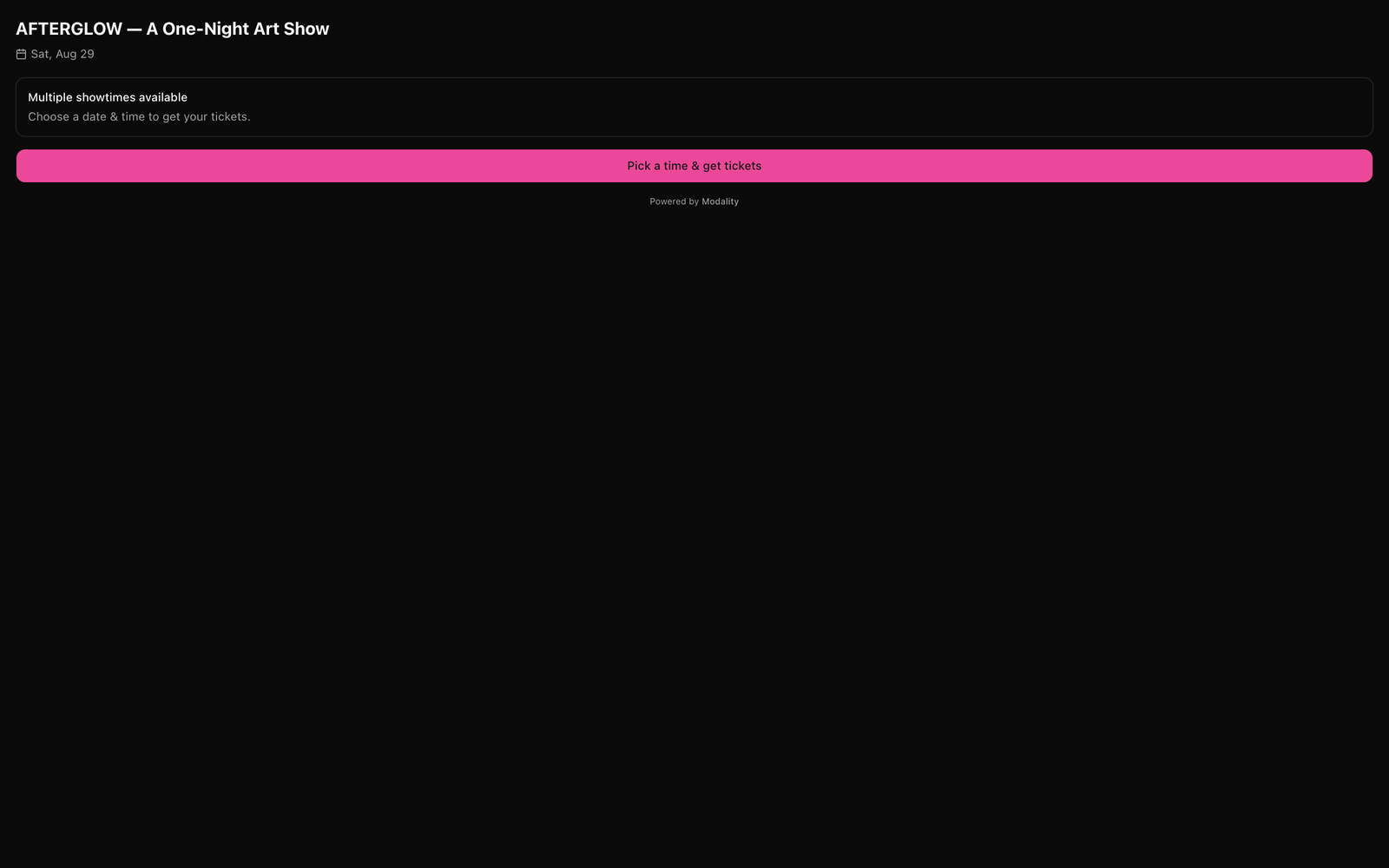
For a recurring / multi-showtime event, the buyer must choose which showing to buy for (each showing has its own inventory). The compact embed can't safely collect that choice, so instead of a ticket picker it shows a "Multiple showtimes available" card with a Pick a time & get tickets button that links out to the full event page, where the buyer selects a date and checks out normally. No configuration needed; the widget detects the showings and switches to link-out mode on its own.
Workspace Scoping
Slugs are unique within a workspace, not globally, two workspaces could each have an event slugged summer-fest. The data-es-ws attribute (rendered into the iframe URL as ?ws=your-workspace) tells the embed which workspace to resolve the slug against, so it always loadsyour event. The Share dialog fills this in for you when it knows your workspace slug; keep it in the snippet you paste.
/event/<slug>/embed?ws=<workspace>. For the popup and inline snippets, the loader reads data-es-ws off your element and appends it to the iframe URL for you.Listening for Submissions (Advanced)
The loader and the widget talk over postMessage using an eventstudio:* protocol, ready, resize, modal-open, and modal-close drive the auto-resize and fullscreen behavior for you. You don't manage any of that.
For inline widgets, the loader also dispatches a DOM es:submit event on your container element when a submission completes, which you can listen for to fire your own analytics or UI:
<div id="rsvp" data-es-event="my-event-slug" data-es-ws="your-workspace"></div>
<script src="https://modalitystudio.com/embed.js"></script>
<script>
  document.getElementById('rsvp').addEventListener('es:submit', function () {
    // e.g. gtag('event', 'rsvp_complete')
  });
</script>