Sequences
Sequences are native, multi-step drip campaigns that reach a contact over time. Chain together email, SMS, and conditional branch steps, put a delay in front of each one, then enroll people and let Modality deliver the steps on schedule. This guide covers step types, delays, the sequence lifecycle, how contacts get enrolled, and the full enrollment lifecycle including pause, resume, and unenroll.
What Is a Sequence?
A sequence is an ordered list of steps. Each contact you add to a sequence becomes an enrollment that walks through those steps one at a time. Before each step runs, the enrollment waits for that step's configured delay. Delivery is driven by a scheduled processor (a cron), so you don't send anything by hand, you build the steps once and enroll people, and Modality fires each step when it comes due.
- Steps, the ordered actions (email, SMS, or a condition gate), each with its own delay.
- Enrollment, one contact's progress through the sequence, tracked by a current-step pointer and a next-run time.
- Processor, the scheduled job that finds due enrollments, runs the current step, and advances them.
Creating a Sequence
- 1
Open Sequences
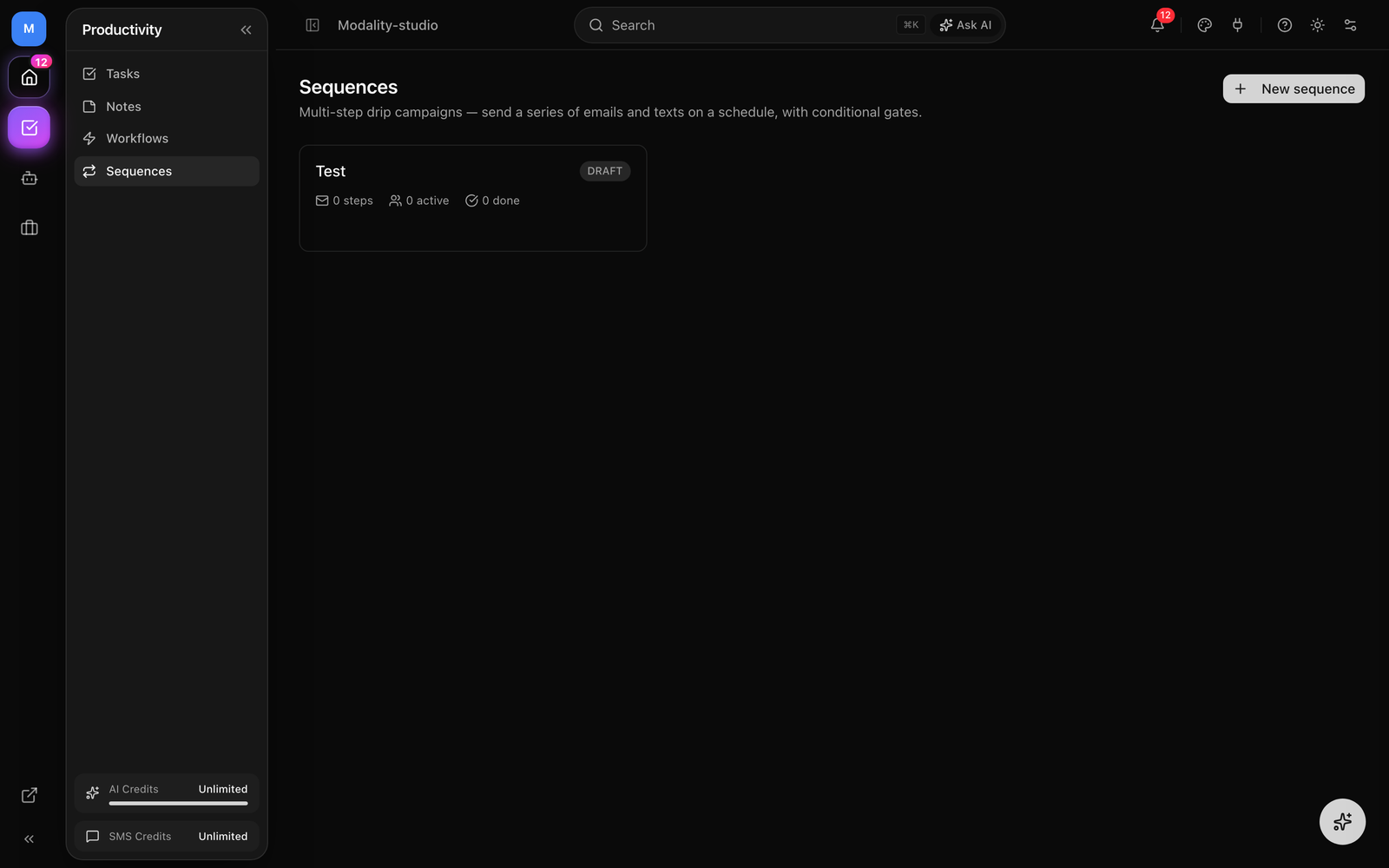
Go to Sequences in the sidebar. The list shows every sequence in your workspace with its status and its step and enrollment counts.
- 2
Create a new sequence
Give it a name and an optional description. New sequences start in
DRAFTso you can build and edit steps without any contact receiving a message. - 3
Add your steps
Open the sequence and add steps in order (see Step Types below). Set the delay in front of each step.
- 4
Activate it
When the steps are ready, set the sequence to
ACTIVE. Only active sequences are processed, an enrollment never advances while its sequence is inDRAFT,PAUSED, orARCHIVED.
Sequence Status: Draft, Active, Paused
Every sequence has one of four statuses. The status is the master switch for whether its steps are delivered:
DRAFT, the default for a new sequence. You can add, edit, reorder, and remove steps freely. No enrollment is ever processed while a sequence is a draft.ACTIVE, live. The processor picks up due enrollments in this sequence and runs their steps. This is the only status in which steps are sent.PAUSED, temporarily stopped. Enrollments stay exactly where they are and nothing is sent; set it back toACTIVEto resume from where each contact left off.ARCHIVED, retired. Treated like paused for delivery (nothing is processed), and kept out of the way.
Step Types
A sequence supports three kinds of step. Add a step from the sequence editor, pick its type, set its delay, then fill in the type-specific content.
Email steps
An email step has a subject and HTML content, edited with the same visual email editor used for campaigns. When the step runs, Modality:
- Renders merge tags in the subject and body, profile fields (
{{firstName}},{{company}}), linked-company fields ({{company.*}}), and your custom fields ({{custom_key}}). - Adds a working unsubscribe link plus one-click
List-Unsubscribeheaders, minting an unsubscribe token for the contact if one doesn't exist yet. - Counts against your workspace's marketing-send allotment (the send is refunded automatically if it fails).
SMS steps
An SMS step carries a text message (with the same merge-tag support). It sends through your workspace's Twilio integration, your own connected Twilio if you have one, otherwise the platform sender metered against your SMS quota. A message is only sent when the contact has both a phone number and SMS consent; if either is missing the step is skipped for that contact but the enrollment still advances, so nobody gets stuck.
Condition steps
A condition step is a gate: it doesn't send anything, it decides whether the contact continues. When the step runs, Modality evaluates the condition against the contact:
- If the condition is met, the enrollment advances to the next step as normal.
- If the condition is not met, the enrollment exits the sequence, it's marked completed with the reason
condition_not_met, and no further steps run.
Conditions reuse the automations engine's evaluator. Choose a field, has tag, status, custom status, lead score, or email, an operator (equals, does not equal, contains, greater than, less than, exists, does not exist), and a value where the operator needs one.
Per-Step Delays
Each step carries a delay expressed in days and hours (hours 0–23). The delay is the wait before that step runs, measured from when the previous step completed (or, for the first step, from the moment of enrollment).
- The default for a new step is 1 day, 0 hours.
- Set both days and hours to 0 and the step runs immediately when the enrollment reaches it, useful for a first step that fires right on enrollment.
- Delays chain: a 0-day step followed by a 2-day step means the second message goes out two days after the first.
Ordering and editing steps
- Steps run in position order, top to bottom.
- Adding a step appends it to the end by default, or you can insert it at a position, later steps shift down to make room.
- Removing a step re-indexes the remaining steps so there are no gaps.
- You can edit a step's type, content, and delay at any time; changing an email step to another type clears its old subject/body.
Enrolling Contacts
There are two ways a contact enters a sequence:
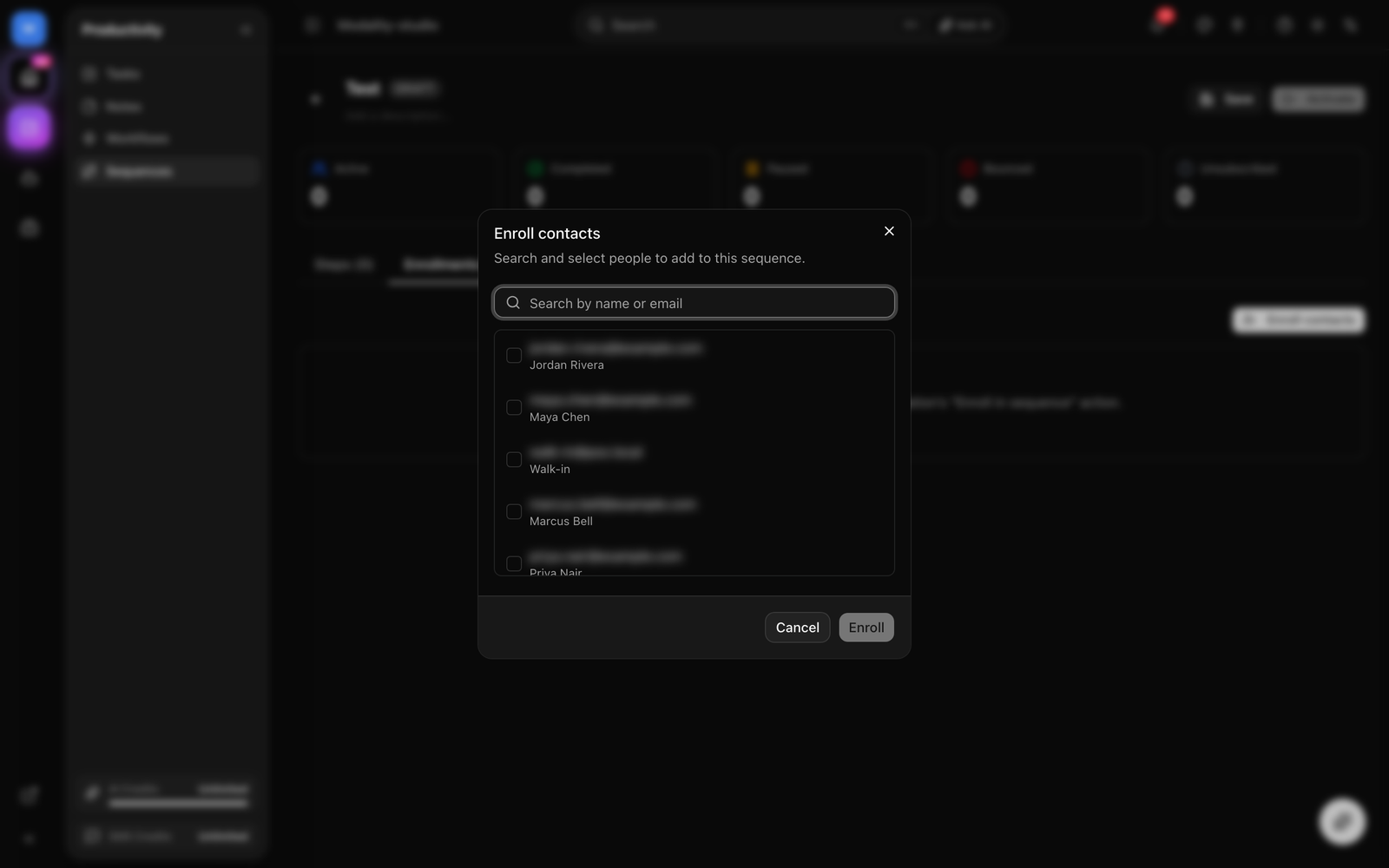
- Manually, open the sequence, use the Enroll dialog to search your People and select one or more contacts, and enroll them.
- From an automation, add the Enroll in Sequence action to any automation rule. When the rule fires for a contact (for example, a tag is added or a form is submitted), that contact is enrolled automatically. This is how you wire triggers like "tag added" or "form submitted" to a drip.
On enrollment, the contact is placed at step 0 and the first step's delay is scheduled. A couple of guards keep enrollments clean:
- If the contact is already actively enrolled, they aren't double-enrolled.
- Re-enrolling a contact who previously finished resets them to the beginning (step 0, retry counters cleared).
- Enrolling into a sequence with no steps completes the enrollment immediately (there's nothing to send).
Enrollment Lifecycle
Each enrollment carries a status that reflects where the contact is in the drip. There are five:
ACTIVE, moving through the steps. The processor runs the current step when its delay is up, then schedules the next.COMPLETED, reached the end of the sequence (or exited early at a failed condition gate, or was manually unenrolled). Terminal; kept for history.PAUSED, held. Set manually, or automatically when a step's send keeps failing (see Delivery & retries). Resuming returns it toACTIVE.UNSUBSCRIBED, the contact opted out. Reached when the contact's status is unsubscribed, or when an email send is suppressed because the recipient bounced or unsubscribed. Terminal.BOUNCED, reserved for hard-bounced recipients.
The sequence header rolls these up into live counts, active, completed, paused, bounced, and unsubscribed, so you can see the shape of an enrollment base at a glance.
How a step is processed
- The processor selects
ACTIVEenrollments whose next-run time is due, but only withinACTIVEsequences (batched, so large audiences drain across several runs). - If the contact has unsubscribed, the enrollment is moved to
UNSUBSCRIBEDand stops. - The current step runs by type, email/SMS send, condition gates.
- On success, the current-step pointer advances and the next step's delay is scheduled; reaching the last step marks the enrollment
COMPLETED.
Delivery & retries
- If a send fails transiently, the step is retried with a back-off (about 15 minutes). After a few failed attempts the enrollment is paused with the reason
send_failedso it stops re-firing; resuming grants a fresh attempt budget. - If an email is suppressed (the recipient bounced or unsubscribed), the enrollment goes straight to
UNSUBSCRIBED, no retries. - If you're temporarily out of marketing-send quota, the step stays due and is retried on the next cycle rather than being lost.
Screenshot: the Enrollments tab of a sequence listing contacts with their status pills (Active / Completed / Paused / Unsubscribed) and the per-row action menu.
Demo GIF / screenshot to be added
Managing Enrollments
Switch to the Enrollments tab on a sequence to see everyone in it and act on individual contacts. Each row's action menu offers three controls:
- Pause, hold this one contact where they are (reason
manual). Nothing is sent to them until you resume; everyone else keeps flowing. - Resume, return a paused contact to
ACTIVEand run their current step on the next cycle. Resuming also resets the retry counter, so a resume after a send failure starts fresh. - Unenroll, stop the drip for this contact for good. The enrollment is marked
COMPLETED(reasonunenrolled) rather than deleted, so the history is preserved.