Booking Pages
Let people request time in your space, a studio, a private room, or a whole venue, from a public calendar. Modality computes open slots from your hours, buffers, and existing bookings, hands the guest a request form, and collects a deposit (and a signed contract) once you accept. This guide covers Spaces, availability windows, deposit-on-accept, the linked booking form, and the public /book page.
![The public booking page (/book/[spaceId]), a month calendar with open days, the space name and intro text, and a day selected showing start-time options.](/docs-media/book-public.png)
Spaces: What You Book
A Space is the bookable unit. It belongs to a Venue and can represent a single room, a studio, or the whole building. Booking is whole-space exclusive, one confirmed reservation blocks the entire space for its window, so two guests can never hold the same room at the same time.
- Every Space carries its own hours, buffers, duration limits, booking window, deposit, and linked form, configured independently, so a green room and a main stage can have completely different rules.
- A Space is
ACTIVE(bookable) orPAUSED(hidden from the public calendar, the page reports it as unavailable). - Single-room venues need zero setup: Modality auto-provisions a default "Whole venue" Space for a venue that has none, so booking works out of the box.
Availability Windows
The calendar never shows a slot you can't actually take. For any day, a Space's bookable start times are its open hours for that weekday, minus every busy interval, sampled on a slot grid and bounded by the booking window. All wall-clock math is done in the Space's IANA timezone.
Open Hours
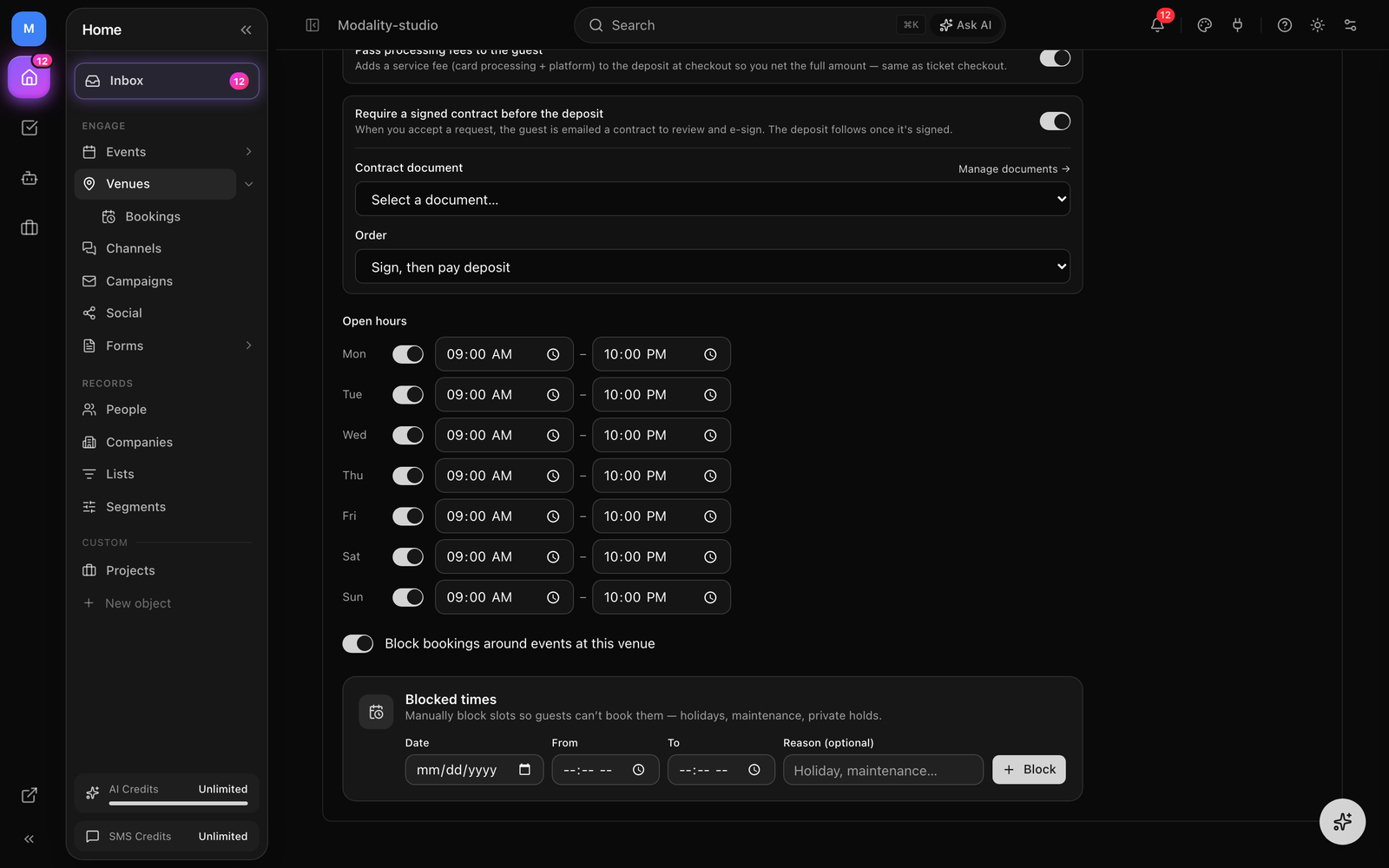
Set open windows per weekday (Monday–Sunday). New Spaces default to 9:00–22:00 every day. A weekday can have multiple windows (e.g. a lunch and an evening block) or none (closed).
What Blocks a Slot
Three kinds of busy intervals are subtracted from the open hours:
- Events at the venue, when Block on events is on, any non-cancelled event or recurring occurrence scheduled at the Space's Venue blocks that time (a room can't be booked around show times). An event with no end time is assumed to run two hours.
- Manual blackouts, add specific closed periods (maintenance, a private hold) with an optional reason.
- Existing reservations, any reservation that occupies the slot (confirmed or already checked in) blocks it. Pending requests do not block, see Requests & Acceptance.
Buffers, Duration & Booking Window
- Buffers, a buffer-before and buffer-after (minutes) pad every busy interval, so back-to-back bookings get turnaround time. The buffers also pad the guest's requested window when it's re-checked.
- Slot interval, start times land on a grid (e.g. every 30 minutes) you control.
- Min / max duration, the shortest and longest a single booking may run; the end-time picker only offers durations inside this range that fit the free window.
- Booking window, a minimum notice (how far out the earliest bookable slot is) and a maximum advance (how far into the future guests can book) trim the ends of the range.
- Capacity, an optional party-size cap; requests are clamped to it (and to a hard ceiling).
The Public /book Page
Each Space gets a public booking calendar at /book/<spaceId>. It renders in a forced light theme styled by the Space's booking design, and walks the guest through a simple two-step pick:
- 1
Pick a day
The month grid shows open days (past days and closed days are disabled). Days that already have venue events show a small "Reserved" marker. Guests can page by month or jump years.
- 2
Pick a start time
Selecting a day opens a time picker with the available start slots for that date (computed by the availability engine).
- 3
Pick an end time
After choosing a start, the guest picks an end time; only durations that satisfy the min/max and fit the free window are offered, each labeled with its length.
- 4
Fill out the request form
The linked booking form opens in a popup with the chosen window pre-filled. On submit, the reservation request is created for that exact slot.
There is also an embeddable version at /book/<spaceId>/embed, the same calendar with no page chrome, which auto-reports its height so an iframe on your own site grows to fit (no inner scrollbar).
GIF: the public booking flow end to end, pick a day, pick a start time, pick an end time, then the linked form opens in a popup with the date/time range pre-filled.
Demo GIF / screenshot to be added
The Booking Form
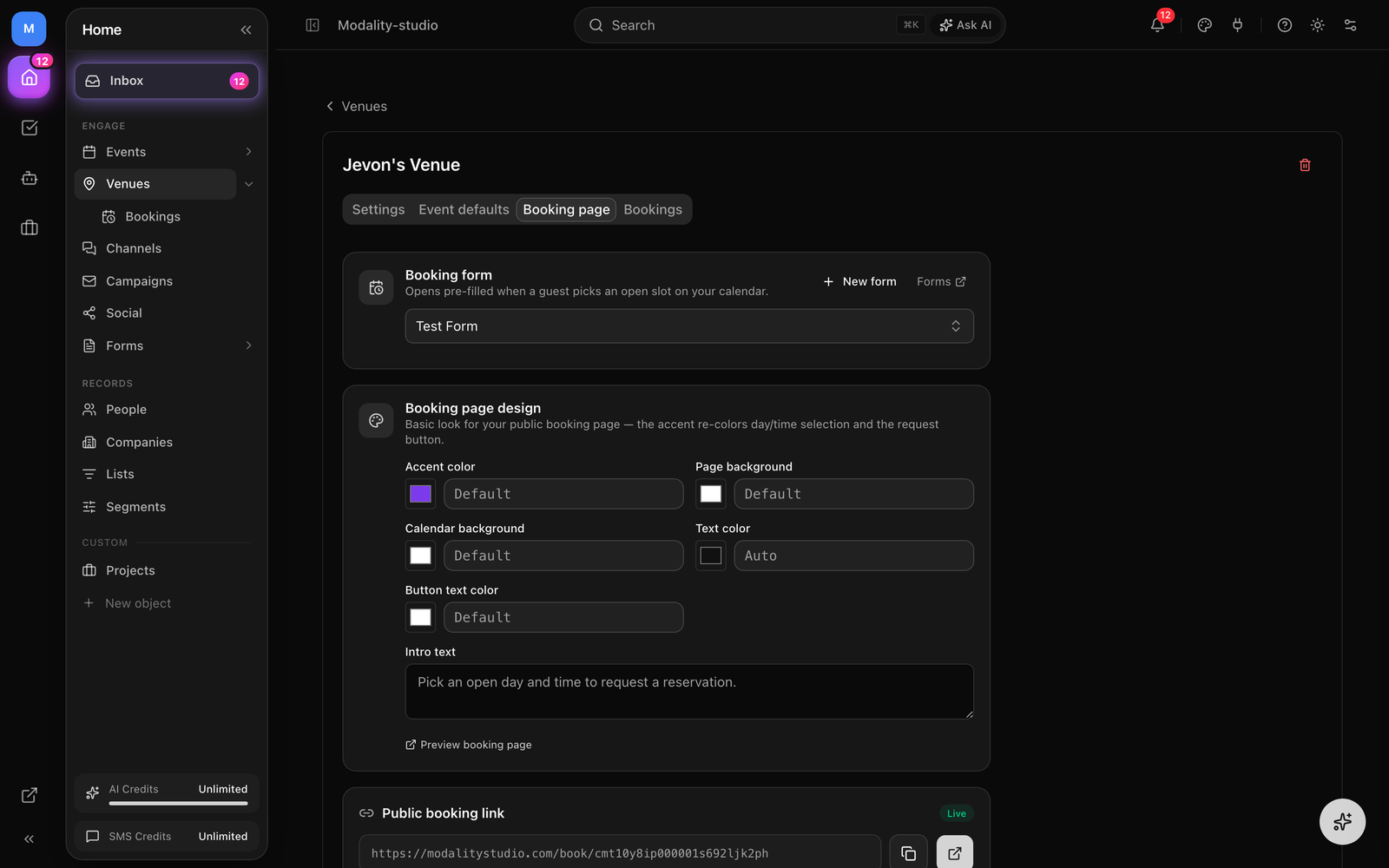
Every Space links to a booking form, a normal Modality form that captures who's asking. When you create a Space without choosing one, Modality auto-creates a default form named "<Space>, Reservation Request" with First name, Last name, Email (required), Phone, and an "Anything we should know?" note. You can edit this form, add custom questions, or point the Space at a different form.
The email field matters: reservations are attributed to a People record by email, so the guest becomes a contact in your CRM (silently, no marketing side-effects) and their answers are attached to the reservation for you to review.
The calendar hands the form the picked window as URL parameters; on submit the server books that slot for the linked Space. This hand-off is only honored when the submitted form is that Space's linked booking form, so a crafted request can't reserve some other space, and the window is re-validated before anything is booked.
Booking Forms Don't Count Against Your Plan
Auto-provisioned booking forms are venue infrastructure, not marketing forms, so they are excluded from your plan's form limit, spinning up venues never eats your form allowance. The exclusion keys off a non-spoofable internal flag set only when Modality creates the booking form, so you can't launder a marketing form out of the count by pointing a Space at it.
Requests & Acceptance
Public bookings are requests, not instant confirmations. A submitted request is created PENDING and does not occupy the slot, the time stays open for others until you accept, so a flurry of requests for the same window doesn't lock each other out.
- A guest submits the booking form → the reservation is created
PENDING. - You review it in the Bookings list (or the Space's reservations panel) with the guest's contact and all their form answers.
- Accept → the reservation moves to
CONFIRMEDand now occupies the slot. Accepting re-checks the window under a lock; if it's no longer free, it's put on theWAITLISTEDqueue instead of silently double-booking. - Decline → the reservation moves to
DECLINED; any deposit taken is refunded. - The guest is emailed automatically about the accept/decline decision.
Reservations move through these states: PENDING → CONFIRMED / WAITLISTED / DECLINED, and later CHECKED_IN, CANCELLED, or NO_SHOW. Only CONFIRMED and CHECKED_IN occupy the slot.
Operator-Created Bookings
You can also add a booking yourself (web or mobile). Operator-created bookings confirm immediately and occupy the slot (waitlisting only if the window has a clash), so blocking off a hold or entering a phone booking is one step, no self-approval needed. The guest is upserted as a People record by email just like a public request.
Deposits on Accept
Set a deposit on a Space and Modality collects it via Stripe, but only after you accept the request (deposit-on-accept). A pending request is never charged at submission, so guests aren't asked for money on a booking you might decline.
- The Space defines a deposit amount; the public page tells the guest a deposit is due once approved.
- A guest requests a slot (no charge yet). The deposit amount is copied onto the reservation.
- You accept → Modality generates a Stripe Checkout link for the deposit and emails it to the guest. The reservation's deposit moves to
PAIDonce payment settles (via the Stripe webhook).
What Happens to the Deposit Later
- Declined or cancelled, a paid deposit is refunded automatically (a partial refund of just the deposit amount).
- No-show, a paid deposit is forfeited (you keep it); the reservation is marked
NO_SHOW. - Pass fees to the guest, turn on pass deposit fees and the platform service fee is added on top of the deposit at checkout, so you net the full deposit amount.
Signed Contracts (Optional)
A Space can require a signed contract before the booking is final. Turn on require contract and pick an e-sign template. When you accept a request, Modality creates a signature envelope from that template and emails the guest a "review & sign" link.
- Sign then pay (default), the deposit link is withheld until the contract is fully signed (the envelope is completed). The guest signs first, then pays.
- Both, the contract and the deposit can proceed together, without gating the deposit on the signature.
The contract state (sent, viewed, completed, declined, voided) shows on the reservation, so you can see at a glance whether a confirmed booking is fully papered.
Managing Bookings
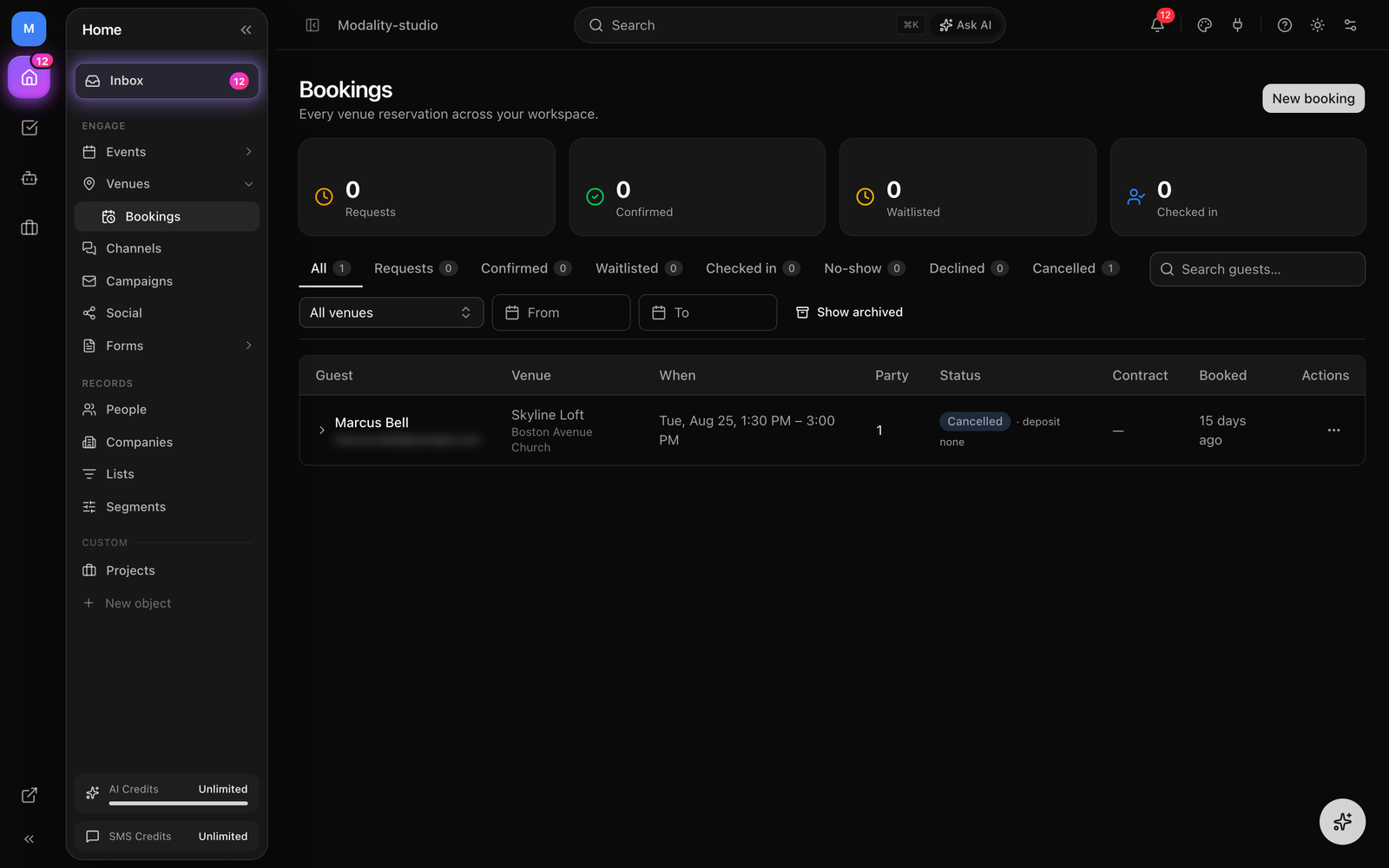
Work all your reservations from one cross-venue Bookings page, or from a single Space's reservations panel. Both show the guest, window, party size, deposit and contract status, and the full set of form answers.
- Filter by status, by Space/venue, and by date range; search free-text across guest name, email, phone, notes, space/venue names, and form answers.
- Accept / decline / cancel / no-show / check in, status changes are transactional and idempotent, and promoting off the waitlist re-validates the window.
- Reschedule, move a booking to a new window; if it currently occupies the slot, the new window is re-checked so a reschedule can't double-book.
- Archive or delete, archive hides a booking from the default list (recoverable); delete soft-deletes it. Neither ever blocks a slot afterward.
- Auto-archive, bookings whose window ended more than 30 days ago are archived automatically by a scheduled job, keeping the active list tidy.
Screenshot: a single reservation expanded, guest contact, the requested window, party size, deposit status (Paid/Refunded/Forfeited), contract status, and the submitted form answers, with reschedule and status actions.
Demo GIF / screenshot to be added
Styling the Booking Page
Match the booking page to your brand. The Space's booking design controls the public calendar's look:
- Accent color, the request button and the selected day/time (text auto-contrasts so it stays readable).
- Page background and a separate calendar surface color.
- Text color and button text color overrides.
- Intro text, a short line shown above the calendar (e.g. your booking policy or what to expect).
The page always renders in a light baseline (it never follows the viewer's system dark mode), so your colors look the same for every guest.