Support Desk
Modality has a built-in help desk. Customers open tickets from the in-app Help & support widget (or just by emailing), each ticket becomes an email thread with a reference number, and the Modality team answers from a shared admin queue. This guide covers opening and tracking tickets, the Help Center, the admin queue at /admin/support, and how inbound replies are routed back to the right ticket.
How the Support Desk Works
Every request becomes a ticket with a thread of messages. Each message is authored by one of three sides, the customer (USER), the Modality team (STAFF), or the system (SYSTEM, for automated notes). Two things drive everything else:
- Reference number, every ticket gets a human-friendly ref like
MOD-1A2B3C4D(eight characters). It appears in every email subject so replies stay threaded. - Secret token, a private token backs the ticket's public view link (
/support/tickets/<token>) and its per-ticket reply address (support+<token>@…). Because it's unguessable, anyone with the link (e.g. from the confirmation email) can follow the conversation without logging in.
A request can arrive three ways: from the in-app widget, from the public Help Center, or by email. All three land in the same queue.
Getting Help & Opening a Ticket
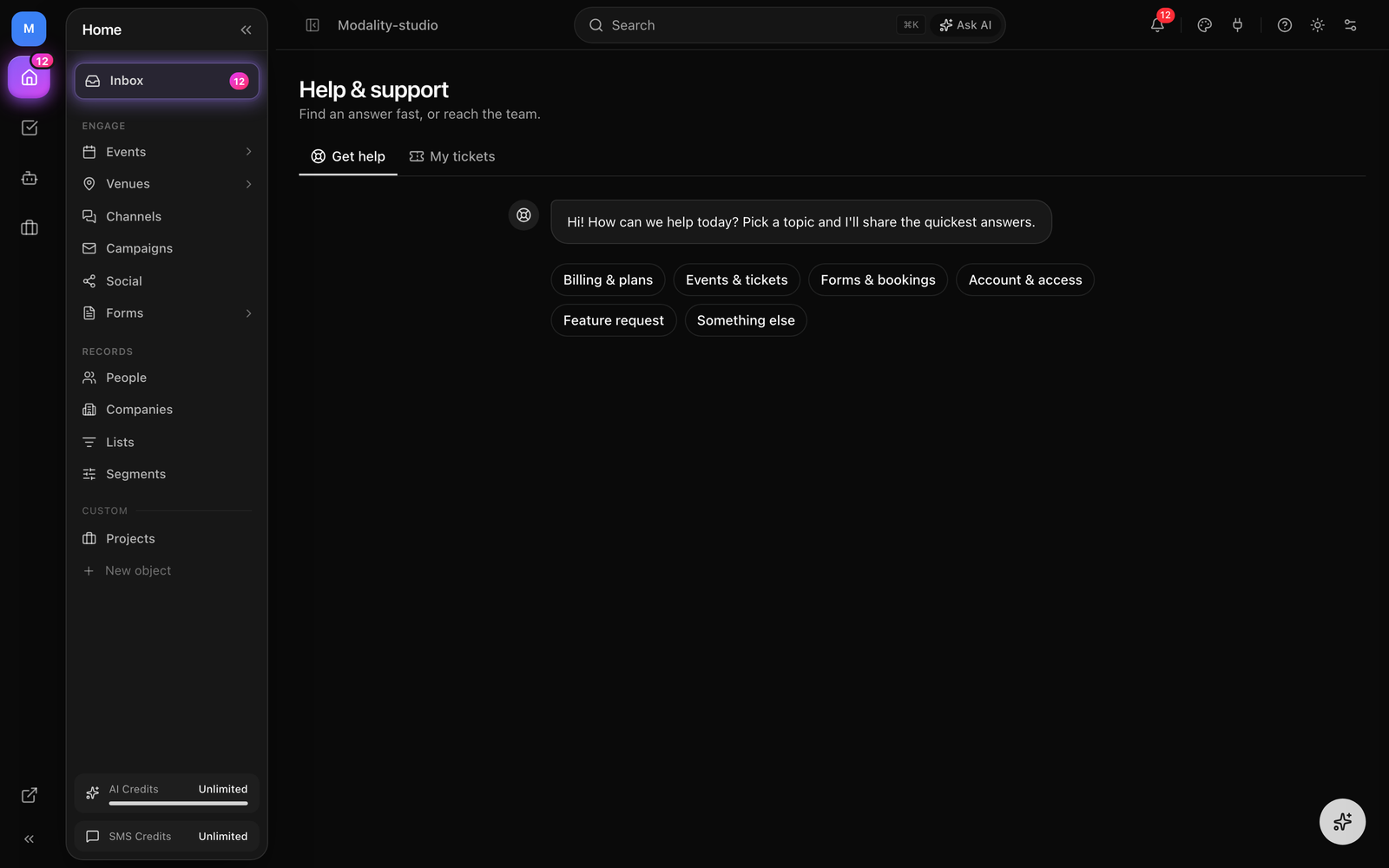
Inside the app, open Help & support from the sidebar. It has two tabs: Get help and My tickets.
The "Get help" guided flow
Get help is a scripted, deterministic flow (not an AI chat). You pick a topic and it shows a few curated answers with deep links into the docs and settings, then offers to open a ticket if you still need a person.
- 1
Pick a topic
Choose one of the topic chips, Billing & plans, Events & tickets, Forms & bookings, Account & access, Feature request, or Something else. Each expands into a short blurb and a handful of common questions.
- 2
Read the curated answers
Each answer has a "Learn more" link that jumps to the relevant docs page or settings screen (for example, Billing links to
Settings → Billing & Usage). Many questions are solved right here. - 3
Still need help? Contact support
If the answers don't cover it, click Still need help? Contact support. A short form appears with a Subject, a Category (pre-filled from the topic you picked), and a How can we help? description.
- 4
Send the request
Submit the form. Your ticket is created, you're moved to the My tickets tab, and a confirmation email goes out immediately. The reporter name and email are taken from your account, you don't re-enter them.
My tickets
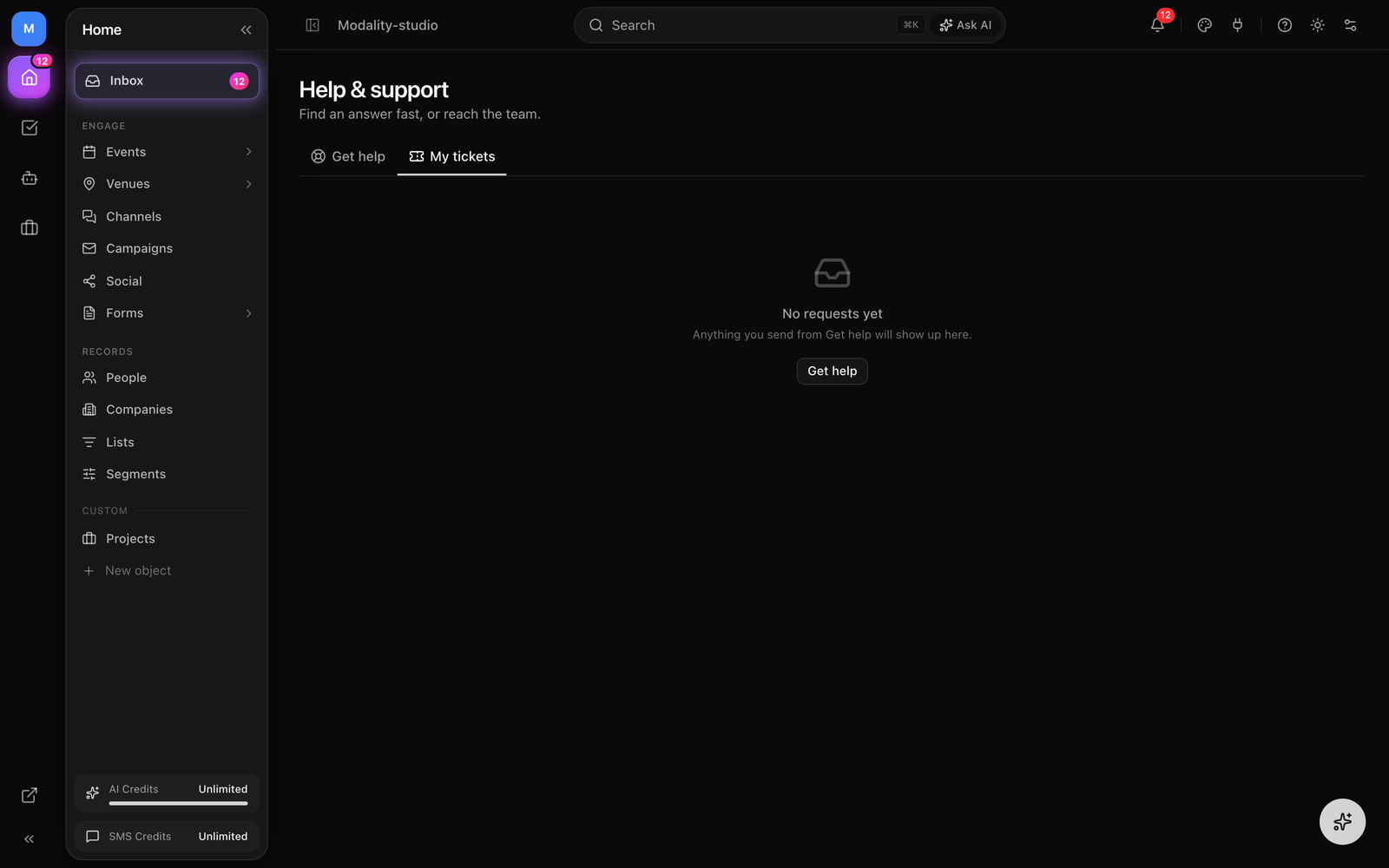
The My tickets tab lists every request you've opened, newest activity first, with its Ref, Subject and category, Status, message count, and last activity. Click a row to open the full thread at /support/ticket/<id>, where you can read the team's replies and add follow-up messages.
The Public Help Center
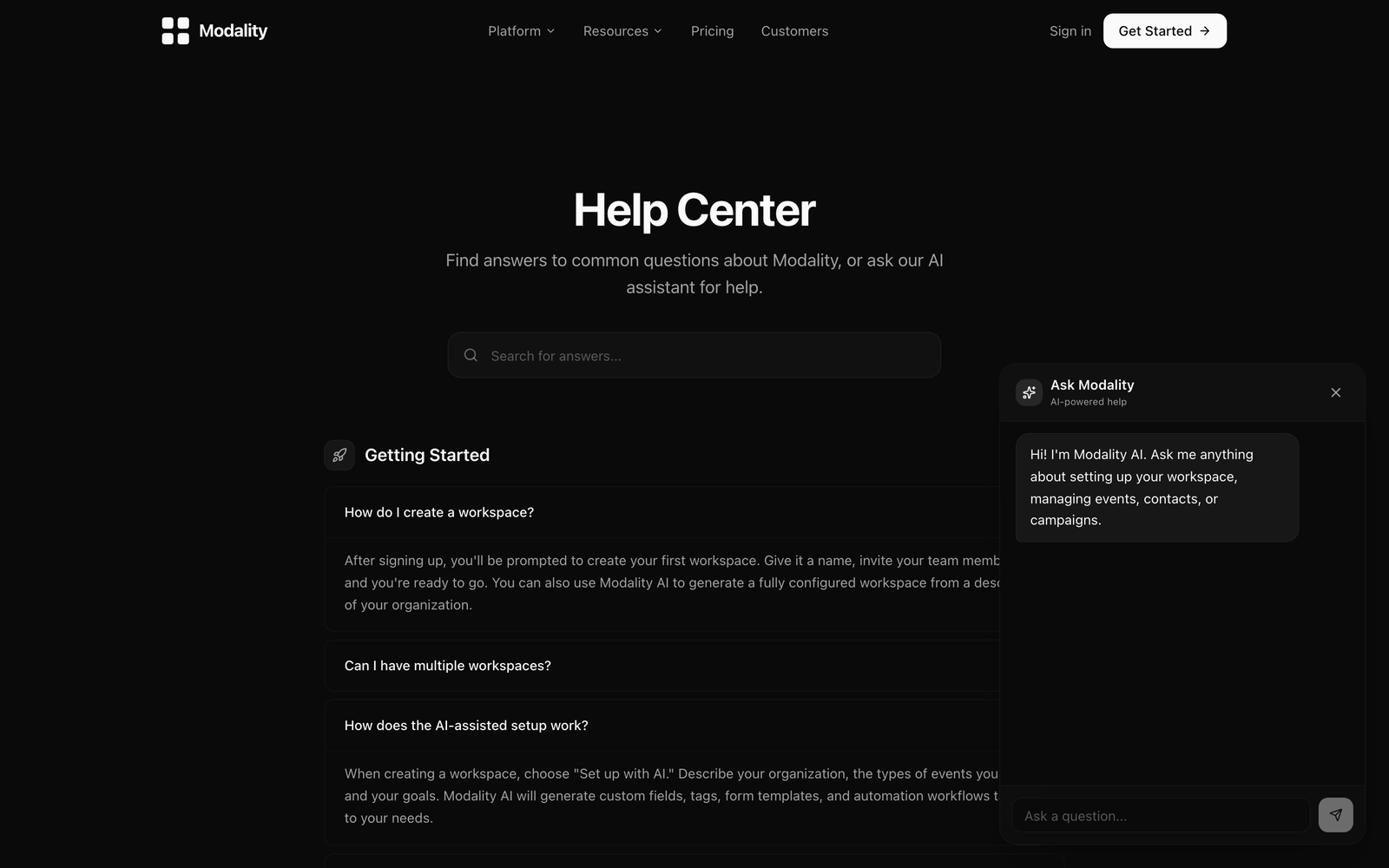
Alongside the in-app widget there's a public Help Center at /help, no login required. It has a searchable FAQ grouped into categories (Getting Started, Events & Ticketing, Contacts & CRM, Forms, Campaigns & Automations, Billing & Account), each an expandable accordion, plus a search box that filters questions and answers as you type.
The Help Center also floats an "Ask Modality" AI assistant button in the bottom-right. Opening it gives you a chat panel that answers questions about setting up a workspace, events, contacts, and campaigns. It's AI-powered help for quick answers, distinct from the scripted Get help flow and from filing a ticket.
Ticket Categories & Statuses
Categories
Every ticket carries one category, used for routing and filtering in the admin queue:
- Billing & plans, plans, invoices, usage charges, payouts.
- Technical issue, something isn't working as expected.
- Account & access, login, team members, roles, workspace settings.
- Feature request, ideas and things you wish Modality did.
- General question, the default; anything else.
Statuses
A ticket moves through four statuses, and most transitions happen automatically as messages are added:
- Open, waiting on the Modality team. A brand-new ticket starts here, and it returns here whenever the customer sends a new message.
- Awaiting you (
PENDING), the team has replied and it's now waiting on the customer. A staff reply moves the ticket here. - Resolved, the team marked it done; the resolution time is recorded.
- Closed, finished and archived. A closed ticket reopens if someone replies to the thread.
Ticket Emails & Notifications
The desk runs on email so customers can reply from their own inbox. Every ticket action fans out branded Modality emails:
- Confirmation to the reporter, "We got your request
MOD-…" with the subject and category, a View your request button that opens the public ticket link, and a footnote reminding them they can just reply to the email to add detail. - Staff notification, a copy of every new ticket and every customer reply is sent to the central Modality support inbox (
hello@modalitystudio.com) with an Open the ticket button. - Staff reply to the customer, when the team answers, the reporter gets the reply by email ("Re: [
MOD-…] …") and can respond in-thread.
Each of these emails sets its Reply-To to the ticket's per-ticket address (support+<token>@…) so a plain email reply threads straight back into the same ticket. When inbound email isn't configured, Reply-To falls back to hello@modalitystudio.com and the team answers from the queue instead.
Screenshot: the 'We got your request' confirmation email showing the MOD- reference, subject/category, and the 'View your request' button.
Demo GIF / screenshot to be added
Inbound Email Routing (support+<token>)
Customers and staff can drive a ticket entirely by email. Inbound mail is received (via Resend Inbound) and POSTed to Modality's webhook, which inspects the recipient's local-part before any workspace routing:
support+<token>@…, the message is appended to the ticket that owns that token. If the sender is a Modality system admin the message is classified asSTAFF; otherwise it's the customer (USER). A closed ticket reopens.- bare
support@…, a message with no token (for example, a forwardedhello@email) opens a new General ticket from that email.
The webhook is defensive about the messy realities of email: it picks the recipient addressed to the inbound domain, de-duplicates on the provider's message id (so a re-delivered webhook can't create a duplicate message), and drops mail sent from Modality's own address so a forwarded staff-notification can't loop back and spawn a phantom ticket.
INBOUND_EMAIL_DOMAIN, with the matching DNS/MX and Resend inbound setup). Until then, ticket emails still send and set hello@modalitystudio.com as Reply-To; the team simply answers from the admin queue rather than by threaded email.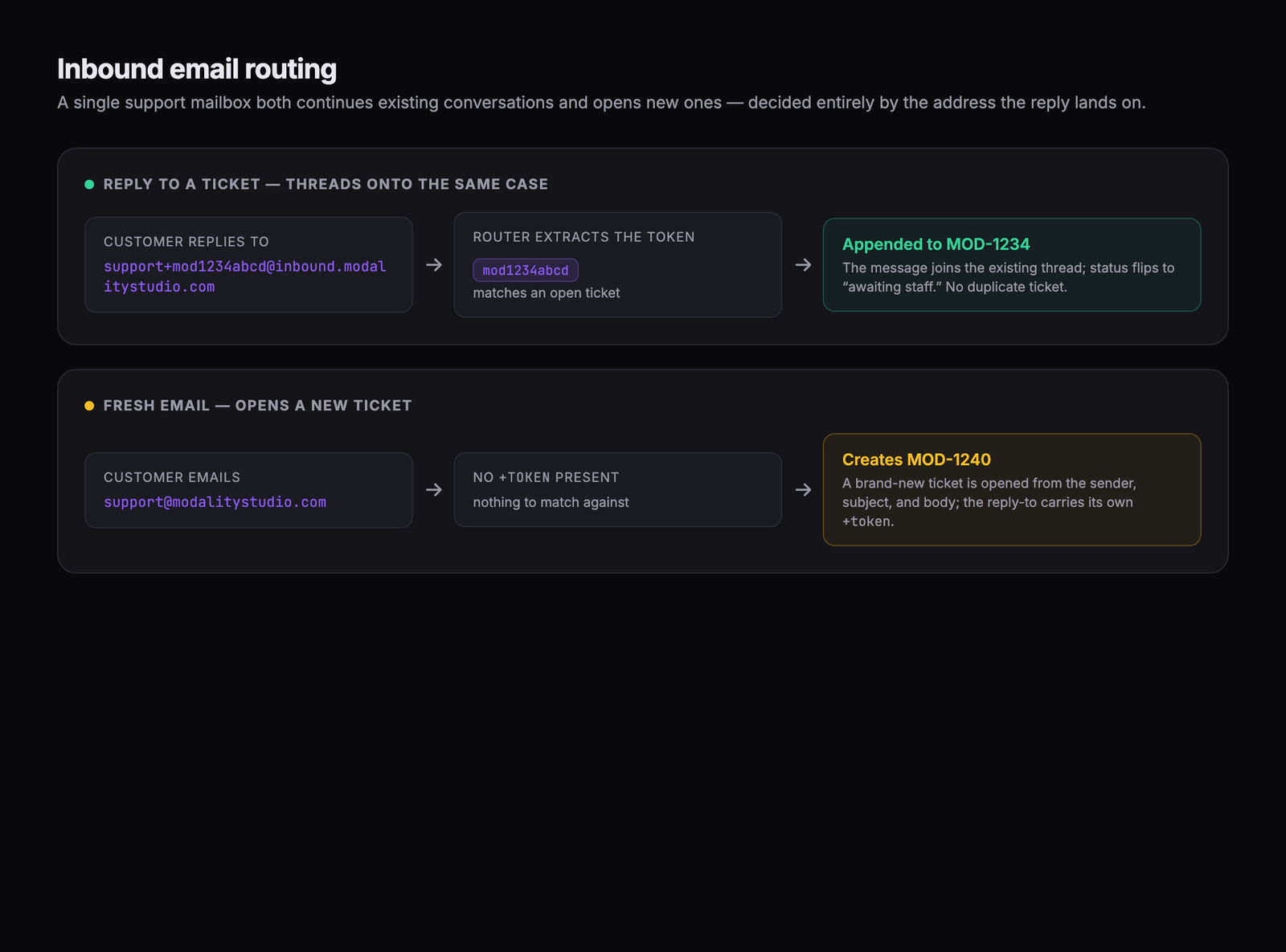
The Admin Queue (/admin/support)
The Modality team works tickets from /admin/support. This queue is restricted to system admins, anyone else sees an "Access Denied" screen. It aggregates customer requests across all workspaces.
The queue
- Filters, search by ref, subject, or reporter email; filter by status; filter by category. Results are paginated (25 per page).
- Columns, Ref, Subject, Reporter (name + email), Category, Status pill, message count, and last activity. Tickets are ordered so open work surfaces first.
Screenshot: the admin support queue (/admin/support) with the search box, status/category filters, and the ticket table across all workspaces.
Demo GIF / screenshot to be added
Working a ticket
Opening a ticket shows the full thread with a reply box and a controls sidebar. From here an admin can:
- Reply to the customer, sending a reply emails the reporter and moves the ticket to Awaiting you.
- Change status, Resolve, Close, or Reopen the ticket.
- Assign, Assign to me or Unassign, so the team knows who owns a ticket.
The sidebar also surfaces the reporter (with a mailto: link), category, priority, and when the ticket was opened. In the thread, staff messages align right and the customer's messages align left; system notes render centered and muted.
/support/staff/<id>: it resolves the clicking admin's workspace slug and forwards to /<slug>/admin/support/<id>. Not logged in bounces to login (with a callback); a non-admin is sent home.Screenshot: the admin ticket detail, the message thread (staff right, customer left), the reply box, and the Status / Assignment / Reporter controls sidebar.
Demo GIF / screenshot to be added
Automatic Follow-up
A scheduled follow-up job keeps the queue tidy: any ticket that has been Resolved and untouched for 7 days is automatically flipped to Closed. It runs on the same cron infrastructure as the rest of Modality (a scheduled request authorized with the shared cron secret). If a customer replies after a ticket is closed, the reply reopens it, so auto-close never traps an ongoing conversation.