Compliance & Deliverability
Built-in guardrails that keep your marketing email compliant and inbox-bound: double opt-in, pre-send content screening, automatic list hygiene from delivery events, a deliverability health signal, custom sending domains, and handling for sensitive form data. Every safeguard here applies to marketing email only, transactional mail (ticket receipts, RSVP confirmations, the opt-in email itself) always sends.
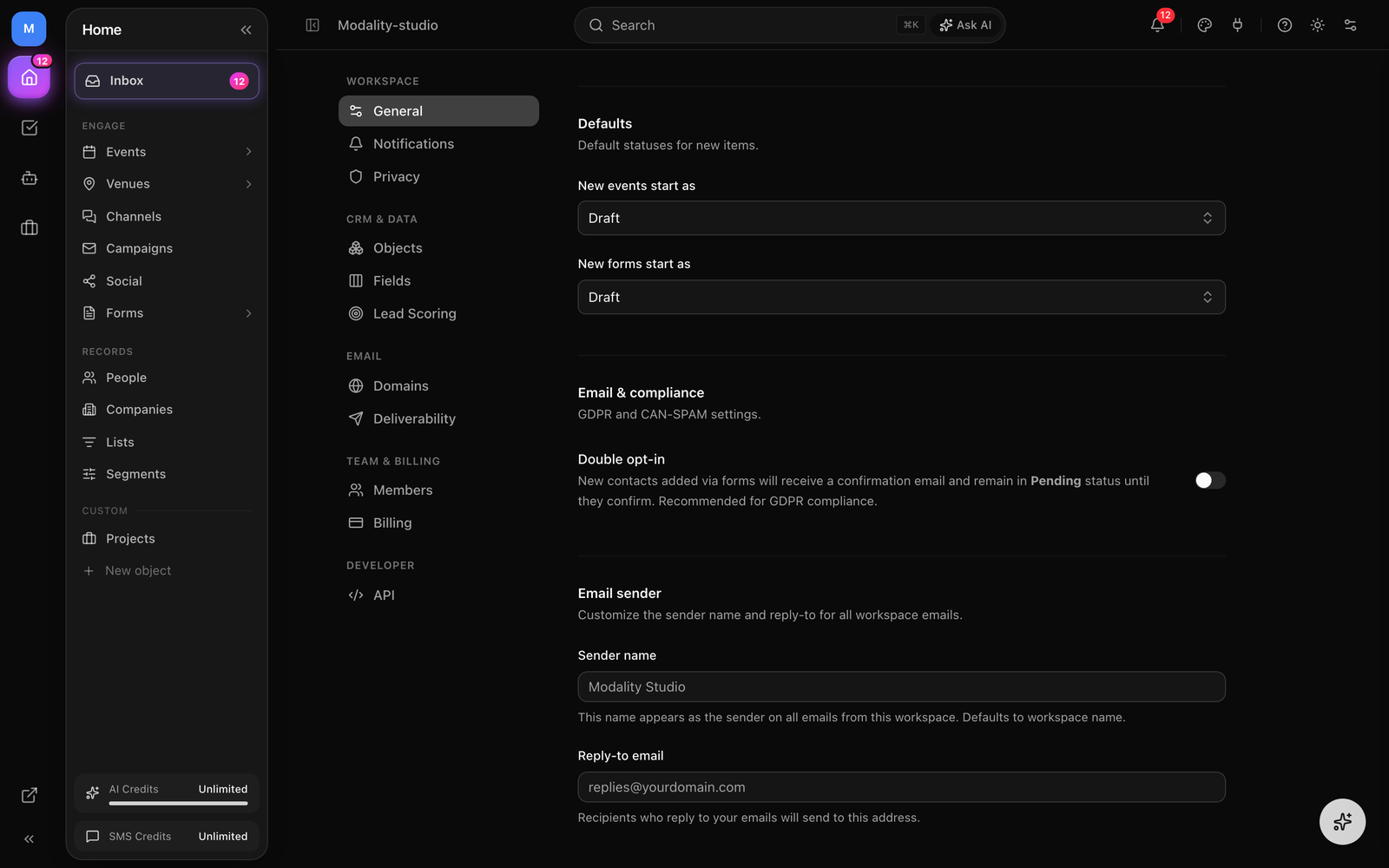
Double opt-in
Double opt-in adds a confirmation step before a new contact becomes an active subscriber. It protects your sender reputation by ensuring only people who genuinely want your email end up on your list, and it is recommended for GDPR compliance. It is a single workspace-wide switch, there is nothing to design or schedule.
How to Enable Double Opt-In
- Go to Settings → General → Email & Compliance.
- Turn on the Double opt-in toggle.
- Click Save. That is the entire configuration.
How the Flow Works
- 1
A new contact is created
When someone is added through a public form (or the API) and double opt-in is on, the contact is saved with a Pending status and a unique confirmation token.
- 2
A branded confirmation email is sent
Modality automatically emails the contact a "Confirm your subscription" message with a one-time confirmation link, sent through the same shared email pipeline (logo, custom domain, suppression checks) as every other transactional email.
- 3
The contact confirms
Clicking the link lands them on a confirmation page and flips their status to Active; the token is consumed so the link can't be reused.
- 4
Until then, they're excluded
A contact that hasn't confirmed stays Pending and is left out of all marketing campaign sends. The link does not expire on a timer, the contact simply remains Pending until they confirm.
Marketing Send Limits & Overage
Send metering applies to user-driven marketing email only, campaigns, sequences, and audience blasts. Transactional mail (confirmations, receipts, invoices, verification, and the double opt-in email) never counts against your quota.
Included Sends per Plan
- Free, 0 marketing sends. Campaigns and sequences are a Pro feature, so Free workspaces can't send marketing email at all (transactional email still works).
- Pro, 10,000 marketing emails per billing cycle.
- Business, 50,000 marketing emails per billing cycle.
What Happens When You Exceed the Quota
A send is reserved all-or-nothing before fan-out (a campaign never sends to half your list). Each send draws from your plan quota first, then any prepaid send-pack balance, and then:
- If you have a card on file (an active Pro/Business subscription), the send is allowed and the overage is auto-charged. Extra emails are metered to Stripe at roughly $0.002 per email and billed on your next invoice. There is no hard wall.
- Otherwise (Free, card-less trial, or a lapsed subscription), the send is blocked. You'll be prompted to buy a send pack or upgrade. This is what stops an unbilled workspace from sending unbounded email.
Prepaid Send Packs
One-time top-ups add to a separate balance that persists across billing-cycle resets (unlike the included plan quota, which resets each cycle) and depletes as you use it:
- Starter, 10,000 sends for $15.
- Plus, 25,000 sends for $30.
- Power, 100,000 sends for $120.
Contacts Are Never Capped
There is no contact limit on any plan, People/contacts are unlimited on Free, Pro, and Business. Contacts are the growth funnel; only outbound sending (and the ticketing fee) is metered, never how many people you store.
Pre-Send Content Screening
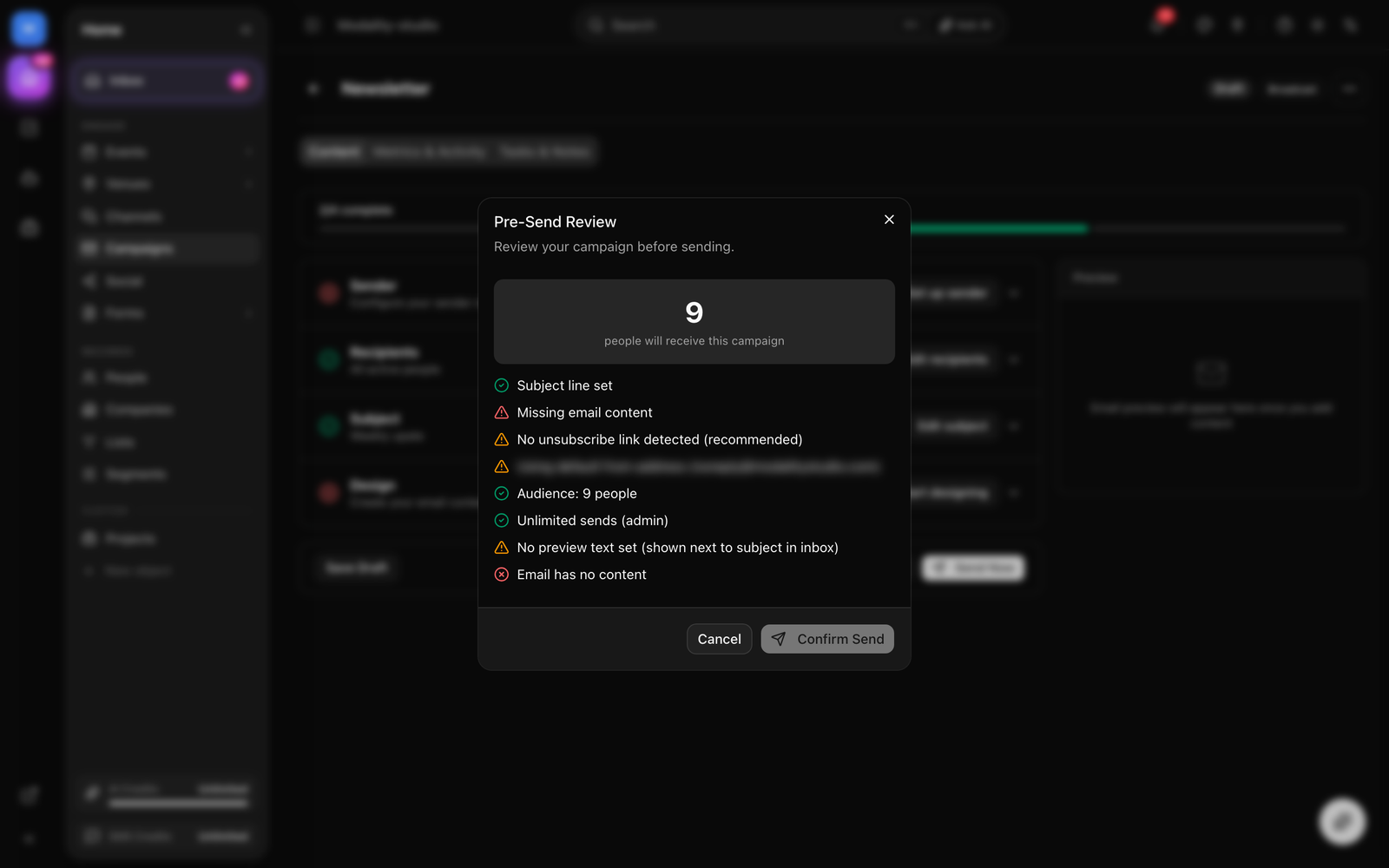
Before a marketing email goes out, Modality scans the subject and HTML and surfaces issues in the pre-send review dialog. Findings come in two severities: errors (blockers) that must be fixed before you can send, and warnings that you can review and dismiss.
Blockers (must be resolved)
- Empty content, the email body has no content.
- Empty subject, the subject line is blank.
- Missing unsubscribe link, required by CAN-SPAM and GDPR. In practice this rarely fires: Modality auto-appends a compliant unsubscribe footer to any email that lacks one (the same shared check the screener uses), so AI-generated content can't slip through without it.
Warnings (advisory, dismissible)
- Spam trigger phrases, known filter-tripping phrases such as "act now," "click here," "100% free," or "risk free."
- High promotional density, too many promotional words (free, sale, urgent, exclusive…) relative to the total word count.
- ALL CAPS subject, a subject written entirely in uppercase.
- Excessive exclamation marks, three or more exclamation marks in the subject.
- Long subject, over ~150 characters (most inboxes only show 50–60).
- Low text-to-image ratio, an email that is mostly images with very little text.
- Too many links, more than 15 links.
- Very short content, fewer than ~20 words.
- Large email, over 100 KB, which risks being clipped in Gmail.
- Missing image alt text, images without
altattributes. - Malformed merge tags, merge tags whose syntax is broken (stray symbols, or a missing closing
}}). Note this checks syntax only, a valid{{custom_field}}that maps to any core or custom field is fine and won't warn.
Deliverability Health
Modality computes a sender-health signal from your own delivery outcomes over a rolling 30-day window (bounce rate and spam-complaint rate, from the email log). It is informational, a heads-up to help you keep your list clean. Modality does not throttle, pause, or block your sending based on it; the signal only surfaces once you have meaningful volume (at least ~50 emails in the window).
Health Status Levels
- Healthy, bounce rate below 3% and spam-complaint rate below 0.05%. You're in good standing.
- Warning, bounce rate 3–5% or complaint rate 0.05–0.1%. Review your list hygiene and content; you're approaching the danger zone.
- Critical, bounce rate above 5% or complaint rate above 0.1%. Clean your list before you risk being flagged by mailbox providers.
Automatic List Hygiene
Modality processes delivery events from the sending provider (Resend) and keeps your list clean automatically, so bad addresses and unhappy recipients stop receiving mail without any manual work:
- Bounces, a bounced address flips the contact's status to Bounced and excludes them from future sends.
- Spam complaints, a complaint automatically moves the contact to Unsubscribed.
- Unsubscribes, clicking the unsubscribe link sets the contact to Unsubscribed via their unique unsubscribe token.
Every marketing send also includes a per-recipient unsubscribe link (resolved from {{unsubscribe_url}}) plus List-Unsubscribe and one-click List-Unsubscribe-Post headers, so Gmail and Apple Mail can offer their native one-click unsubscribe button. Status changes propagate to the matching People record automatically.
Custom Sending Domains
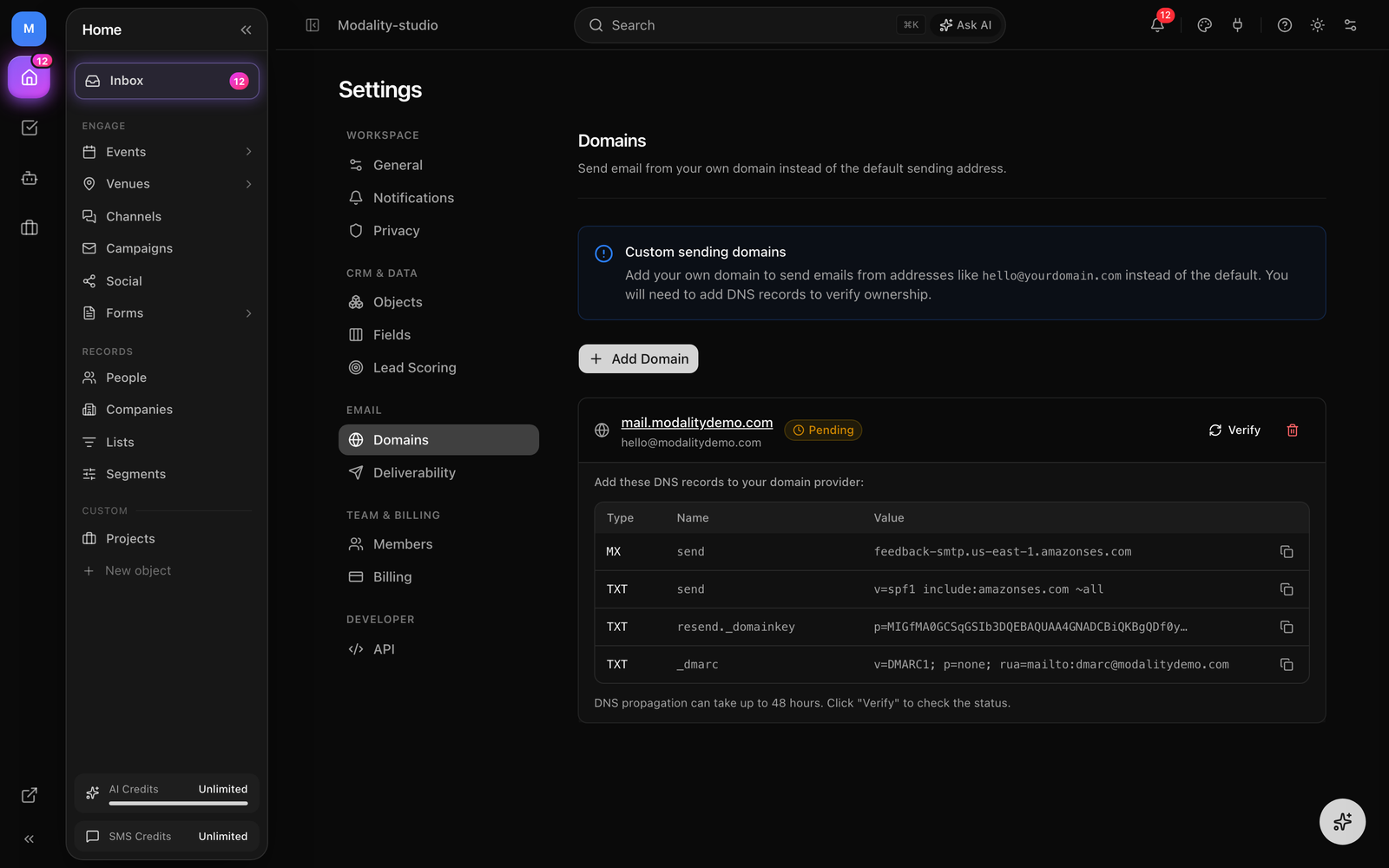
By default, marketing email sends from Modality's shared domain. For better deliverability and brand recognition you can authenticate and send from your own domain. Custom sending domains are a Business-plan feature.
How to Set Up a Custom Domain
- 1
Add your domain
Go to Settings → Domains and click "Add Domain." Enter the domain (or subdomain, e.g.
mail.yourbrand.com) you want to send from. Modality registers it with the sending provider and stores the DNS records it returns. - 2
Configure DNS records
Modality shows the exact DNS records to add, DKIM signing records, an SPF / return-path record, and a DMARC record. Copy each into your domain's DNS configuration.
- 3
Verify
Click "Verify" to check the records. This is usually quick but can take up to 48 hours for DNS to propagate; each record shows as verified once it resolves.
- 4
Start sending
Once verified, select your custom domain in the campaign's Sender section. Email now sends from your domain with proper authentication.
Sensitive Data, Minors & Retention
For programs that collect regulated PII on forms, permission slips, allergy/medical notes, guardian contacts, Modality provides technical controls to protect that data. These are safeguards that help you pass a security review; they are not, by themselves, a compliance certification.
- Field-level encryption, mark a form field Sensitive (or flip the workspace-wide "encrypt all form submissions" toggle) and its value is encrypted at rest with AES-256-GCM, the key held in a secrets manager.
- Kept out of the CRM, sensitive fields are excluded from Contact/People mapping, so encrypted answers never leak into searchable records.
- Access audit log, views, exports, and redactions of sensitive PII are recorded for accountability.
- Retention / redaction, set a per-workspace retention window and a nightly job redacts the encrypted fields of submissions older than that window (the rest of the answer stays, the PII is gone).
Configure all of this under Settings → Privacy: encryption controls, the retention window, and the audit viewer.