Segments
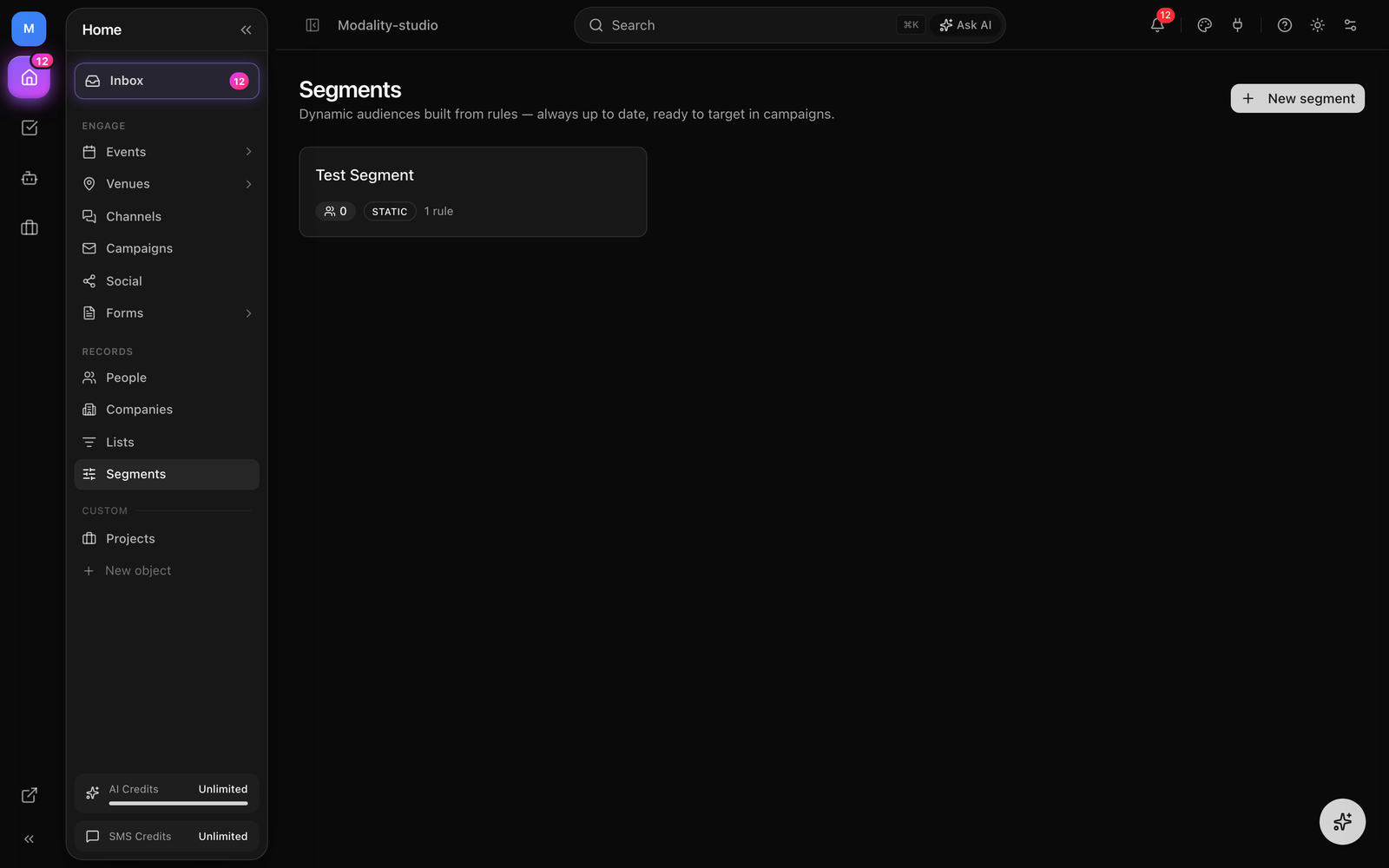
Segments are dynamic, rule-based audiences. Instead of adding people to a list one by one, you write rules, like “lead score over 50” or “tagged VIP and made a paid order”, and Modality resolves who matches, live, every time the segment is used. Point a campaign at a segment and it always sends to the current members, no manual upkeep.
What a Segment Is
A segment is a saved query over your People. It stores three things: a match mode (all or any), a list of rules (each a field, an operator, and usually a value), and a Dynamic flag. Membership is never stored as a fixed roster, it is computed by evaluating the rules against your workspace's contacts whenever the segment is counted or used.
Because membership is derived from rules, a segment is always current. Add a tag to someone, watch their lead score climb, or import new people, and any segment whose rules they now satisfy includes them automatically, no re-sync, no re-import.
Creating a Segment
- 1
Open Segments
Click Segments in the sidebar. The page lists every segment in the workspace with its live member count, whether it is Dynamic or Static, and how many rules it carries.
- 2
Click “New segment”
Give it a name (required, up to 120 characters) and an optional description explaining what the audience is for.
- 3
Build your rules
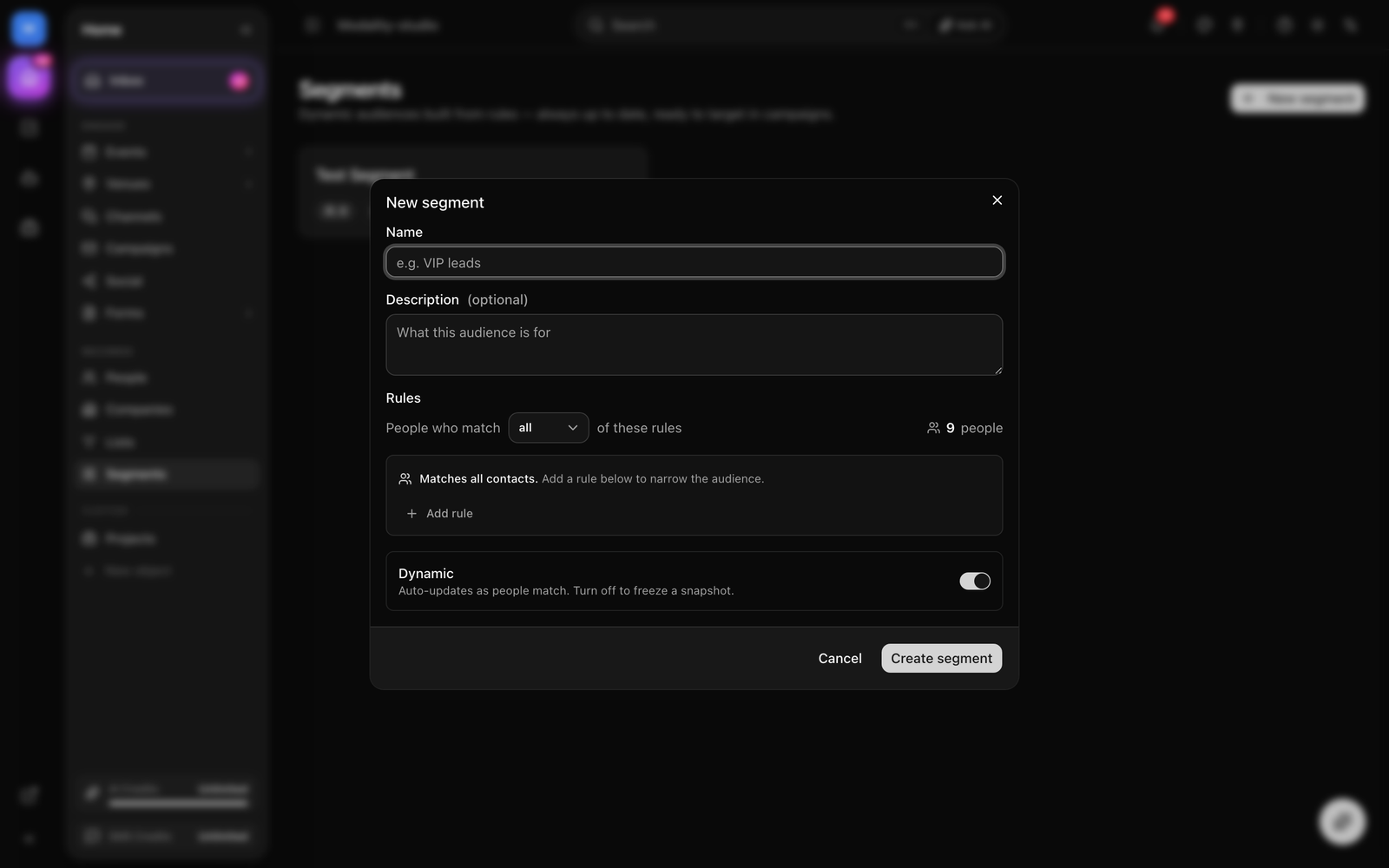
Use the rule builder to add one or more conditions. Choose whether people must match ALL of the rules or ANY of them (see The Rule Builder below). A live count updates as you type so you always know how large the audience is.
- 4
Choose Dynamic or Static
Leave Dynamic on (the default) so the audience keeps updating as people match. Turn it off to mark the segment as a frozen snapshot.
- 5
Create the segment
Save it. The segment appears as a card on the Segments page and becomes selectable as a campaign audience straight away. You can edit its name, description, rules, or match mode at any time.
The Rule Builder
Each rule is a row: a field, an operator, and (for most fields) a value. Rows combine according to the match mode at the top of the builder:
- Match ALL, a person must satisfy every rule (logical AND). Use this to narrow (e.g. tagged VIP and lead score over 50).
- Match ANY, a person qualifies if they satisfy at least one rule (logical OR). Use this to widen (e.g. tagged VIP or tagged Press).
With no rules, a segment matches all contacts in the workspace, a handy way to start broad and narrow down. Add a rule and the count immediately reflects the filter.
Fields you can filter on
The builder mirrors exactly what the rule engine can evaluate. The built-in fields are:
- First name, Last name, Email, Company, Job title, Website, Source, text profile fields.
- Status, the contact's lifecycle status (Active, Pending, Inactive, Bounced, Unsubscribed).
- Lead score, the numeric engagement score.
- Date added, when the person was created.
- Tag, whether they carry a given tag.
- Behavioral, Made a paid order, Attended an event, and RSVP'd to an event (see Behavioral Rules).
Your workspace's custom fields also appear in the field list automatically, so you can segment on any custom attribute you've defined on People.
Operators
The operators offered depend on the field's type:
- Text (name, email, company, job title, website, source), contains (case-insensitive), is, is not, is empty, is not empty.
- Number (lead score, numeric custom fields), =, ≠, >, ≥, <, ≤.
- Date (date added, date custom fields), after, before.
- Status, is, is not, chosen from the list of statuses.
- Tag, has tag, does not have, has any tag, has no tags.
- Behavioral, a simple yes / no.
Behavioral Rules
Beyond profile attributes, three behavioral rules let you target people by what they've actually done. Each is a yes/no predicate:
- Made a paid order, the person has at least one completed order. Choose no to find people who have never bought (great for a first-purchase nudge).
- Attended an event, the person checked in at an event, whether via a scanned ticket or an RSVP door check-in.
- RSVP'd to an event, the person has a live, approved RSVP (approved and not declined).
Combine these with profile rules for precise audiences, for example, match ALL of “tagged VIP” and “Made a paid order = no” to re-engage VIPs who haven't bought yet.
Live Membership & Counts
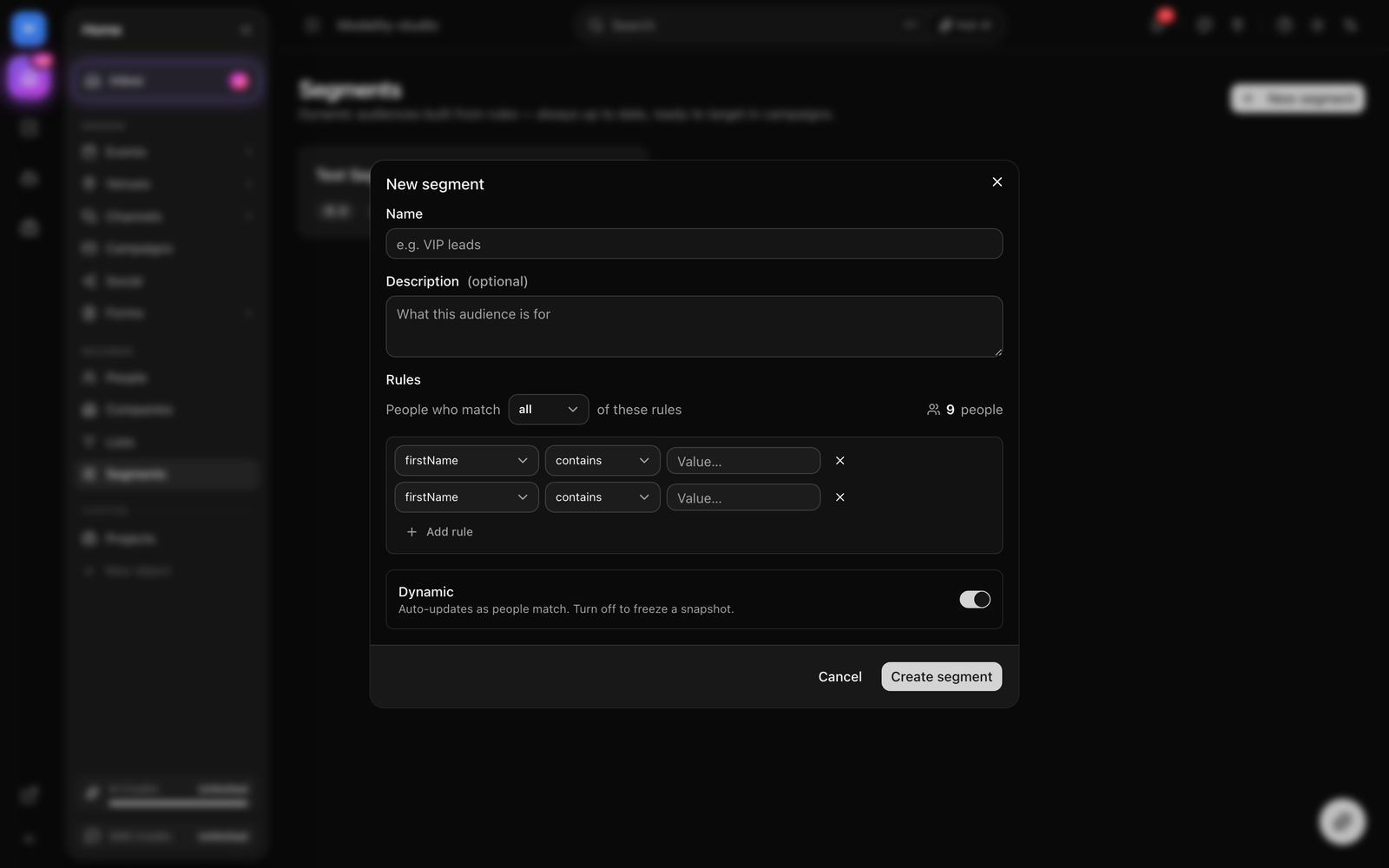
As you build rules, the header shows a running “N people” match count. It debounces while you type and recomputes against your live contacts, so you can size an audience before you commit. Rows that are still incomplete (an operator that needs a value but has none) are ignored in the preview; valueless rules count as soon as you add them.
Each segment card on the Segments page also carries its current member count, so you can see at a glance how big each audience is right now.
Dynamic vs. Static
The Dynamic toggle labels the segment. Dynamic (the default) means the audience keeps updating as people match your rules, membership is recomputed from the rules every time the segment is counted or used to send. Turning it off marks the segment as Static to signal it should be treated as a frozen snapshot rather than an evolving audience. Either way, the rules you saved are what define who matches.
Using a Segment as a Campaign Audience
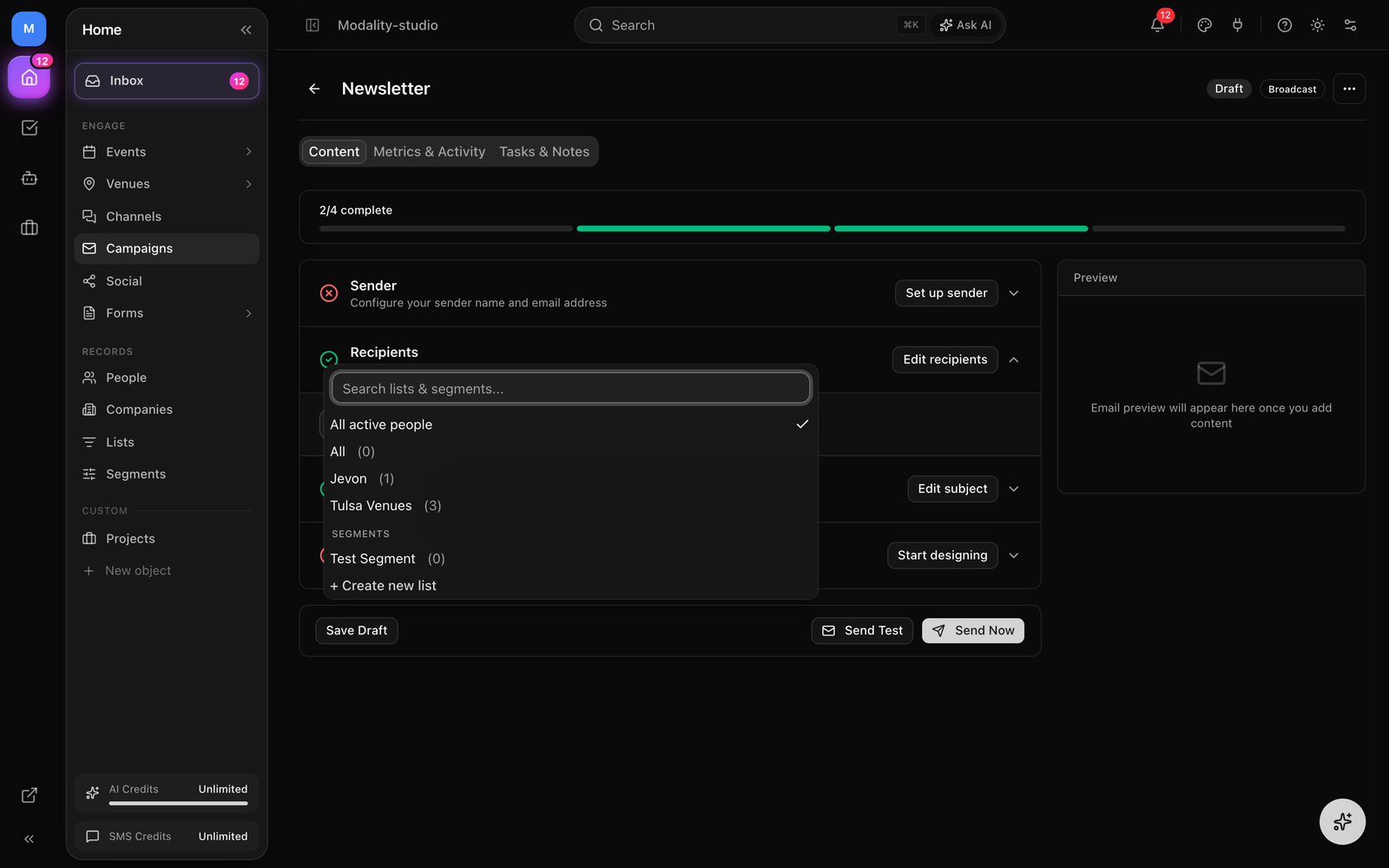
The main reason to build a segment is to target it. When you set up a campaign, the Recipients picker lets you choose a static list or a dynamic segment from one combined menu (segments are grouped under their own heading). Picking a segment stores its id on the campaign as audienceSegmentId.
- Open a native (Modality-sent) email or SMS campaign and go to its Recipients step.
- In the audience menu, search for and select your segment under the Segments group.
- The step shows the segment name and how many people currently match it.
- Send. Modality resolves the segment's rules at send time to the exact set of people who match right then.
A list and a segment are mutually exclusive on a campaign, choosing one clears the other. If you pick neither, the campaign falls back to the default audience of all active people. Segments work for both native email and native SMS sends.
Who actually receives the send
Whatever audience you choose, Modality always applies deliverability guards before sending. From the resolved members it excludes anyone who is Bounced, Unsubscribed, or Inactive, and drops placeholder social-only handles that have no real email. SMS sends are further limited to people with a phone number and SMS consent.
Segments vs. Lists vs. Tags
Modality gives you three ways to organize and target people. They complement each other:
- Tags are manual labels you attach to individual people (VIP, Press, Volunteer). A tag is an attribute, it doesn't resolve to an audience by itself, but you can build a segment rule on it (has tag / does not have).
- Lists are static audiences: an explicit roster of members you add and remove by hand (or via imports and automations). A list stays exactly as curated until you change it, membership never shifts on its own. Campaigns reference a list as
audienceListId. - Segments are dynamic audiences defined by rules. You never curate the roster; Modality computes it live from the rules every time. Membership changes automatically as people's data changes. Campaigns reference a segment as
audienceSegmentId.
Rule of thumb: reach for a List when you want a hand-picked, unchanging group, and a Segment when you want “everyone who currently meets these conditions.” Tags are the building blocks either can be filtered on. Both lists and segments plug into the same campaign Recipients picker.