Media Library
Every event, campaign, and brand surface in Modality is more compelling with the right image. The built-in media library puts millions of stock photos and GIFs one click away, lets you upload your own files, and quietly re-hosts whatever you pick onto stable, first-party storage, so your covers never break, rot, or disappear when a provider changes a link.
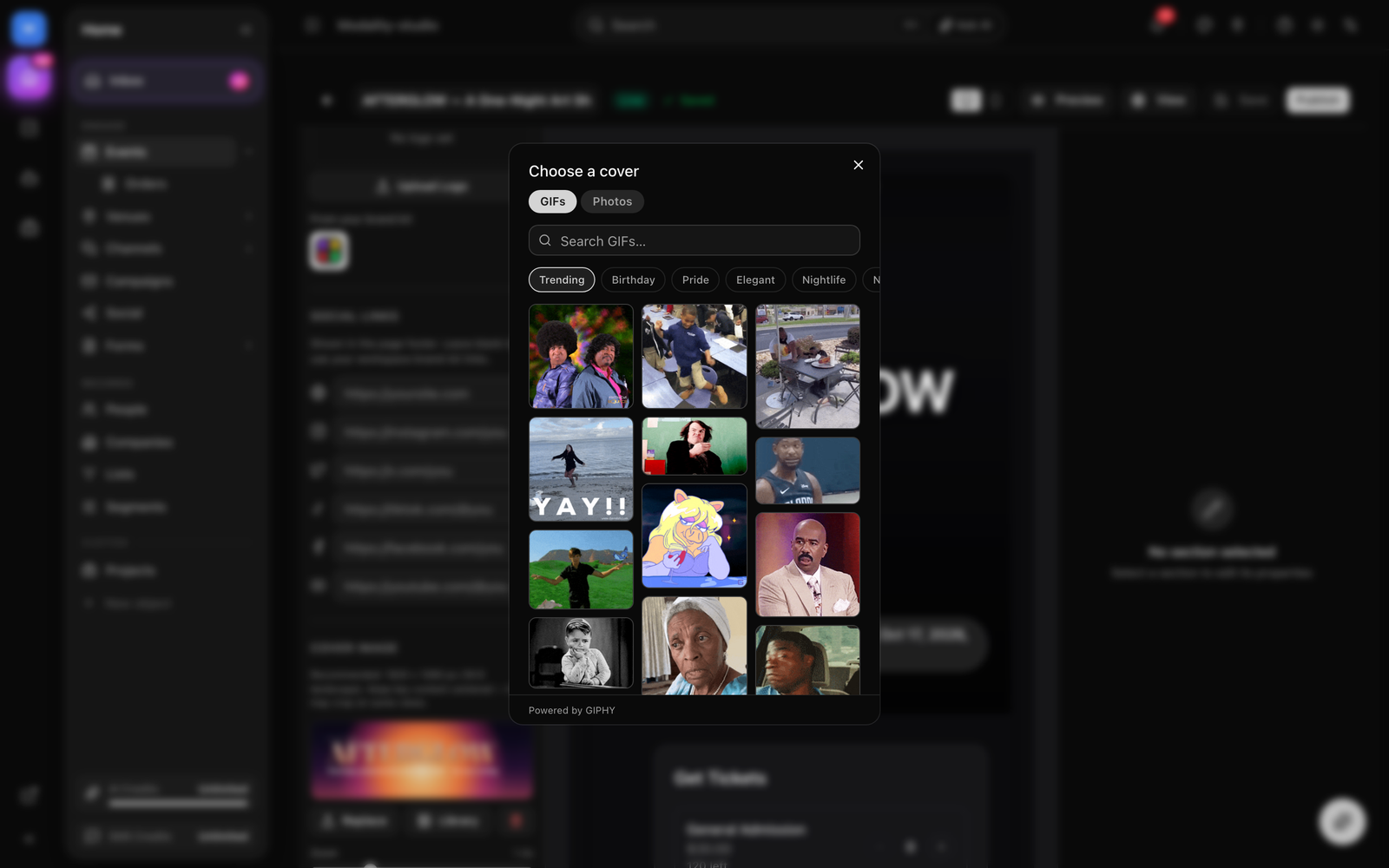
Stock Media: Unsplash Photos & GIPHY GIFs
The media library brings two curated sources into a single grid so you never have to leave Modality to find a cover:
- Photos, high-quality stock photography from Unsplash. Great for polished, editorial event covers and backgrounds.
- GIFs, animated GIFs from GIPHY. Great for playful, social, party-style covers. This is the default tab when the picker opens.
Both providers are proxied entirely server-side. API keys (UNSPLASH_ACCESS_KEY and GIPHY_API_KEY) live on the server and never ship in the web or mobile bundle, the client only ever talks to Modality's own /api/v1/media/search endpoint.
How to Pick a Stock Cover
- 1
Open the library
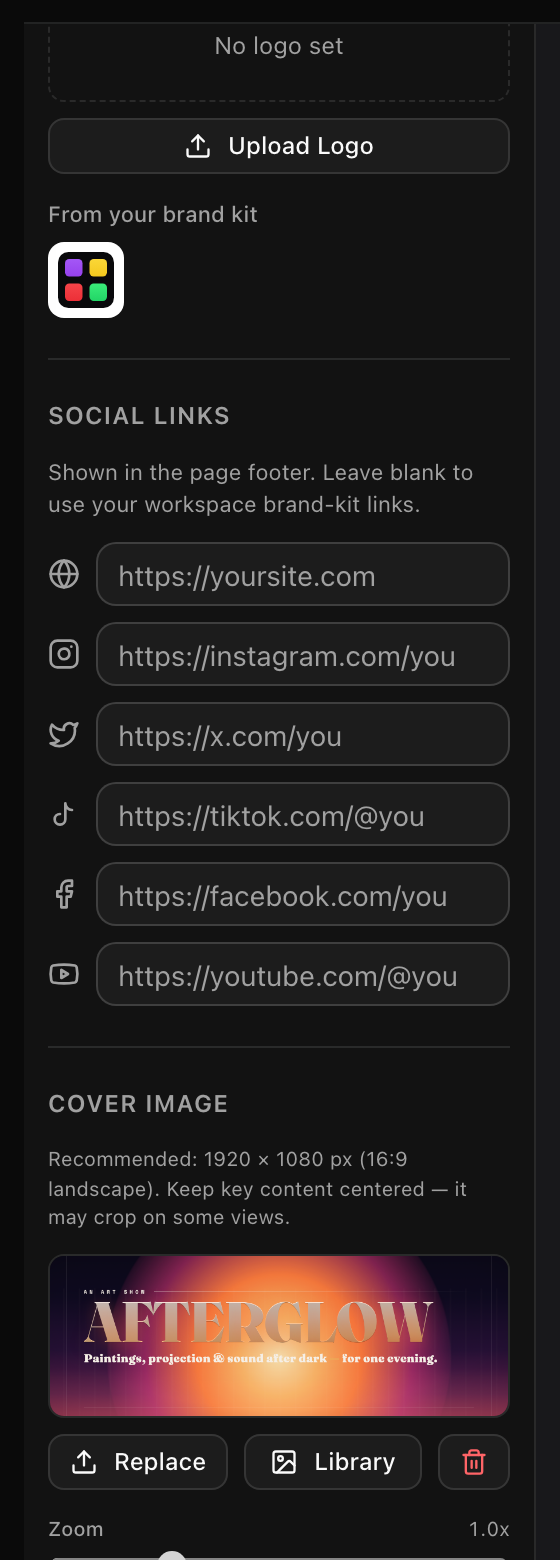
In the event editor's Cover Image section, click Browse library (or Library if a cover is already set). The "Choose a cover" dialog opens.
- 2
Pick a source tab
Switch between GIFs (GIPHY) and Photos (Unsplash) at the top of the dialog.
- 3
Search or browse a category
Type a query into the search box, or tap one of the curated category chips, Trending, Birthday, Pride, Elegant, Nightlife, Nature, Beach, Concert, Dinner, or Abstract. With no query, GIFs show GIPHY trending and Photos show Unsplash's popular/editorial feed.
- 4
Select an image
Click any thumbnail in the grid. Modality re-hosts it (see below) and sets it as your cover. Hover a photo to see its Unsplash photographer credit.
pg-13 rating and Unsplash with its high content filter. Identical searches are cached server-side for an hour to keep the grid fast and stay within provider rate limits.GIF: searching the Photos tab, tapping the 'Nightlife' category chip, then clicking a thumbnail and watching the per-tile spinner as it re-hosts and becomes the event cover.
Demo GIF / screenshot to be added
Re-hosting to Stable Storage
When you pick a stock asset, Modality doesn't hotlink the provider's CDN. Instead it re-hosts the chosen file onto your workspace's own storage and uses that stable, first-party URL for the cover. A hotlinked provider URL can rate-limit, expire, or change out from under you, a re-hosted copy never does.
What Happens on Select
- The picker sends the chosen URL to
POST /api/v1/media/import. - The server verifies the URL points at a trusted provider host (only
giphy.com,unsplash.com, andimages.unsplash.comare allowed), an SSRF guard so it can never be tricked into fetching an arbitrary host. - It fetches the file, checks the type is an image (
jpeg,png,webp, orgif) and that it's under the 15 MB ceiling, then saves it to storage. - For Unsplash photos it also fires Unsplash's download-tracking endpoint, as required by the Unsplash API guidelines (best-effort, never blocks your selection).
- It returns the new first-party URL, which becomes your event cover.
/api/v1/assets/serve/ proxy, with long-lived caching. In local development (no bucket configured) they fall back to the local filesystem. Either way, the URL you get back is stable and workspace-scoped.Uploading Your Own Media
Prefer your own artwork? Upload it directly. In the event editor's Cover Image section, click Upload (or Replace) to choose a file, or simply drag and drop an image onto the cover dropzone. Uploads go to POST /api/v1/assets/upload and are stored the same way as re-hosted stock, on your workspace's own storage.
Supported Files & Limits
- Images, JPEG, PNG, GIF, WebP, and SVG, plus iOS HEIC/HEIF (so photos straight from an iPhone don't hard-fail). Maximum 15 MB.
- Video, MP4, MOV (QuickTime), and WebM, for social reels and video posts. Maximum 32 MB.
Each upload is saved as a categorized asset in your brand kit (as a LOGO, HEADER, or general OTHER asset, depending on where you uploaded it) so you can reuse it later.
Where Your Media Shows Up
Event Covers & Galleries
The cover image is the hero of your public event page and appears on event cards throughout Discover and your Events Page. Beyond the cover, events also support a gallery of additional photos (with lightbox viewing on the public page), all sourced the same way: stock library, direct upload, or your brand kit.
Brand Kit
Uploaded images are organized in your brand kit by category. When you set an event cover, any header/banner assets in your brand kit appear right in the cover chooser under "Choose from brand kit", so on-brand covers are one click away. The Theme tab of the visual page editor also pulls its default logo and cover from the brand kit.
AI Imports
When Modality's AI sets up a workspace or event from an existing website, any external images it finds (a scraped logo or hero/banner) are re-hosted into your brand kit under the right category, so you serve your own copy instead of hotlinking a URL that may rot.
<script> (a stored-XSS vector). You can still upload an SVG logo yourself directly.Screenshot: the event editor cover chooser expanded to the 'Choose from brand kit' grid of header/banner assets, alongside the Upload and Browse library buttons.
Demo GIF / screenshot to be added
Liquid Backgrounds
Not every event needs a photo. When an event has no cover image, Modality renders an animated liquid background, slow-drifting, blurred color blobs over a dark base, so the page and its cards still look intentional and alive rather than empty.
Liquid backgrounds aren't stock media you search for; their colors are derived automatically from the event's category palette. Change the event's category and the blob colors cross-fade to match, keeping the look coordinated without any manual work. Setting a cover image simply layers your artwork on top.
GIF: an event page with no cover showing the animated liquid background gently drifting, then a cover image being selected from the library and layering on top.
Demo GIF / screenshot to be added