Lists & Segments
Group people into audiences you can target in campaigns and automations. Modality gives you two kinds of audience: lists, static groups you build by hand, and segments, dynamic groups defined by rules that stay current automatically. This guide covers both, how they differ from tags, and how to target either one as a campaign audience.
Lists, Tags & Segments
Three different tools organize people in Modality. They overlap, but each is built for a different job:
- Lists are static audiences. Membership is explicit, a person is in a list because you (or an automation) added them, and they stay until removed. Lists have their own management pages with member counts, CSV export, and bulk add/remove. Use them for hand-picked or accumulated groups ("Newsletter," "Event Promo," "Onboarding").
- Segments are dynamic audiences. You define rules (like "lead score over 50" or "tagged VIP and made a paid order") and the segment resolves live to everyone who currently matches, no manual maintenance. Use them for anything that should stay current on its own.
- Tags are lightweight labels for categorization and filtering. A person can carry many tags, and tags feed table filters, automation conditions, and, importantly, segment rules. Use them for descriptive metadata ("VIP," "speaker," "2024-attendee").
Creating and Managing Lists
A list is a named, static group of people scoped to your workspace. It can hold any number of members and can be created from several places throughout the platform.
How to Create a List
- 1
From the Lists page
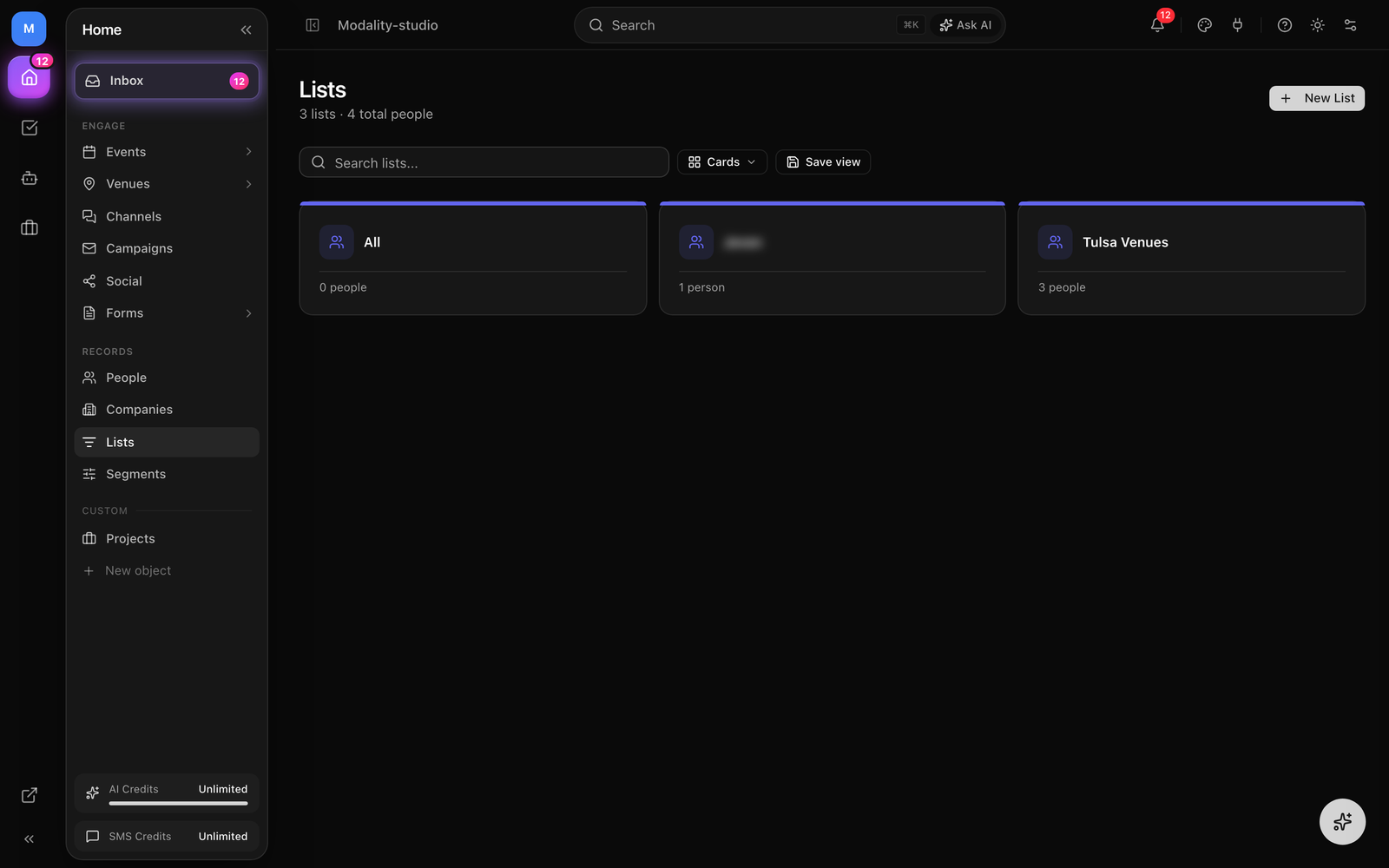
Under People, open Lists. Click "New List," enter a name, and optionally a description and color. The list is created empty and ready for members.
- 2
From the People table
Select one or more rows in the People table, use the Lists action in the toolbar, and add the selected people to a new or existing list. People records that aren't yet linked to a contact are linked (or created from their email) on the fly so the add is reliable from the People object view.
- 3
Inline from a campaign's audience
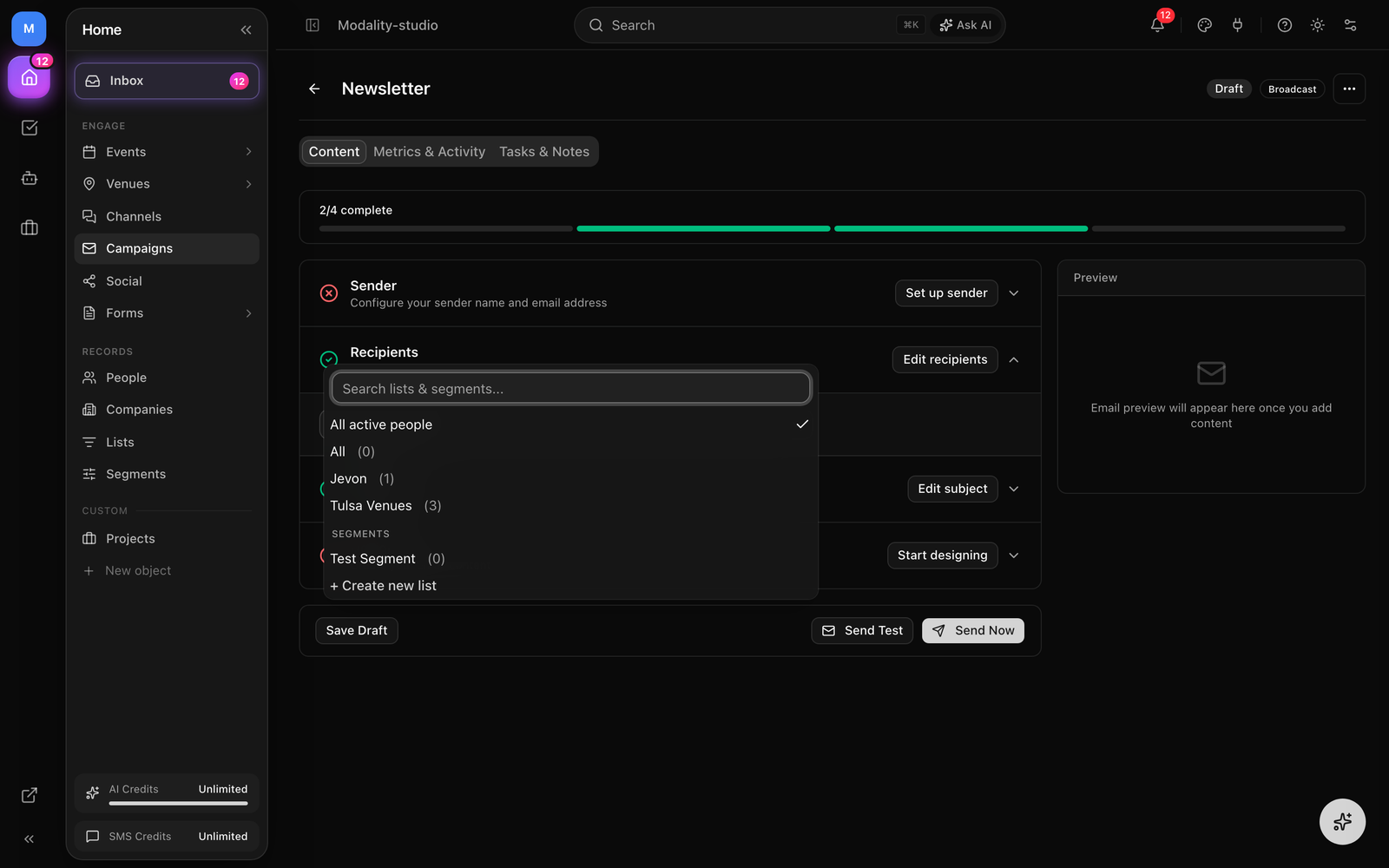
In a campaign's Recipients step, the audience dropdown includes a "+ Create new list" option. Name it and the list is created and selected as the campaign audience immediately.
Managing List Members
Click any list to open its detail view. The member table shows each person's name, email, and status. From here you can:
- Add people, open "Add people," search your contacts, and add them to the list.
- Bulk add from the People table, select rows on the People page and add them via the Lists toolbar action.
- Remove people, select members and remove them (removing from a list never deletes the contact).
- Export CSV, download the list's members as a CSV file.
- Rename / recolor, edit the list's name, description, and color.
added_to_list automation trigger (see Keeping lists current with automations), so downstream workflows can react to new members. List membership itself is a simple static join, it isn't recorded as a separate per-contact activity event.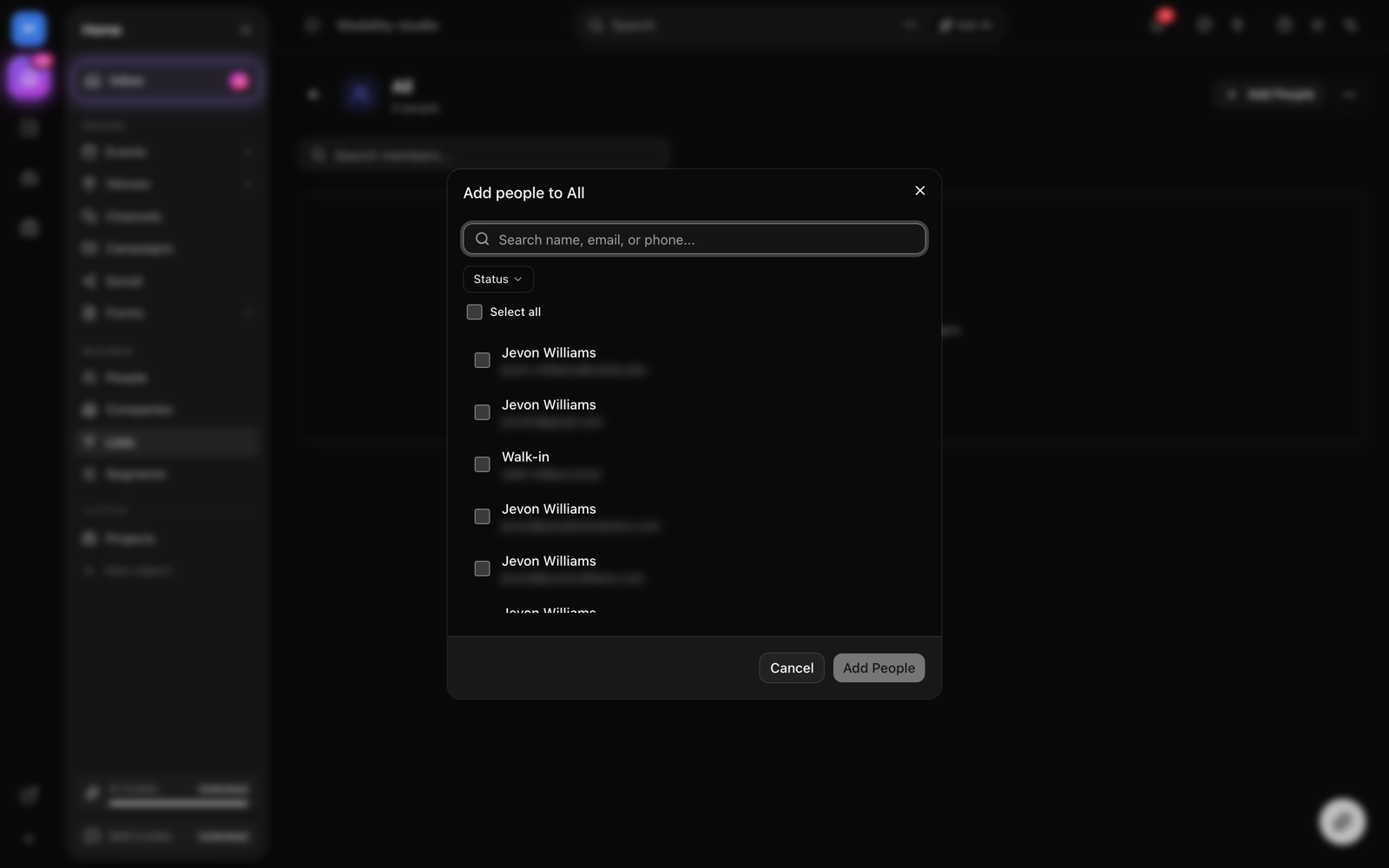
Segments (Dynamic Audiences)
A segment is a set of rules evaluated live against your workspace's people. Instead of adding members by hand, you describe who belongs, and everyone who currently matches is in. Segments are a Pro feature and live on their own Segments page.
How to Build a Segment
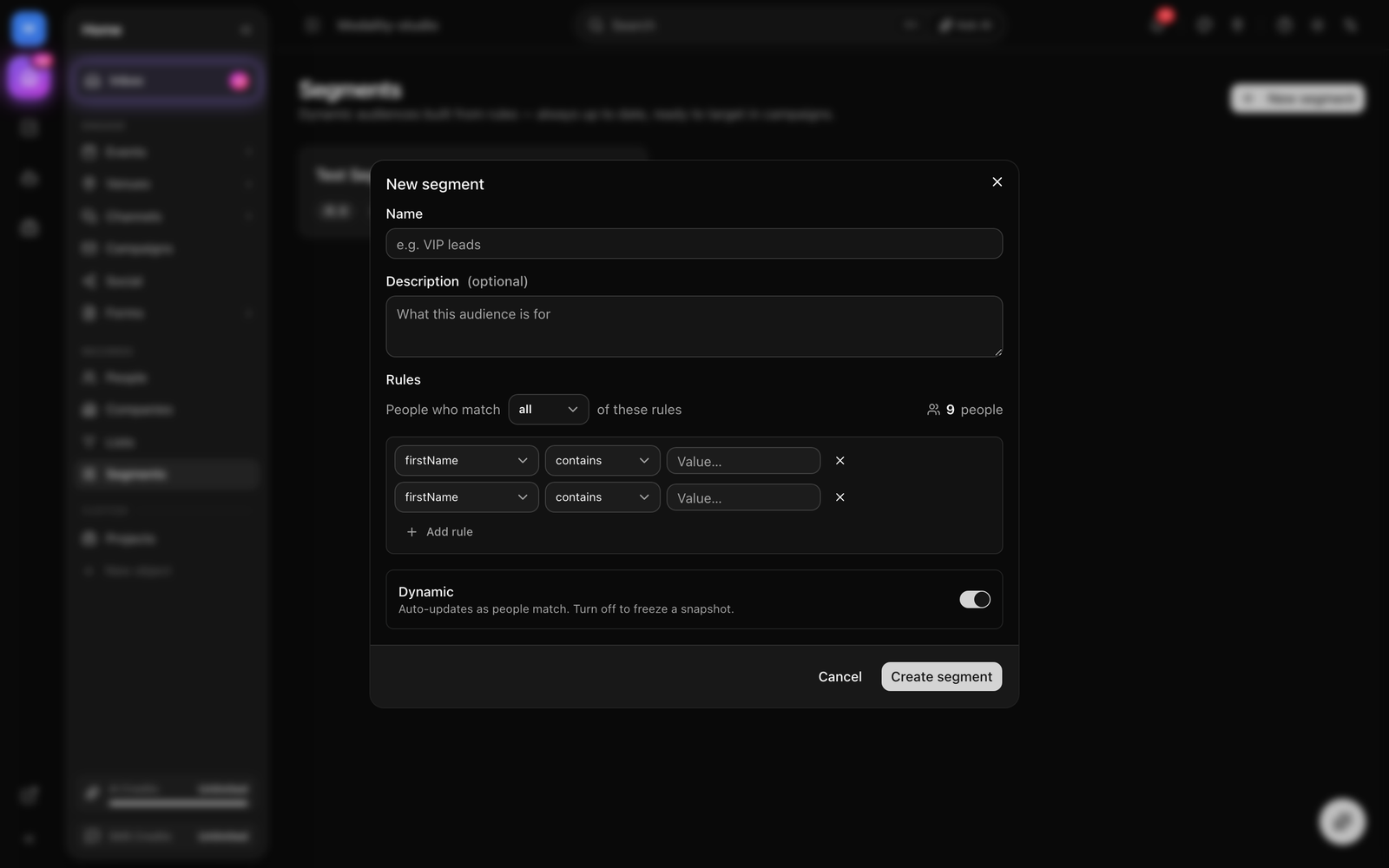
- Open Segments and click New segment. Give it a name and an optional description.
- Choose whether a person must match ALL of the rules (AND) or ANY of them (OR).
- Add one or more rules. Each rule is a field, an operator, and (for most fields) a value.
- Watch the live "N people match" count update as you edit, it previews the audience before you save.
- Save. The segment is now available as a campaign audience.
Rule Fields
The rule builder exposes the fields the engine can actually filter on:
- Profile text, first name, last name, email, company, job title, website, source (operators: contains, is, is not, is empty, is not empty).
- Status, the contact's lifecycle status (is / is not).
- Lead score, numeric comparisons (=, ≠, >, ≥, <, ≤).
- Date added, created before / after a date.
- Tag, has a specific tag, does not have it, has any tag, or has no tags.
- Behavior, made a paid order, attended an event (checked in via ticket or RSVP), or RSVP'd to an event (yes / no).
- Custom fields, any workspace custom field appears as a rule you can filter on.
Dynamic vs. Static
Each segment carries a Dynamic toggle. Leave it on (the default) and the segment auto-updates as people start or stop matching its rules. When a campaign uses a segment, its rules are resolved live at send time, so the audience always reflects who matches at that moment.
Targeting a Campaign Audience
A native campaign sends to exactly one audience source: a list, a segment, or the default of everyone active. You pick it in the campaign's Recipients step.
How to Choose the Audience
- Open a draft campaign and expand the Recipients section.
- Open the audience dropdown. It offers All active people (the default), your lists (with member counts), a Segments group, and a "+ Create new list" shortcut. Use the search box to filter lists and segments by name.
- Pick one. A list and a segment are mutually exclusive, choosing a segment clears any selected list and vice-versa. The estimated recipient count is shown beneath the picker.
Under the hood, selecting a list stores audienceListId on the campaign; selecting a segment stores audienceSegmentId. At send time a list expands to its members, while a segment re-evaluates its rules live. Leaving the default (All active people) sends to your whole active audience.
Who Gets Excluded
Whichever audience you choose, Modality always filters the send down to deliverable people. Contacts whose status is unsubscribed, bounced, or inactive are excluded, as are placeholder handle-only leads captured from social (non-deliverable placeholder emails). A safety net also applies to segments: an unknown or cross-workspace segment resolves to an empty audience rather than accidentally emailing your whole workspace.
Keeping Lists Current with Automations
Segments update themselves, but static lists can be kept current with automations. Use an automation to add people to a list based on what they do, and use the added_to_list trigger to react when they join:
- Form submitted → add to a "Newsletter Subscribers" list
- Ticket purchased → add to an "Event Attendees" list
- Tag added → add to a "VIP Contacts" list
- Added to a list → kick off a welcome sequence or notify your team
This keeps hand-built lists growing without manual upkeep. For anything you'd otherwise maintain with a rule, a segment is usually the simpler choice, see Segments above.