Automations
Automations run your workspace on autopilot. Each one pairs a single trigger, something that happens in your data, with an ordered list of actions that fire in response. Add timing and branching with flow-control steps, describe a whole workflow in plain English with the AI builder, start from a template, or hand a multi-step email/SMS drip off to a Sequence. No code required.
Building an Automation
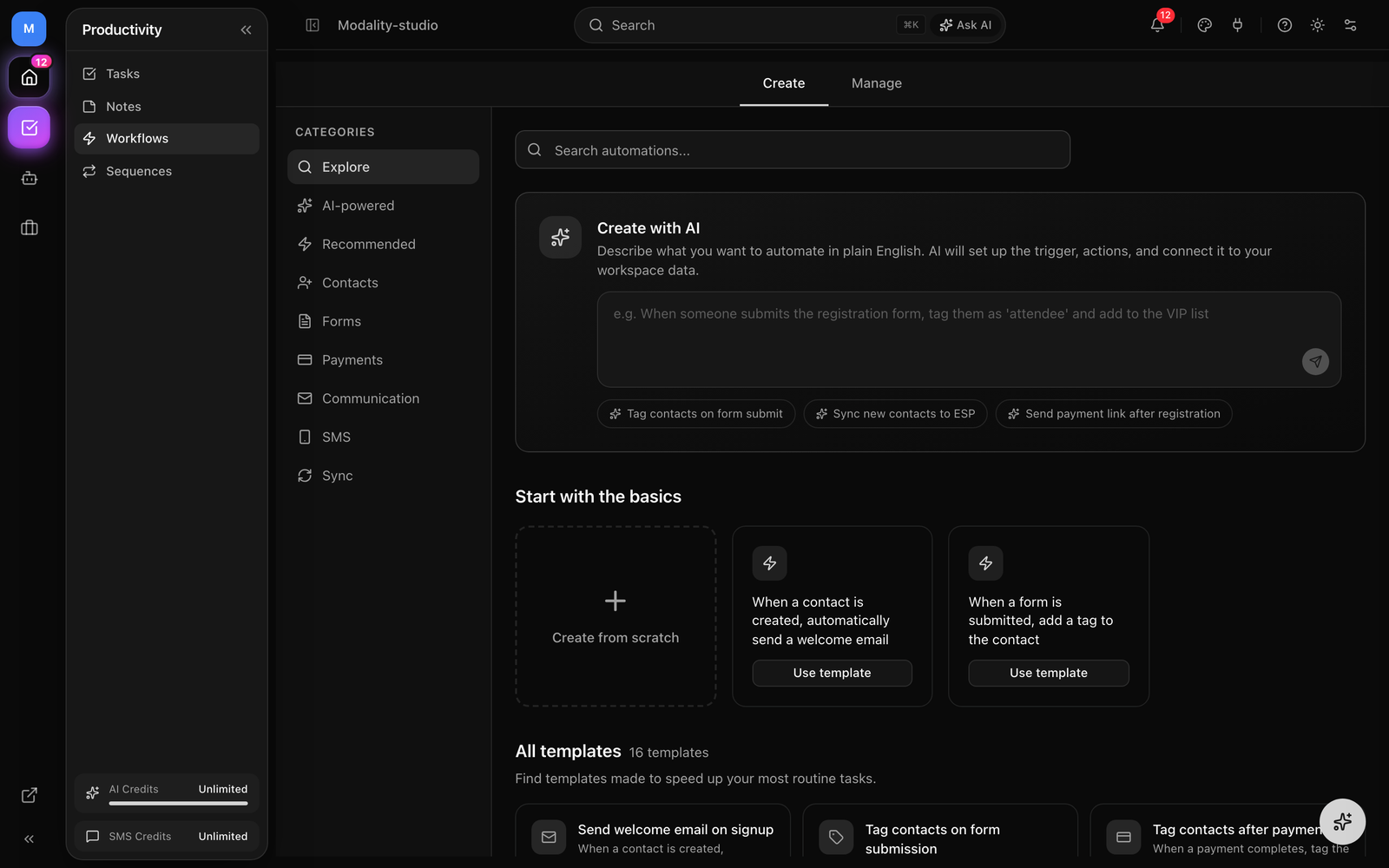
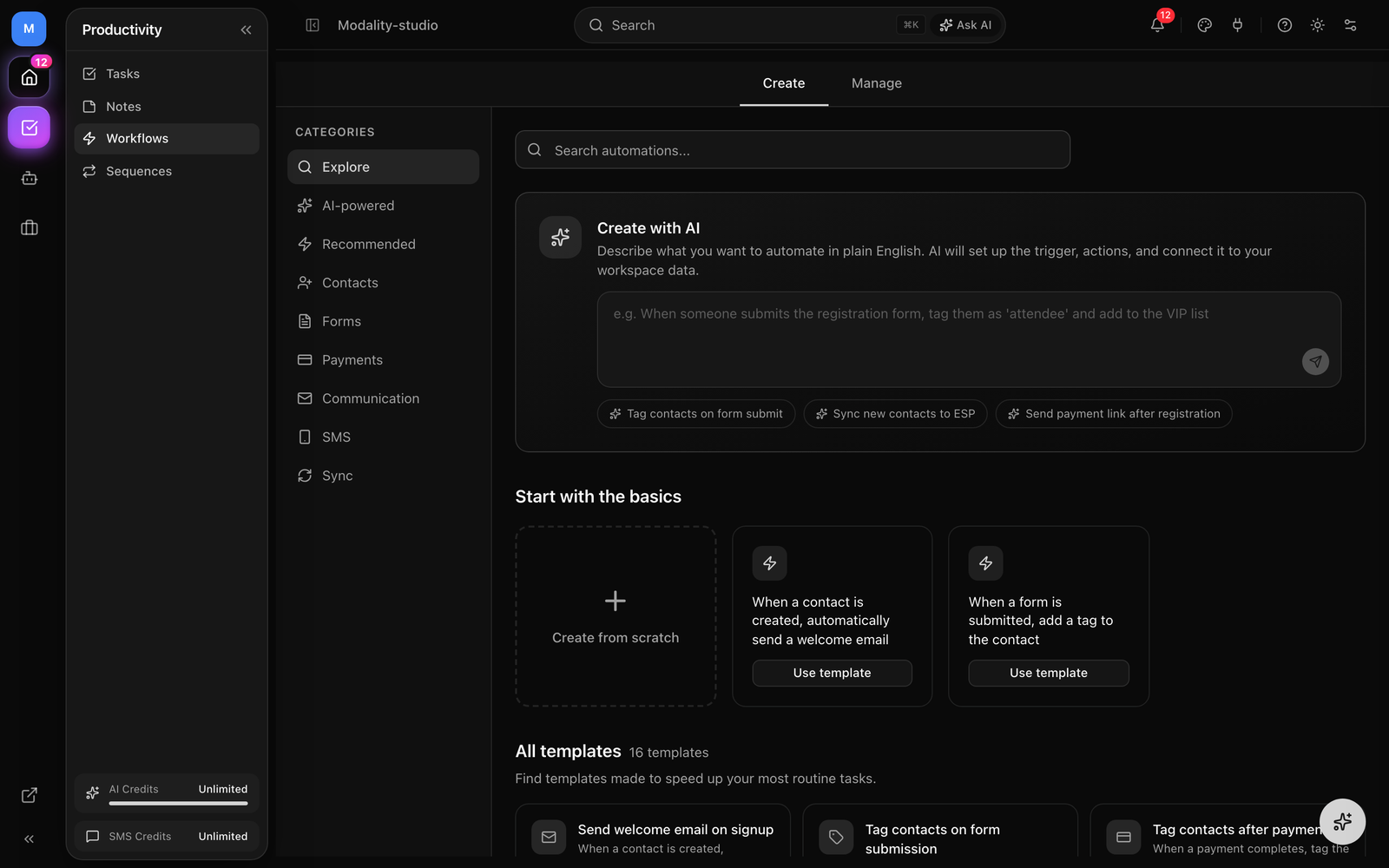
Open Automations from the sidebar. The page has two tabs: Create (the template gallery and AI builder) and Manage (your existing rules). Every automation is assembled with the sentence builder, a plain-language editor that reads like "When a form is submitted, add a tag and send an email."
Create from Scratch
- 1
Start a draft
On the Create tab, click Create from scratch (or New Automation on the Manage tab). A blank draft opens in the sentence builder.
- 2
Pick the trigger
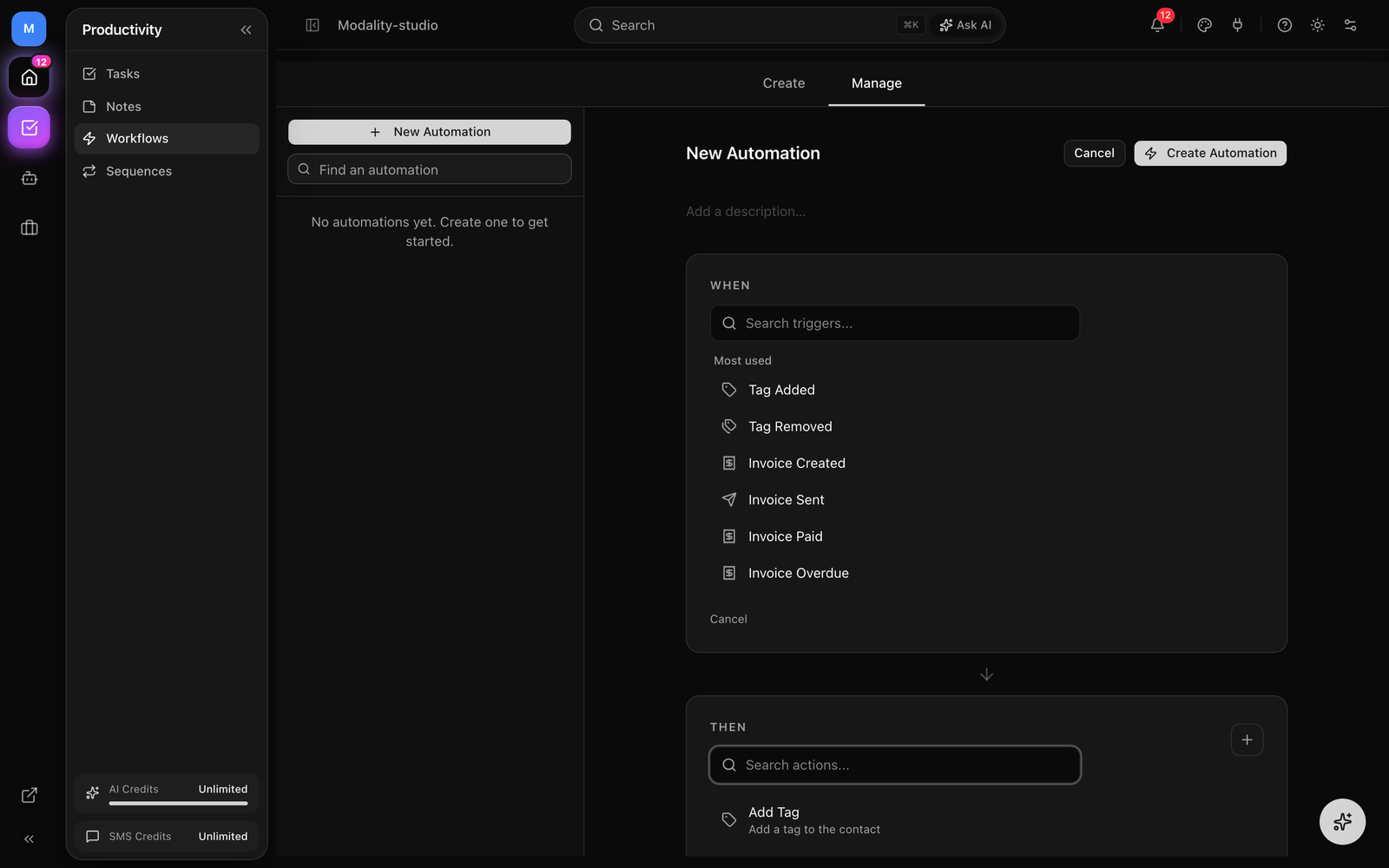
Choose the trigger type, then fill in its parameters (which form, which tag, which object and attribute, and so on). The available fields change to match the trigger, see Triggers below.
- 3
Add actions
Click Add action and configure each one. Actions run top to bottom; reorder them by dragging. Add as many as you need, including flow-control steps like Wait and If / Else.
- 4
Save as a draft
Click Create Automation. New automations are saved as
DRAFT, nothing fires yet. Drafts are validated leniently so you can save partial work in progress. - 5
Activate
Flip the toggle to ON to set the rule
ACTIVE. Activation runs strict validation, for example a Send email action must resolve to real content (a template, or a subject and body) before the rule can go live. Toggle OFF to pause it again.
GIF: the sentence builder, picking a trigger, adding two actions, and toggling the automation from OFF (DRAFT) to ON (ACTIVE).
Demo GIF / screenshot to be added
Create with AI
Don't want to wire the trigger and actions by hand? Describe the workflow in plain English and let AI build it. The Create with AI panel sits at the top of the Create tab (and in the AI-powered category).
- Describe it, type what you want, e.g. "When someone submits the registration form, tag them as ‘attendee’ and add them to the VIP list." Suggestion chips give you a running start.
- AI configures it, the assistant picks the right trigger and actions and wires them to your real workspace data (your actual forms, tags, lists, objects, and sequences).
- Review & activate, the generated automation opens in the same sentence builder so you can check it, tweak anything, and turn it on.
GIF: typing a plain-English request into Create with AI and watching it produce a configured trigger + actions ready to review.
Demo GIF / screenshot to be added
Template Gallery
The Create tab is a browsable gallery of ready-made automations. Filter by category in the left rail, Explore, AI-powered, Recommended, Contacts, Forms, Payments, Communication, SMS, and Sync, or search by name. Picking a template opens it pre-filled in the sentence builder as a draft, so you just choose your specific form/tag/list and activate.
A few of the built-in templates:
- Send welcome email on signup, trigger: contact added → action: send a welcome email.
- Tag contacts on form submission, trigger: form submitted → action: add a tag.
- Tag contacts after payment, trigger: payment completed → action: add a "customer" tag.
- Sync to ESP on list add, trigger: added to list → action: sync the contact to your provider.
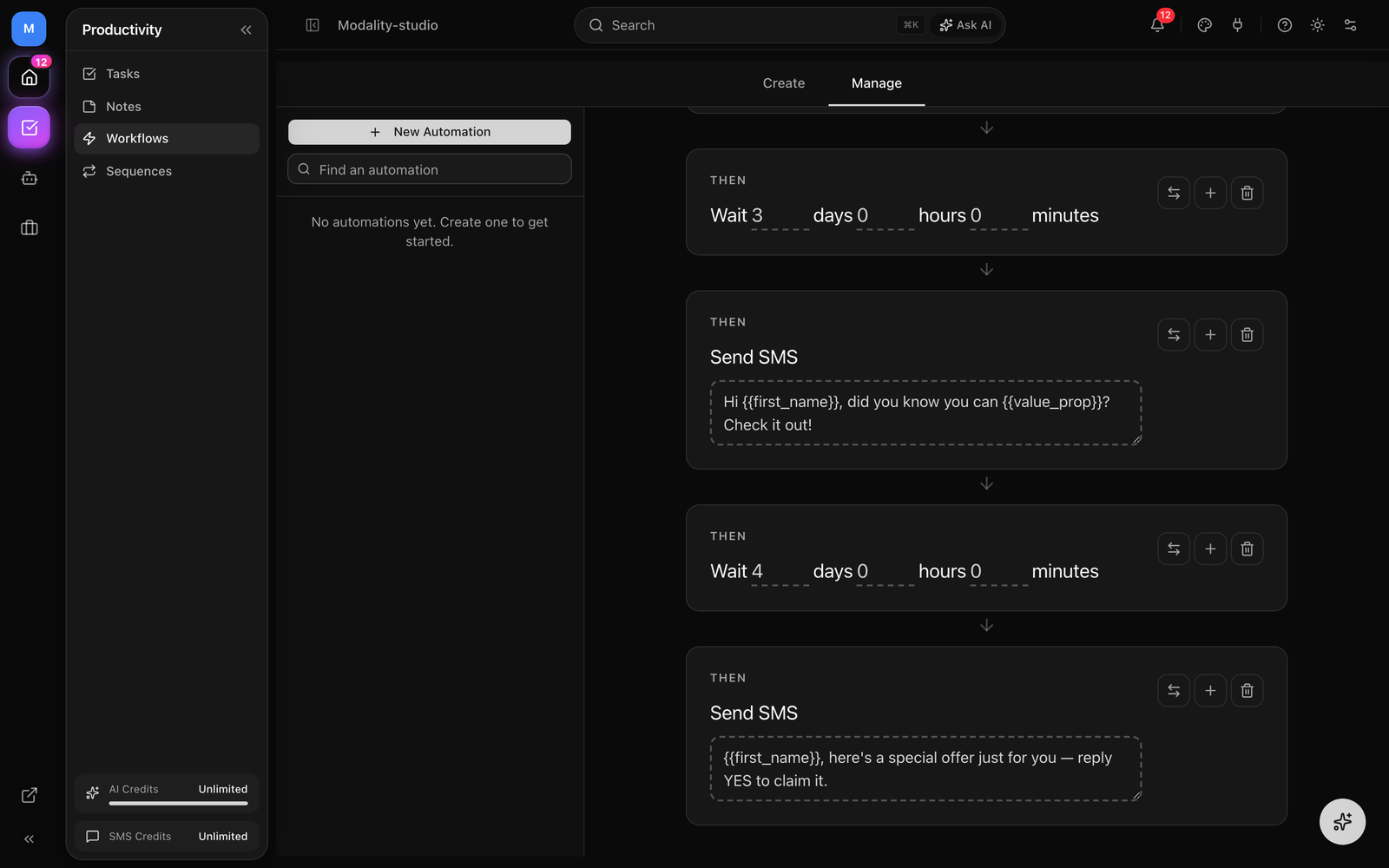
- SMS welcome drip (3-step), contact added → welcome text, wait 3 days, value-prop text, wait 4 days, offer text.
- Auto-reply to inbound SMS, trigger: SMS received → auto-reply text and create a follow-up task.
Triggers
Every automation starts with exactly one trigger. Most triggers fire the moment the event happens in your workspace; date-based triggers are evaluated by a scheduled scanner (see How Triggers Fire). The triggers below are the real registry, grouped by the area they watch.
Contacts & CRM
- Tag added, a specific tag is applied to a contact.
- Tag removed, a specific tag is removed from a contact.
- Contact added, a new contact is created; optionally filter by source (form, CSV import, API, manual entry, or AI assistant).
- Status changed, a contact's status changes; optionally scope to a specific from-status and/or to-status.
- Added to list, a contact is added to a specific list.
- Calculated field reached, a calculated (date) field threshold is reached.
- Lead score reached, a contact's lead score crosses a threshold (fires once, on the upward crossing).
Forms & Payments
- Form submitted, a form receives a submission. Leave the form blank to match any form, or pick one to scope it.
- Payment completed, a payment is successfully completed. Like the form trigger, it takes an optional form: leave it blank for any payment, or scope it to payments made on a specific form.
Universal Objects
These triggers work against any object type (People, Companies, or your custom objects). You pick the object type, and, where relevant, the specific attribute to watch.
- Record created, a new record is created in the chosen object.
- Record updated, a record in the object is updated (optionally narrowed to one attribute).
- Attribute changed, a specific attribute changes value, optionally only from a given old value and/or to a given new value.
Field-Type-Aware Triggers
When you build against a typed attribute, the picker offers triggers that fit the field type. Each needs an object type and attribute; some take an extra number.
- Date approaching, fires a configurable number of days before a date/datetime value (set Days Before).
- Days after date, fires a configurable number of days after a date/datetime value (set Days After). This is the trigger that carries the day offset for after-the-fact timing.
- Date passed, fires once a date/datetime value is in the past. It takes no day offset, use Days after date if you need "N days later."
- Became true, a checkbox (boolean) attribute flips to checked.
- Became false, a checkbox attribute flips to unchecked.
- Exceeds threshold, a number/currency/percent/rating attribute rises above a threshold (fires on the crossing).
- Drops below threshold, the same field type falls below a threshold.
- Value set, an attribute goes from empty to having a value.
- Value cleared, an attribute goes from having a value to empty.
Invoices
- Invoice created, an invoice is created.
- Invoice sent, an invoice is sent to a contact.
- Invoice paid, an invoice is fully paid.
- Invoice overdue, an invoice passes its due date unpaid.
- Partial payment, a partial payment is received on an invoice.
SMS & E-Signature
- SMS received, an inbound SMS arrives from a contact; optionally filter by a keyword.
- Document sent, a signature request is sent to a recipient.
- Document viewed, a recipient opens the signing page.
- Document signed, a recipient signs (per recipient).
- Document completed, every recipient has signed and the envelope is complete.
- Document declined, a recipient declines to sign.
The e-sign triggers can be scoped to a specific document template, and can even fire only when a signed field holds a particular value (a field-level match), useful for routing based on what the signer entered.
How Triggers Fire
Most triggers are live, the workflow evaluates the instant the event occurs (a tag is added, a form is submitted, an attribute changes). The date triggers (Date approaching, Date passed, Days after date) are different: a scheduled scanner walks your active date rules, computes how many days until/since each record's date, and fires the matching rules. Because of this, automations act on events that happen after the rule is active, they don't retroactively reprocess existing records.
Actions
Actions are the work the automation does when its trigger fires. Chain as many as you like; they execute in the order listed. The full action registry:
Contacts, Tags & Lists
- Add tag / Remove tag, apply or remove a tag on the contact.
- Add to list / Remove from list, move the contact in or out of a list.
- Update contact field, set a field or status value on the contact.
Messaging
- Send email, send an email built from a saved/built-in template, or from an inline subject and body you compose right in the builder. Merge tags such as
{{first_name}},{{workspace.name}}, custom fields ({{custom_key}}), and linked-company tags are resolved at send time. - Send SMS, text the contact via Twilio (BYO Twilio if connected, otherwise the metered platform sender). Requires a phone number and SMS consent; supports the same merge tags.
- Send payment link, email the payment link for the contact's latest pending submission.
- Enroll in sequence, drop the contact into a native drip Sequence (see below).
Objects & Tasks
- Create record, create a new record in any object type, with attribute values you specify.
- Update record attribute, set an attribute on the triggering record.
- Create task, create a task (with an optional due date) linked to the triggering record.
Invoices
- Create invoice, build an invoice from line items, with an optional due date, notes, a per-record discount read from an attribute, and an org-set deposit.
- Create invoice from submission, price an invoice automatically from the contact's latest priced form submission (its product selections), with an optional deposit.
- Send invoice, send the contact's most recent draft invoice.
- Send invoice email, send a branded email with invoice details and a payment link.
Events, E-Sign & Integrations
- Add to event, add the contact to an event as a guest, optionally pre-approved (skipping the request/approval step).
- Send for signature, send a document template to the contact for e-signature (optional signing role and expiry). The resulting envelope re-enters the engine via the Document … triggers as it's viewed, signed, or completed.
- Sync contact, push the contact to all connected providers.
- Trigger Mailchimp automation, fire a Mailchimp automation/journey email for the contact.
Flow Control
Four special actions control when and whether the rest of an automation runs. Drop them in anywhere in the action list.
- Wait, pause before the next action for a set number of days, hours, and/or minutes. The remaining actions are scheduled and picked up later by a background job, so a "send now, follow up in 3 days" flow is a single automation.
- If / Else, branch on a condition (a field compared with equals, not equals, contains, greater than, less than, exists, or not exists). Actions in the matching branch run; each branch can contain its own actions, including waits.
- Exit if, stop the automation immediately if a condition is met, so later actions are skipped for that contact.
- Pause on reply, mark the flow so that if the contact replies to an email in it, the remaining steps are halted (ideal for outreach that should stop the moment someone answers).
Sequences (Native Drip)
For multi-step nurture and drip campaigns, use Sequences, a dedicated area (in the sidebar) for time-spaced series of messages. Where an automation is a single trigger → actions rule, a Sequence is an ordered list of steps that a contact is enrolled into and advances through over days and hours. Sequences send natively from Modality (no ESP required) and are metered against your marketing-send allowance.
Step Types
- Email, a subject and rich-text body with merge tags and an automatic one-click unsubscribe.
- SMS, a text message (sent only to contacts with a phone number and SMS consent).
- Condition, a gate: if the condition isn't met when the step is reached, the contact exits the sequence; if it is met, they continue.
Each step has a delay (days + hours) measured from the previous step, so you control the cadence precisely. Reorder, add, or remove steps at any time.
Building & Running a Sequence
- 1
Create the sequence
From the Sequences page, create a sequence and give it a name. It starts as
DRAFT. - 2
Add steps
Add email, SMS, and condition steps in order, each with its delay. A sequence with no steps has nothing to send.
- 3
Activate
Set the sequence
ACTIVE. (Statuses areDRAFT,ACTIVE,PAUSED, andARCHIVED.) - 4
Enroll contacts
Enroll people directly from the sequence's Enrollments tab, or automatically with the Enroll in sequence automation action, e.g. "When a form is submitted, enroll the contact in the Welcome drip."
- 5
Let it run
A background job advances each active enrollment when its next step is due, sending the message and scheduling the following step.
Enrollment Lifecycle
Each enrollment moves through a clear set of states, tracked per sequence:
- Active, progressing through the steps on schedule.
- Completed, reached the end (or exited via a failed condition, or was manually unenrolled).
- Paused, held manually, or automatically after repeated send failures (bounded retries with back-off before it pauses).
- Unsubscribed / Bounced, a contact who unsubscribed or whose address is suppressed is stopped and won't be messaged again.
You can pause, resume, or unenroll any individual enrollment from the Enrollments tab. Re-enrolling a contact restarts them from the first step.
Screenshot: a Sequence detail page, the ordered steps (email / SMS / condition with per-step delays) on the Steps tab and the per-contact rows on the Enrollments tab.
Demo GIF / screenshot to be added
Monitoring Automations
Once a rule is live you can watch it work. Every automation tracks a run count and its last run time, and each execution is logged with a success or error status.
- The Manage list shows each rule with its trigger → action summary and an ON/OFF toggle.
- Open a rule to see the App areas this automation touches map and a Recent executions panel, the latest runs (green = success, red = error) with timestamps and the total run count.
- Delete a rule from its danger zone; any active workflow stops immediately.
Screenshot: an automation's detail view showing the 'App areas this automation touches' map and the 'Recent executions' panel with success/error dots and total run count.
Demo GIF / screenshot to be added
Common Recipes
Practical workflows you can build today:
- Welcome new contacts, trigger: contact added → add a "new" tag, add to a Welcome list, send a welcome email.
- Post-payment follow-up, trigger: payment completed → add a customer tag, send an SMS confirmation, sync the contact to your ESP.
- Registration → invoice, trigger: form submitted → create an invoice from the submission and send the invoice email.
- Re-engage cold contacts, trigger: days after date (last activity + 90 days) → add an "inactive" tag and enroll in a win-back sequence.
- Application approved, trigger: attribute changed (Application Status → Approved) on a People/object record → add to the event (pre-approved) and send the deposit invoice.
- Signed contract kickoff, trigger: document completed → create a task and send a welcome email.
- VIP upgrade, trigger: exceeds threshold (total purchases > 5) → add a "VIP" tag and update a status field.