AI Agents
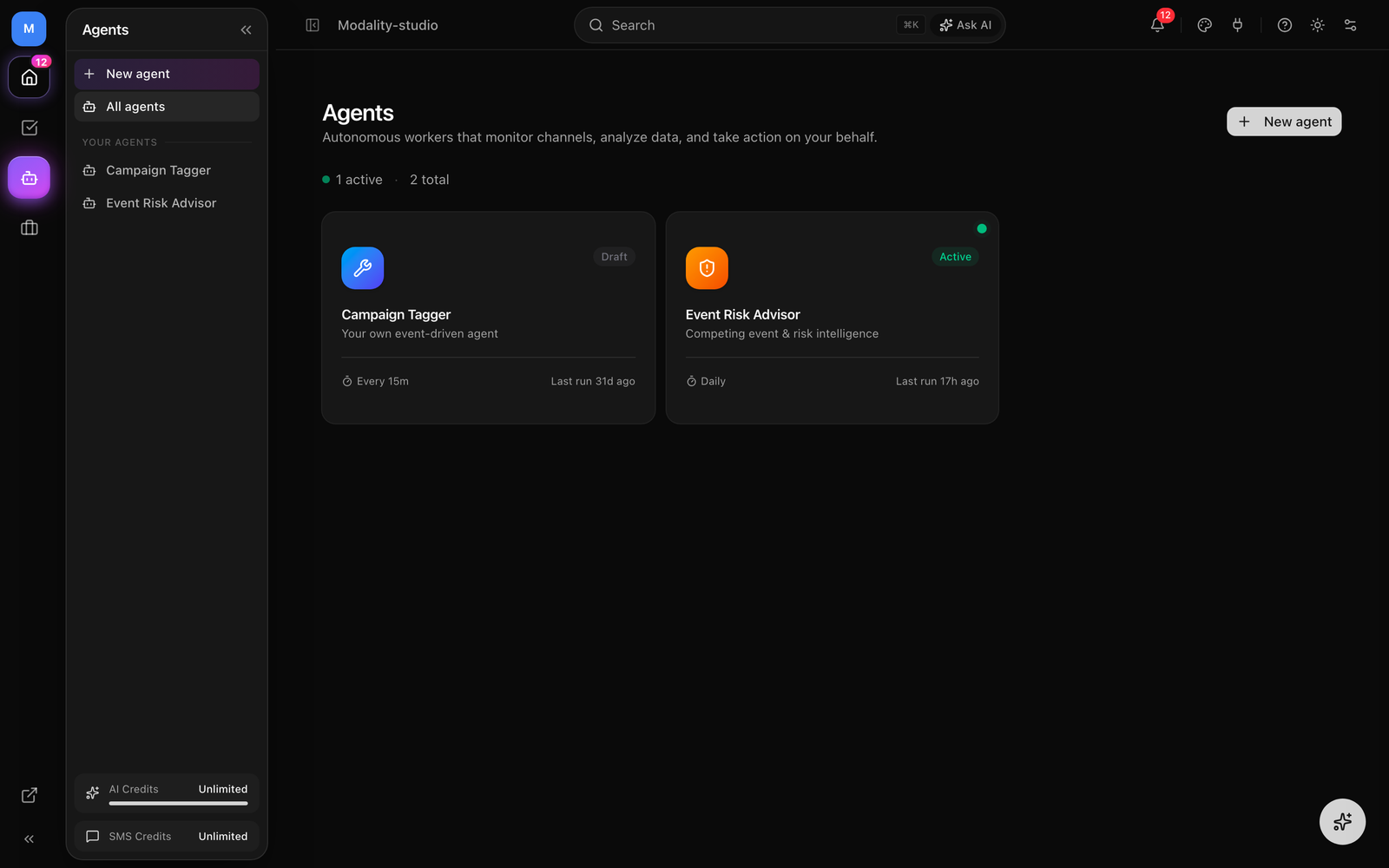
Agents are autonomous workers that monitor your channels, analyze data, and take action on your behalf, on a schedule or the moment something happens in your workspace. This guide covers what an agent is, the perceive → think → act harness that runs every agent, the guardrails and budget that bound it, the prebuilt Comment-to-Lead agent, building your own event-driven agent, and how to enable, run, approve, and monitor them.
What Is an Agent?
An agent is a saved, configurable worker that runs the same three-phase loop every time it wakes: perceive (gather what changed), think (reason about it, often with an AI model), and act (take bounded actions or queue them for your approval). Each agent belongs to a workspace, has a kind, a status, a schedule, and a set of guardrails. Modality ships three kinds:
- Comment-to-Lead, watches comments on your published social posts, captures interested commenters as CRM People, and posts a public reply (optionally with an attributed promo link).
- Event Risk Advisor, scans competing events, public holidays, and severe weather near your venues and produces an AI risk score for each upcoming event.
- Custom (build your own), an event-driven AI agent you configure: pick a trigger, describe a goal in plain English, and choose which actions it may take.
Status & Lifecycle
Every agent moves through three states:
- Draft, created but not yet running. You can still Test run it to see what it would do.
- Active, live. Activating schedules the first tick immediately, and the scheduler re-runs it on its cadence thereafter.
- Paused, taken off the schedule (its next run is cleared) but kept intact so you can resume it later.
The Agent Harness (Perceive → Think → Act)
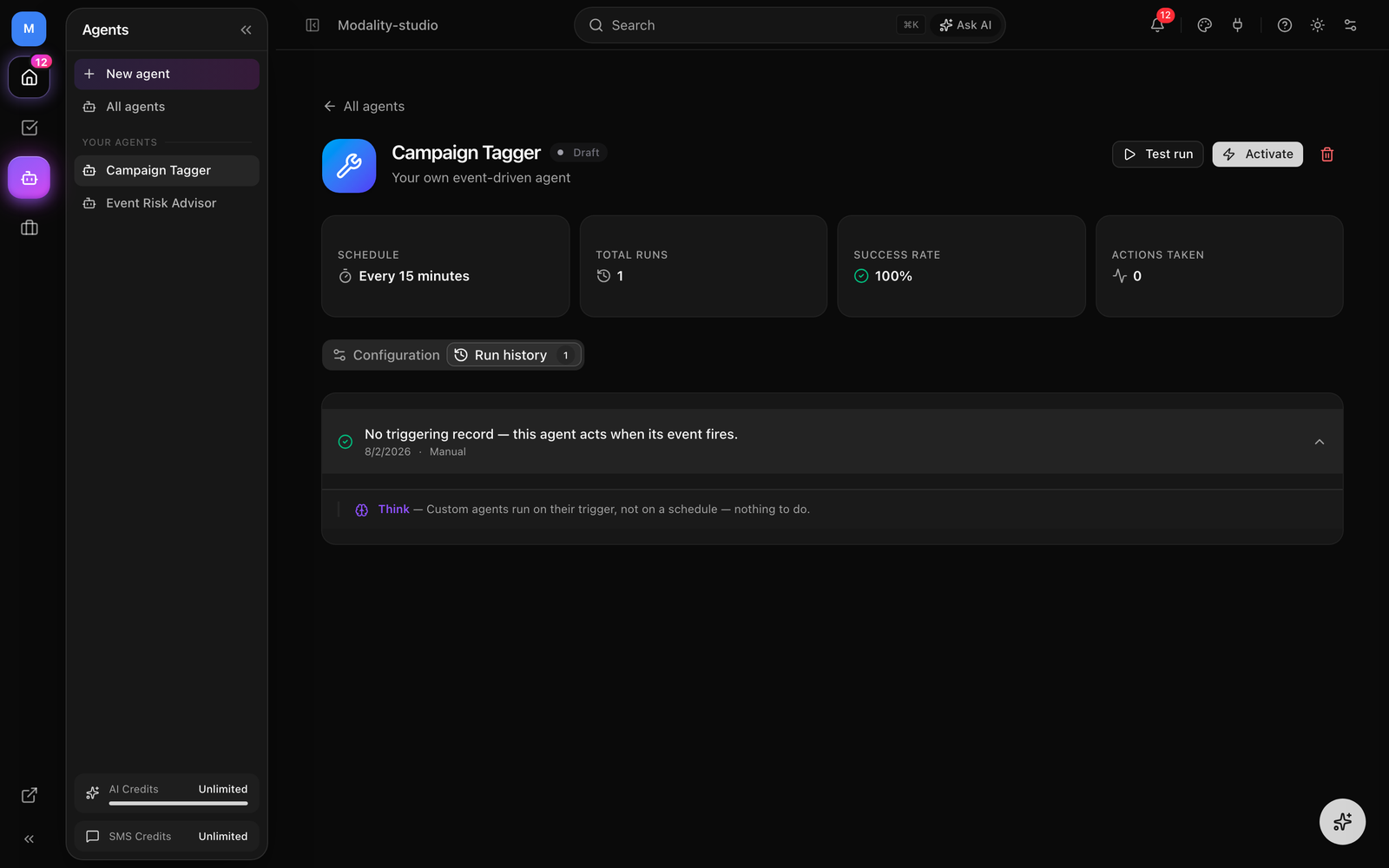
Every kind of agent runs through one shared harness. When an agent fires, from the scheduler, a manual Run now, or an event, the harness opens a run, records each step it takes, and closes the run with a status, a human-readable summary, and how many agent-actions it consumed. Steps are tagged by phase so the run history reads as a transparent trace:
- Perceive, what the agent observed (e.g. "Watching 12 published post(s) on instagram", "8 new comment(s) match").
- Think, how it reasoned (e.g. "Classified 8 comment(s); 5 express interest", or a custom agent's stated decision).
- Act, what it did or proposed (e.g. "Replied to @handle + captured lead", or "Proposed reply … (awaiting approval)").
Each run ends as SUCCESS or FAILED. A failure is recorded with its error message rather than crashing the schedule, the scheduler moves on and keeps other agents running.
Guardrails
Guardrails bound every agent's blast radius and spend. They apply to all kinds:
- Require approval (default on), outbound or irreversible actions become proposals for a human to approve before they run, instead of executing immediately.
- Max actions per run, a hard cap on how many actions a single run may take (default 50), so a busy run can never fan out without limit.
- Daily action cap, a rolling ceiling on actions per day (default 500).
The Agent-Actions Budget
Separately from guardrails, each workspace has a metered agent-actions budget tied to its plan. Agents spend from this budget as they act, and the spend is consumed atomically so two concurrent runs can never over-draw it. Different operations cost different amounts, for example a public comment reply costs one action while capturing a lead is free, and heavier intelligence work (a metro scan, a risk report) costs more. When the budget is exhausted:
- An in-progress run stops early and records that the budget ran out.
- The scheduler skips a due agent (but still reschedules it) rather than failing.
- A manual Run now is refused with a clear "budget exhausted" message.
Comment-to-Lead Agent
The Comment-to-Lead agent turns social engagement into CRM leads. It watches the comments on your published Instagram and Facebook posts, decides which commenters are genuinely interested, captures them as People, and replies publicly with a personalized message, optionally carrying a promo link so social attention is attributable to revenue.
How a Run Works
- 1
Perceive, watch published posts
The agent pulls your recently published social posts on the platforms you selected (Instagram and/or Facebook) and reads their comments. Comments it has already handled are remembered and skipped, and if you set trigger keywords, only comments containing one of them (case-insensitive) are considered.
- 2
Think, classify interest
New comments are classified with a fast AI model that judges whether each author is expressing genuine interest (attending, buying, or asking for info) versus spam, criticism, or unrelated chatter, and extracts a plausible first name. If the model is unavailable, the agent falls back to a keyword/heuristic pass so it still runs.
- 3
Act, capture + reply (or propose)
For each interested commenter, the agent renders your reply template, filling in
{{firstName}}and{{link}}, and then, if Require approval is on, queues a proposal for you; if it is off, it captures the commenter as a Person (applying your lead tags) and posts the public reply right away.
GIF: the Comment-to-Lead flow, a new Instagram comment, the agent classifying it as interested, capturing the commenter as a Person with the lead tag applied, and a personalized public reply appearing with the promo link.
Demo GIF / screenshot to be added
Configuration
Open the agent and use its Configuration tab. The settings that shape a Comment-to-Lead agent are:
- Platforms, Instagram and/or Facebook. At least one must be selected.
- Trigger keywords (optional), comma-separated. The agent only acts on comments containing one of these words; leave blank to consider every new comment.
- Reply template, the public reply text. Supports
{{firstName}}(the commenter's name, or "there" when unknown) and{{link}}. - Linked event (optional), the event whose public page fills the
{{link}}token. - Promo code (optional), appended to the link (e.g.
?code=SOCIAL20) so social → revenue is attributable. - Capture as lead, capture each interested commenter as a CRM Person. Lead tags are applied on capture so the cohort is segmentable.
- Check every, how often the agent runs (5 minutes to a few hours).
- Require approval, queue each reply/capture for your review instead of posting automatically.
Build Your Own (Custom Agents)
A custom agent is an event-driven AI worker you assemble yourself. Instead of a fixed script, it reasons with an AI model on each trigger and decides which of its allowed actions to take toward a goal you write in plain English. Under the hood it's a tool-loop whose "tools" are a curated subset of Modality's automation actions, so it fires on the same triggers and runs the same action executor as a workflow, but chooses what to do with AI rather than following a fixed list.
How to Build a Custom Agent
- 1
Pick a trigger
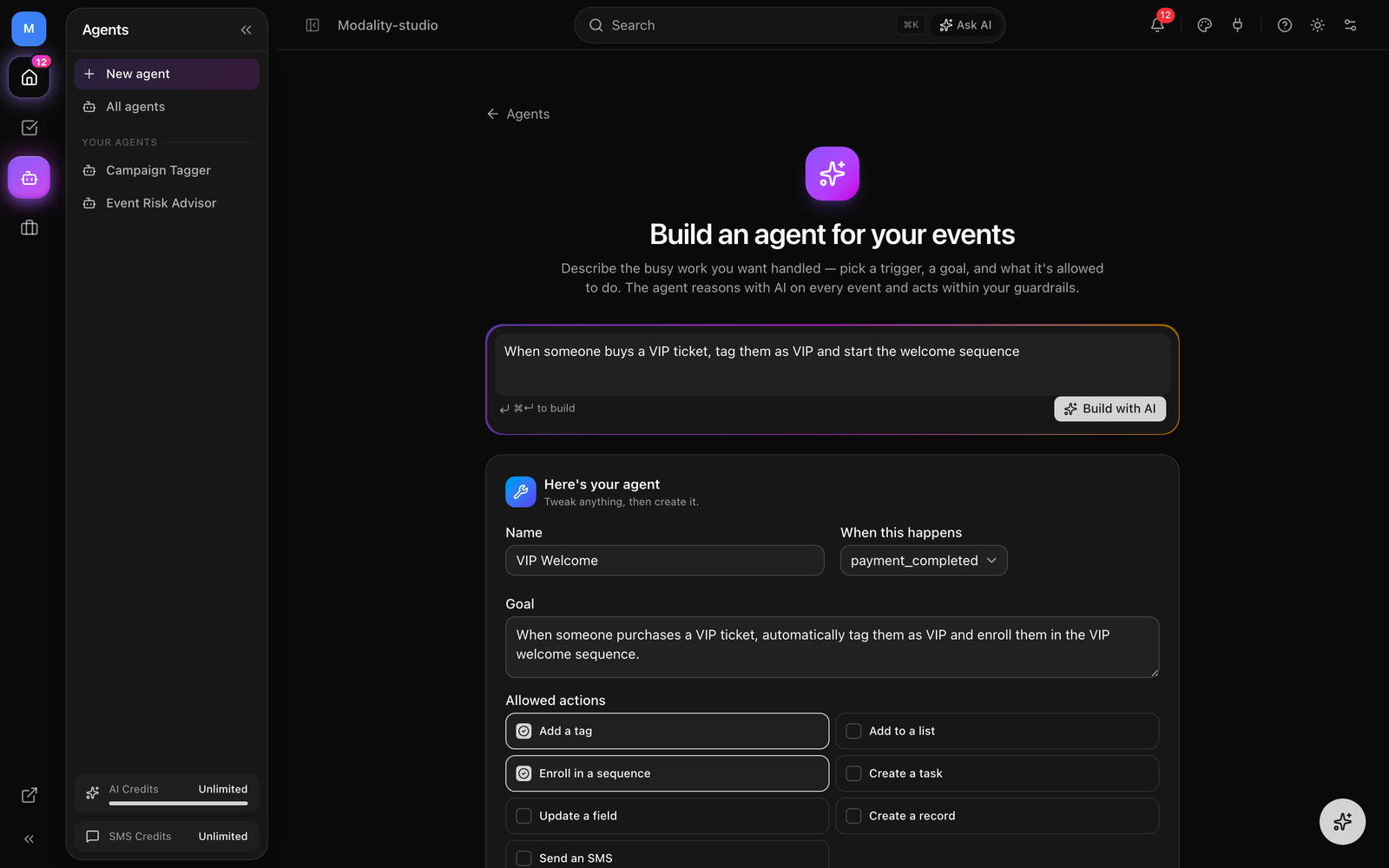
Choose the workspace event that wakes the agent, for example a person added, a form submitted, a tag added, a record created, someone added to a list, a payment completed, or a lead score threshold reached.
- 2
Describe the goal
Write, in plain English, what the agent should accomplish each time the trigger fires (e.g. "When a VIP is added, tag them and enroll them in the VIP welcome sequence").
- 3
Choose allowed actions
Tick the actions the agent is permitted to use. It can only ever take actions you enable here, the checklist is its complete toolset.
- 4
Set guardrails and activate
Decide whether every action needs your approval, then activate the agent. From then on it runs automatically each time its trigger fires.
Actions a Custom Agent Can Take
The available tools are drawn from the automations engine, so each behaves exactly as the equivalent workflow action:
- Add a tag, apply an existing tag to the triggering person/record.
- Add to a list, add the person to one of your lists.
- Enroll in a sequence, start the person in an email sequence.
- Create a task, create a follow-up task for the team, linked to the triggering record.
- Update a field, set a single field on the person (e.g. status, job title, company).
- Create a record, create a new record in one of your custom objects.
- Send an SMS, text the person (requires a connected SMS integration).
To keep the agent honest, the harness injects your real reference data, the actual tags, lists, sequences, and objects in your workspace, plus the triggering person or record, into the model's context, and it validates every tool call against the real action schema before running it. The agent can only use ids that exist; it never invents them.
Event Risk Advisor
The Event Risk Advisor is a prebuilt intelligence agent. On its schedule it resolves the markets to watch, the cities you add plus the cities of your own upcoming events, then ingests signals near those markets from event listings, public-holiday calendars, and weather forecasts, deduplicates them, and uses AI to produce a risk score (0–100) with findings and recommendations for each upcoming event. Every scan also adds to a growing market-intelligence index you can browse in the agent's Market events tab.
- Watched markets, add up to ten cities; markets from your events are included automatically.
- Scan radius, how far from each venue to look (10–100 miles).
- Lookahead window, how far ahead to scan (1 week to 3 months); longer windows cost more agent-actions.
Enabling & Running an Agent
- 1
Create the agent
On the Agents page click New agent, pick a kind from the catalog, give it a name, and fill in its configuration. New agents start as
DRAFT. - 2
Test it first
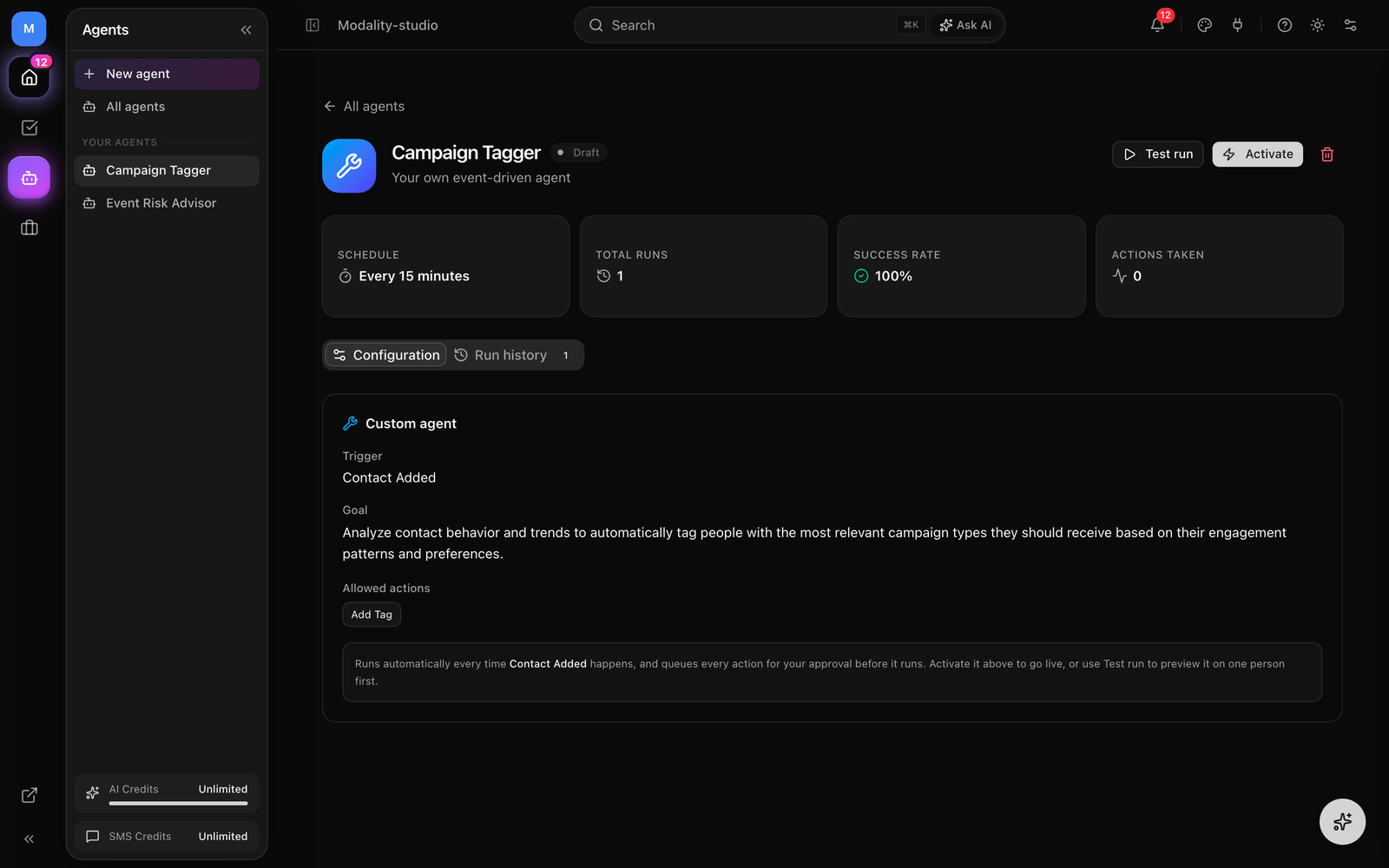
Use Test run (for a prebuilt agent, Run now) to see the harness execute once and write a run to history, a safe way to confirm behavior before going live. For a custom agent, Test run lets you pick a person to simulate the trigger against.
- 3
Activate
Click Activate. This flips the agent to
ACTIVEand schedules its first tick immediately; the scheduler then re-runs it every cadence interval. Prebuilt agents run on their schedule; custom agents run when their trigger fires. - 4
Pause or delete anytime
Pause takes the agent off the schedule while keeping its configuration and history; Delete removes the agent and its run history.
Approving Proposed Actions
When Require approval is on, the agent doesn't act, it queues a proposal. All pending proposals across your agents collect in the approval queue at the top of the Agents page, each with a plain-language summary of what the agent wants to do.
- Approve, Modality executes the exact queued action through the same executor the agent would have used (post the reply and capture the lead, or run the custom action), then marks it executed.
- Reject, the proposal is dismissed and nothing happens.
Each proposal is decided once, after it's approved or rejected it leaves the queue and can't be re-run.
Screenshot: the pending-approval queue on the Agents page, a queued 'Reply to @handle + capture as lead' proposal with Approve and Reject buttons.
Demo GIF / screenshot to be added
Monitoring Agents
Each agent's detail page is its dashboard. A stats row summarizes its footprint, and the tabs let you drill in:
- Schedule, how often it runs.
- Total runs, how many times it has fired.
- Success rate, share of runs that finished successfully.
- Actions taken, cumulative agent-actions it has consumed.
The Run history tab lists every run with its trigger (scheduled, manual, or event), status, summary, and the full perceive → think → act step trace, so you can audit precisely what the agent saw and did. The Event Risk Advisor additionally has a Market events tab that browses the intelligence index its scans build.