Social Posting
Connect your Instagram, Facebook, X, and LinkedIn accounts, then write once and publish everywhere. Compose a post, add media, let AI draft the caption per platform, and publish now, schedule for later, drop it into your posting queue, or save it as a draft, all from one composer. This guide covers connecting accounts, the four post states, per-platform rules (including Instagram's image requirement), the posting queue, and the engagement inbox.
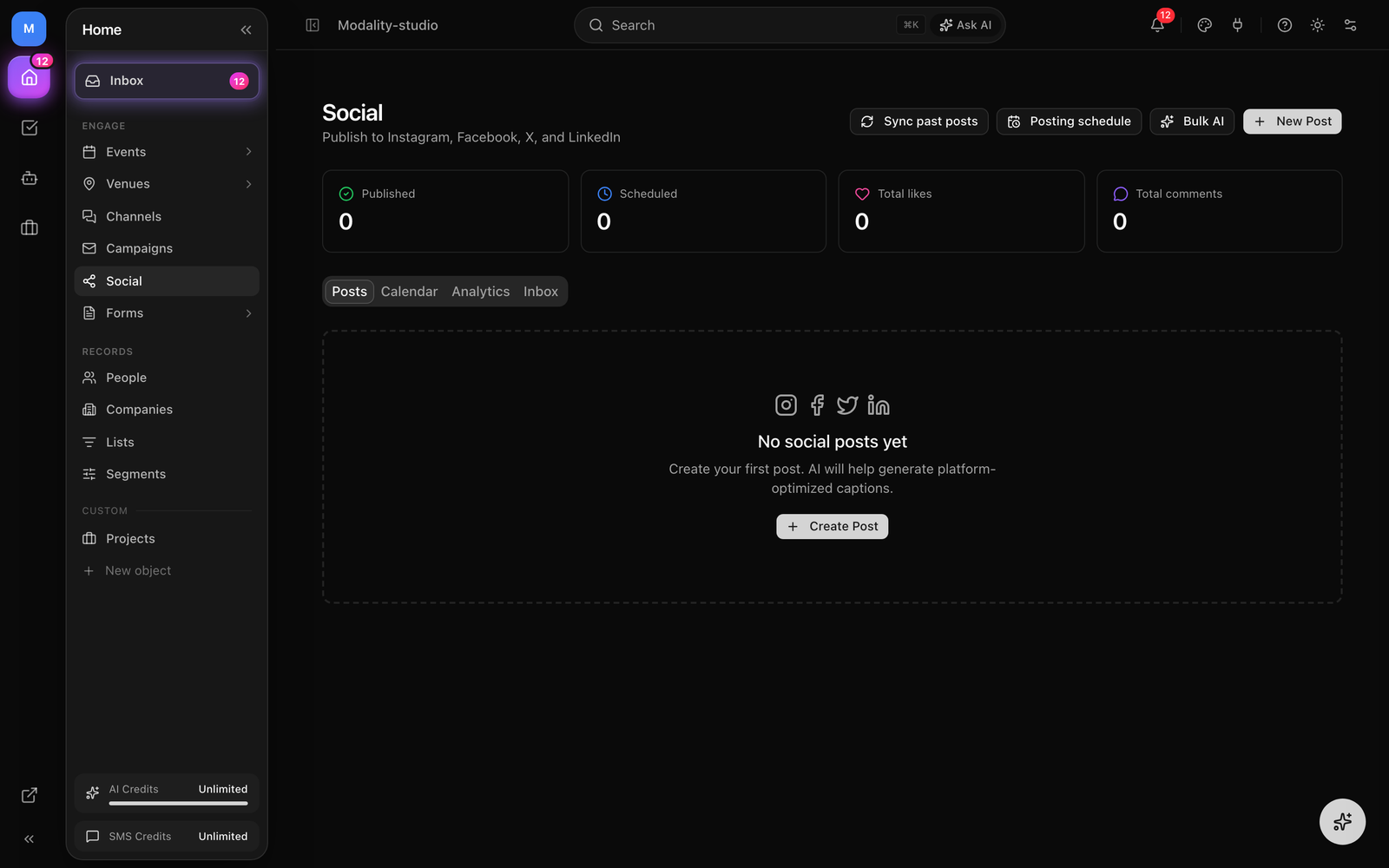
Connecting Social Accounts
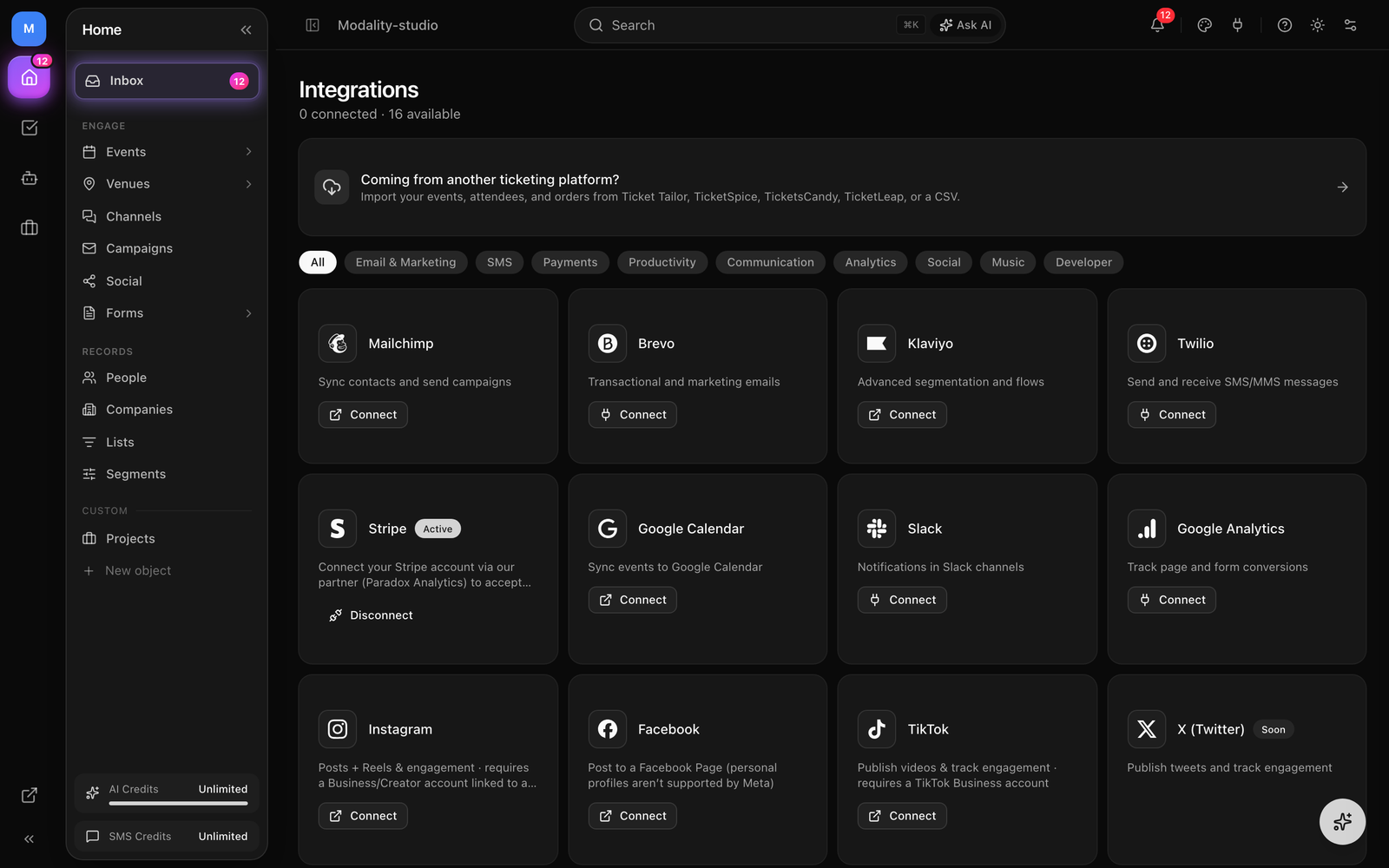
Before you can post, connect at least one account. Modality supports four primary networks, Instagram, Facebook, X (Twitter), and LinkedIn, plus TikTok for video. Accounts are connected through a standard OAuth flow from the Integrations page; Modality never sees or stores your password.
How to Connect an Account
- 1
Open Integrations
Go to Integrations in the sidebar (or click Go to Integrations from the empty-state in the Social composer). You'll see the available social networks alongside your other connectors.
- 2
Click Connect on a network
Choosing a network redirects you to that platform's secure authorization screen. Sign in there and grant Modality permission to publish on your behalf and read engagement. The window returns to Modality when you're done.
- 3
Pick the account or page to post from
Some networks manage several destinations under one login. Modality lists what you can post from, a Facebook Page, an Instagram Business account, your LinkedIn profile or an organization Page, or your X handle, so you can select the right one.
- 4
Confirm it's Active
A connected integration shows as
ACTIVE. Only active social accounts appear as post targets in the composer. You can disconnect or reconnect at any time from Integrations.
Creating a Post
Click Compose on the Social page to open the composer. A single post can go to one network or several at once, and each network can carry its own AI-tailored caption.
- 1
Choose where to post
Under Post to, toggle the connected networks you want. The first connected account is selected for you automatically; tap more to cross-post. Only
ACTIVEaccounts are shown. - 2
Write the content
Type your caption in the Content box. A live character counter shows your length against the selected platform's limit and turns red if you go over, the counter uses the strictest limit among the networks you selected (see Per-Platform Rules).
- 3
Add media (optional, required for Instagram)
Use Upload photo / video (drag-and-drop works too), pull an image From library (your Brand Kit assets), or open Design to create a graphic. Accepted files: JPEG, PNG, GIF, WebP, and MP4 / MOV / WebM video.
- 4
Let AI draft it (optional)
Open AI Generate Content, describe what you want to post about, and Modality writes a distinct caption for each selected platform, with suggested hashtags and a best-time hint. Click Use this to drop a platform's version into the editor.
- 5
Preview
When there's content, a Preview panel renders the post with its media; switch the preview between the selected networks to see each one's caption.
- 6
Publish, schedule, queue, or draft
Choose an action (next section). The Publish button is disabled while you're over the character limit or missing media that a selected network requires.
GIF: the composer, selecting Instagram + X, generating AI captions per platform, uploading an image, and switching the preview between networks.
Demo GIF / screenshot to be added
Publish, Schedule, Queue, or Draft
Every post carries one of four states, draft, scheduled, published, or failed, shown as a badge in the Posts list. Here's how each action maps to those states:
- Publish now, leave the schedule empty and click Publish. The post is created and sent to each network immediately. On success it becomes
publishedand records the provider's post ID; if a network rejects it, that platform's post is markedfailedwith the error surfaced to you. - Schedule, pick a date and time in the Schedule field and click Schedule Post. The post is saved as
scheduledand published automatically at that time. - Add to Queue, click Add to Queue to drop the post into the next open slot in your posting schedule (see below) without picking a specific time.
- Draft, a post created without a schedule and without publishing stays a
draftyou can edit and send later. Bulk AI also produces drafts for you to review before scheduling.
When you cross-post, each network gets its own post record, so one platform can succeed while another reports a problem, the composer tells you exactly which network failed and why.
draft instead of being auto-published, so you never post from an inactive plan.The Posting Queue
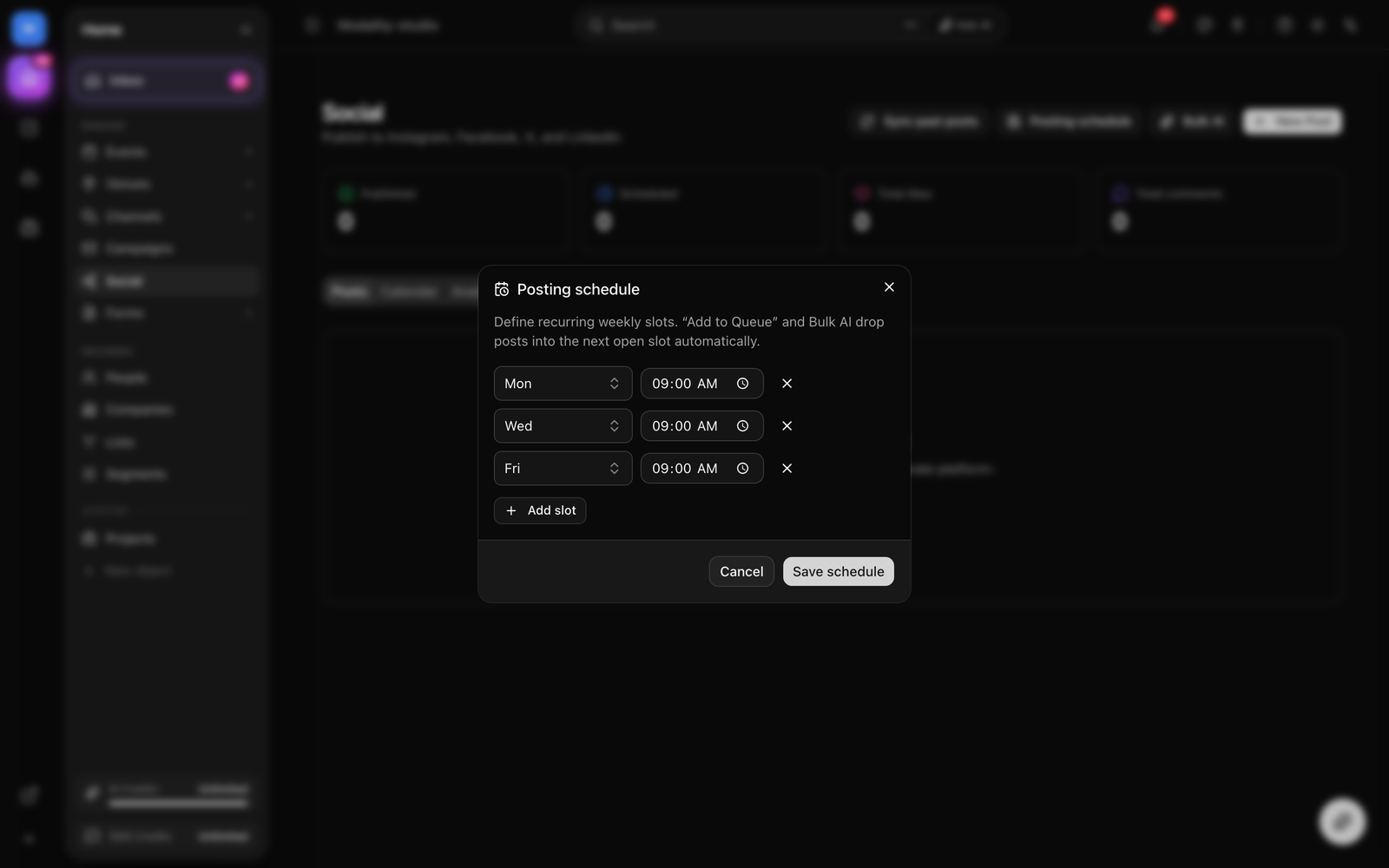
The queue is a set of recurring weekly time slots. Instead of picking a date for every post, you define when you like to post once, then Add to Queue fills the next open slot automatically.
- Open Posting schedule from the Social page header to define recurring weekly slots (a day of the week plus a time).
- If you haven't set any slots, Modality uses a sensible default cadence of Monday, Wednesday, and Friday at 9:00 AM.
- Add to Queue and Bulk AI both drop posts into the next open slots, skipping any slot that already has a scheduled post so two posts never land on the same minute.
Bulk AI
Use Bulk AI (in the Social page header) to generate several posts at once. Tell it the topic and how many posts you want; the AI writes that many distinct posts and proposes a time for each from your posting schedule. You review and edit every draft before anything is scheduled.
Per-Platform Rules
Each network has its own limits and media behavior. Modality enforces the important ones in the composer so a post can't fail for an avoidable reason.
Character limits
- X, 280 characters.
- Instagram, 2,200 characters.
- LinkedIn, 3,000 characters.
- Facebook, 63,206 characters.
When you select more than one network, the counter and the over-limit block use the strictest limit of the selected set (so a cross-post to Instagram and X is held to X's 280).
Instagram requires an image or video
Instagram does not support text-only posts. If Instagram is selected and you haven't added media, the composer shows an "Instagram requires an image or video" warning and the Publish button stays disabled until you add one. Behind the scenes, an Instagram post with a photo is published as a feed post, and a post with a video is published as a Reel (the composer flags this with a "This video will publish as an Instagram Reel" note).
Other platform notes
- Facebook, supports text-only posts, a photo, or a video, published to your connected Page.
- X, publishes text posts. (Image attachment on X uses a separate upload step and is not yet wired up, so X posts go out as text.)
- LinkedIn, supports a text post, an image post, or an article/link share to your profile or an organization Page.
- TikTok, video only; a TikTok post requires a video file (the composer warns if one is missing).
Screenshot: the composer with Instagram selected and no media, the 'Instagram requires an image or video' warning shown and the Publish button disabled.
Demo GIF / screenshot to be added
Adding Media
There are three ways to attach media to a post, all from the Media row in the composer:
- Upload photo / video, pick files from your device or drag them onto the button. Uploads are stored in your workspace assets and added to the post.
- From library, choose an existing image or video from your Brand Kit / asset library.
- Design, open the built-in design studio to create a graphic and export it straight into the post.
Attached media shows as thumbnails (videos are labeled), and you can remove any item before posting. Accepted types are JPEG, PNG, GIF, and WebP images, and MP4, MOV, and WebM video.
Engagement, Inbox & Importing Past Posts
Once posts are live, Modality tracks how they perform and pulls conversations back into your CRM.
- Analytics, the Posts and Analytics tabs show per-post engagement (likes, comments, shares, and reach/impressions where the network exposes them), refreshed from the platform.
- Inbox, the Inbox tab aggregates recent comments across your published posts into one place so you can read and reply without leaving Modality (reply is supported where the network allows it, e.g. Instagram and Facebook).
- Import past posts, for connected Instagram and Facebook accounts, sync your existing/past posts and their comments in. Imported commenters are matched and linked to your CRM automatically.
Screenshot: the Inbox tab showing aggregated comments across posts with reply boxes, and a commenter linked to a CRM contact.
Demo GIF / screenshot to be added
Troubleshooting
- "Connect a social account" in the composer, you have no active social integration. Connect one from Integrations first.
- Instagram post won't publish / "requires an image or video", add media; Instagram never accepts text-only posts. Confirm the Instagram account is a Business account linked to a Facebook Page.
- A network shows "failed", open the post to see the platform's error message. Common causes are an expired token (reconnect the account), an unreachable media URL, or a caption over the platform's limit.
- "No open queue slots", add times in the Posting schedule dialog, then try Add to Queue again.